

Published 15 October 2026 · By JonsTech
Turn Video Transcripts into Social Media Captions That Fit Each Platform
A practical workflow for using a video transcript as context for editable social captions, then adapting the copy for each selected platform before scheduling.
A spoken video can give you the substance of several social captions, but it should not dictate the exact wording for every platform. In WooshOut’s composer, the practical route is to transcribe the video, use that transcript as context for editable AI copy suggestions, then tailor the copy for each selected network and check the preview before scheduling. The transcript supplies the ideas; you still decide what each post says.
That distinction matters. A transcript is usually written to reflect what someone said, while a caption has a job to do: introduce the clip, give a viewer a reason to watch, or make the useful point clear without sound. Copying the transcript word for word can leave you with a long, spoken-style caption repeated across channels. A better process keeps the message consistent and varies its presentation.
Start with the video, not a blank caption box
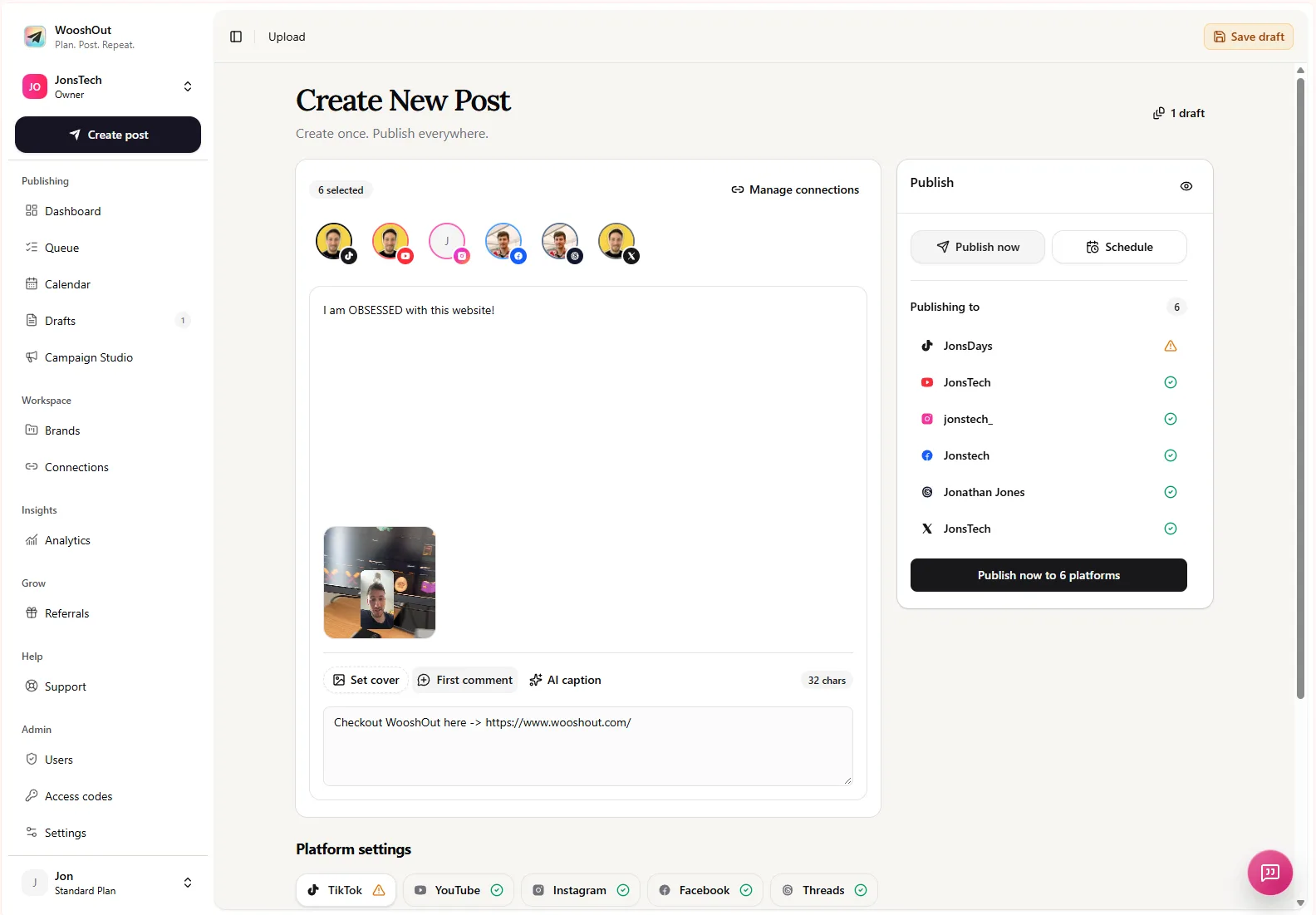
In WooshOut, open Create post and add the video you want to publish. The composer supports video transcription for AI context, alongside AI caption help. Transcription and AI controls can change, so check that they are available in your current composer and for your media before relying on this workflow. A transcript is a working aid, not a guarantee that every word or product name has been recognised correctly.
Once you have the transcript, scan it before generating copy. Correct names, numbers, feature descriptions and any phrases that change the meaning. If the clip covers several points, decide which one the post should lead with. An AI suggestion cannot know which detail you consider most important unless you make that clear in your prompt or editing.
A worked example, with the transcript clearly labelled
The supplied Create New Post screenshot shows a video loaded in the composer and several destination accounts selected. The screenshot does not provide readable audio or a transcript, so the sample below is not presented as speech from that video. It is an illustrative example of how you might reshape a product-demo transcript without repeating it verbatim.
Illustrative transcript for a calendar-app demo: “I keep my next appointments on my home screen with a calendar widget. I can see what’s coming up without opening the app, and I can change the widget to show the view I need.”
The main ideas are easy to separate: the widget sits on the home screen, shows upcoming appointments, and can be changed to suit the user. Keep those claims accurate, then choose a different angle or format for each caption. For example:
TikTok or Instagram: “Your next appointments, right on your home screen. Here’s how I set up the calendar widget.” This puts the visual demonstration first and gives viewers a clear idea of what the clip shows.
YouTube: Use a concise, descriptive title such as “Show upcoming appointments with a home-screen calendar widget”. Add a description that explains the feature and any relevant context. A title and description should represent the actual video, not promise something it does not demonstrate.
Threads: “I like being able to check what’s next without opening my calendar. A home-screen widget makes that part of my routine a little simpler.” This gives the idea a more conversational frame rather than repeating the demo narration.
X: “A calendar widget can put upcoming appointments on your home screen, so you can check what’s next at a glance.” This keeps the same point in a compact standalone post.
These are editorial examples, not claims about a specific generated result. Use only wording that fits the product and the video. If the clip does not show how to change the widget, for instance, remove that implication from the caption.
Generate a starting point, then adapt it by destination
Select the connected accounts that make sense for the video, then use the AI copy controls to create editable suggestions with the transcript as context. WooshOut’s copy options can provide a shared caption and first comment, plus destination-specific copy fields where supported. For example, the interface includes YouTube description and search-tag suggestions, relevant hashtags for TikTok and Instagram, and extended caption options for Threads and X. The available options depend on the selected networks and current controls.
Treat the generated text as a draft to edit, not a final instruction. Remove spoken fillers, repeated explanations and details that belong in the video rather than the caption. Keep product names and feature descriptions consistent. If a post needs a different opening on one network, add a per-platform caption rather than changing the core message everywhere.
The goal is not to produce six unrelated versions. It is to preserve the same accurate point while giving each caption a suitable shape. One network may need a short hook; another may benefit from a little more explanation. Some destinations offer extra fields, such as YouTube’s description and search tags. Where WooshOut provides a shared caption, check whether that wording works for every selected account or whether an override is needed.
Preview the post before you schedule it
A caption is only one part of the post. Check the video preview, caption, destination-specific fields and platform settings together. WooshOut’s composer checks compatibility for selected destinations and displays readiness states. Read any warning, since media fit and available settings can vary by network and account. A compatible post on one destination does not mean every selected destination will accept the same media or settings.
Before publishing, check that the caption matches what viewers will see, links and calls to action are appropriate, and the video’s first moments make sense without relying on the text alone. If one destination needs a different caption or setting, make that change in its platform controls. You can save the post as a draft, publish now, or choose a future date and time.
After scheduling, the calendar shows planned posts and publishing outcomes; the queue gives a closer view of progress by destination. Publishing results are separate, so if one network has a problem, you can see which outcome needs attention rather than assuming every post succeeded or failed together.
When this workflow is useful
Transcript-based captioning is particularly useful for product demos, short explainers and founder videos where the speaker has already described the key point. It is less helpful when the transcript is inaccurate, the clip depends on visual context, or one post needs a claim the speaker never made. In those cases, correct the source text or write the missing context yourself instead of asking AI to fill the gap.
For a wider look at preparing one video for different destinations, see the guide to posting one video across TikTok, Reels, YouTube Shorts and X. To see the broader create, review and publish process in WooshOut, visit the publishing workflow.
The simple rule is to let the transcript preserve the meaning, not dictate every caption. Transcribe, check the source, generate editable options, then adapt and preview each selected destination before you schedule.