

Published 16 October 2026 · By JonsTech
How to Turn a SaaS Feature Release into Social Posts
A practical workflow for turning one verified SaaS feature update into a clear source message and platform-specific social posts, with WooshOut’s composer and Campaign Studio.
Start with one accurate message about what changed and why it matters to the user, then adapt its hook, detail and call to action for each destination. You do not need to invent a new feature story for every platform. WooshOut’s composer keeps shared copy alongside per-platform overrides, while Campaign Studio can turn a product description and brief into editable text-post ideas. You review the wording and choose where it belongs before scheduling.
The distinction matters: adapting a post is not the same as copying identical text everywhere. A concise announcement may suit one destination; another may need a little more context or a different invitation to respond. Keep the underlying facts consistent, but make each version feel natural where it will appear.
Begin with the change, not the campaign
Before writing captions, reduce the release to two things: the user problem and the concrete change. “We’ve improved the dashboard” is too vague to build a useful post around. Name what someone can now do, see or control, and check that the change is available to the audience you plan to address.
A short release note or product owner’s explanation is a good source. Confirm the feature name, availability, relevant plan or setup requirements, and any important limitation. If the update is still rolling out, say so accurately. Leave out adoption figures, time-saving claims or customer outcomes unless you have evidence and permission to use them.
User problem: What task or question is the update about?
Concrete change: What can the user do now, or what has changed?
Useful next step: What should an interested reader do next?
Write one source message you can stand behind
Draft a plain version before trying to sound clever. A useful structure is: “If you [user problem], you can now [specific change] in [product or location]. [Relevant next step].” Keep it self-contained, so an editor or colleague can check each claim against the release details.
Here is an editor-created example using a feature WooshOut currently documents publicly. It describes Campaign Studio’s text campaigns, not a customer result or a claim about a particular release date. The current feature overview says users can generate editable text posts from a product description and brief, review them, select destinations, and schedule the approved campaign. Text campaigns are directed at Facebook, Threads and X. See WooshOut’s current feature overview.
Source message: “Campaign Studio turns your product description and brief into editable text-post drafts. Review the posts, choose connected Facebook, Threads or X accounts, and schedule the ones you approve.” This is the factual centre of the announcement. The versions below shift the framing while keeping that centre intact.
A shorter X version
“Have a product update to share, but no first draft yet? Campaign Studio turns your product description and brief into editable text posts. Review the drafts, choose connected X accounts and schedule the ones that fit.”
A more conversational Threads version
“One feature update can give you more than one useful post idea. In Campaign Studio, add your product description and a brief to create editable text drafts. Read through them, keep the ones that sound right for your audience, then choose connected Threads accounts and schedule the approved posts.”
These are starting drafts, not ready-to-publish copy. Check each sentence against the current product, replace anything that sounds unlike your brand, and add a link or product detail only if it is accurate and useful. The two versions are not simply the same caption with a different platform name: one gets to the task quickly; the other gives the reader a little more framing.
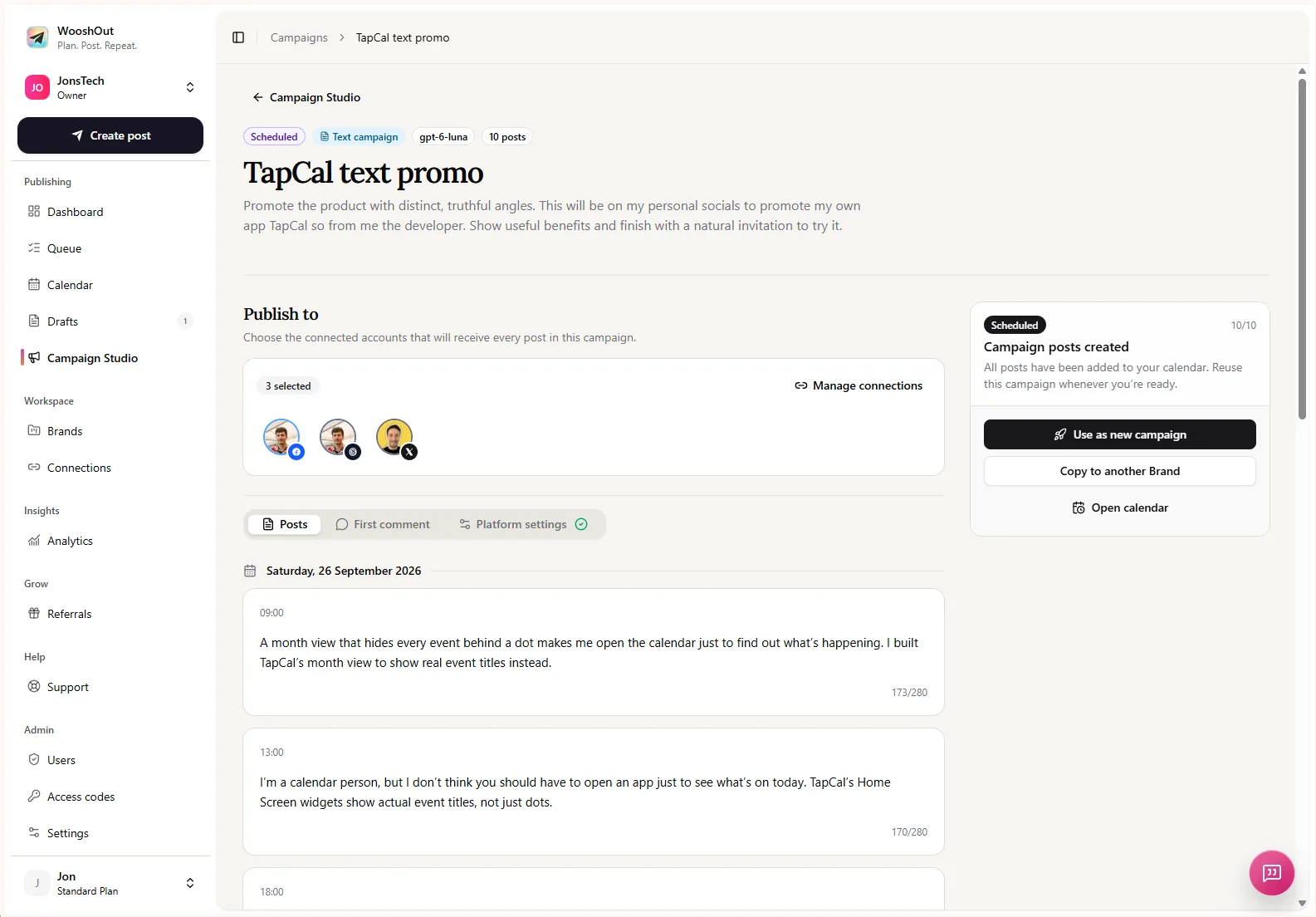
The Campaign Studio screen above shows a text campaign with posts and selected accounts. It illustrates the review workflow; it is not evidence of results from the example announcement.
Adapt the message for each destination
When writing versions yourself, change the opening, amount of context and call to action to suit the post. A professional network might call for a brief explanation of the workflow change; a text-led community post might start with the problem it addresses; a short-form channel may need the feature itself up front. These are editorial choices, not rules that every audience follows.
Also check the format before assuming a post can go everywhere. WooshOut’s text campaigns are directed at Facebook, Threads and X. For other destinations, use the main composer to create a compatible post and select the accounts that fit. Supported post types and settings differ by network, so leave out a destination if the feature story, copy or format is a poor match.
Use WooshOut for the drafting and publishing workflow
Prepare the source. Write down the user problem, the exact feature change, who can use it and the next step you want to offer.
Choose your route. In Campaign Studio, provide a product description and brief to generate editable text-post ideas. Or open Create post for a single announcement you want to adapt yourself.
Review and edit. Remove drafts that repeat the same point. Check names, availability, links and claims against the release. Keep only copy you are comfortable publishing.
Select destinations and tailor copy. In the composer, shared copy can be supplemented with per-platform caption overrides and supported settings. Campaign Studio text campaigns are for Facebook, Threads and X; choose the connected accounts after reviewing the drafts.
Preview and schedule. Check the effective post for each destination, then save a draft, publish now or choose a future date and time. Compatibility checks can flag a warning or block before publishing.
Check what happened. Use Calendar to see planned posts and Queue to inspect destination-specific outcomes. If one account fails, review its status and available error details; do not assume every selected destination succeeded.
The main composer is useful when the release needs one carefully controlled announcement across selected accounts. It lets you begin with shared content, adjust captions for individual platforms and review supported settings before you schedule. The selected destinations are handled separately, so you can inspect each outcome rather than treating cross-posting as one all-or-nothing result.
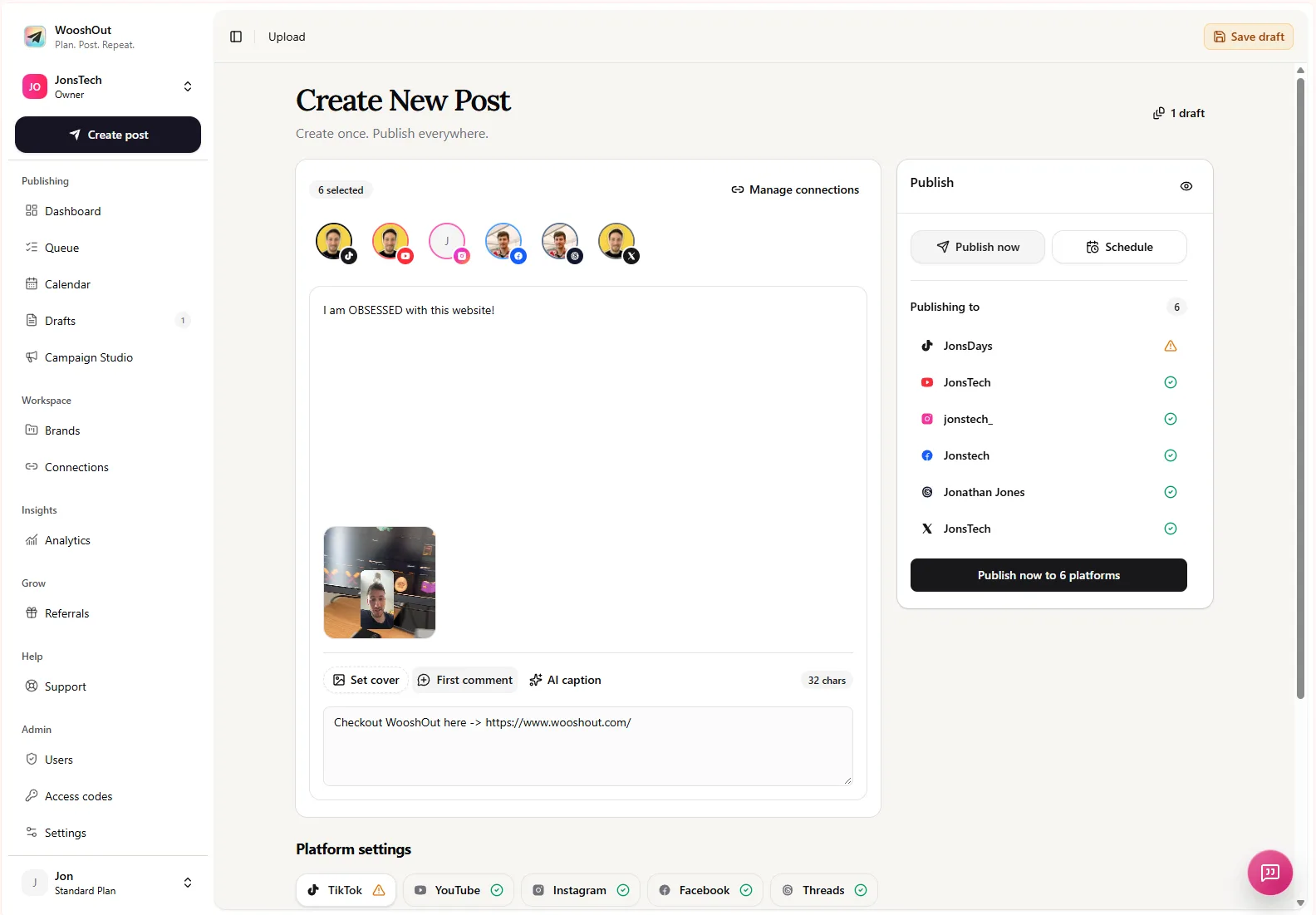
The Create New Post screen shows shared copy, selected destinations and platform settings. Review the actual options for your connected accounts; not every setting or post format is available on every network.
Decide between one announcement and a short series
Use the composer when there is one main announcement and you want to make a small number of destination-specific versions. Use Campaign Studio when you want several distinct text-post ideas from a product description and brief. A batch is helpful only if its posts add different angles: the problem, the feature in use, a relevant question or a clear next step. More drafts do not automatically make a better campaign.
In either route, the final check belongs to you. Confirm the post says what shipped, fits its destination and gives readers a truthful next step. For a closer look at account connection, composition, compatibility checks and scheduling, follow WooshOut’s publishing workflow.