

Published 11 October 2026 · By JonsTech
Social Media Content Ideas for Indie App Launches
Not sure what to post about your app? Start with real product details: one feature, one user problem, a behind-the-scenes decision, or a useful screenshot. Here’s how to shape those ideas into reviewed posts and schedule them with WooshOut Campaign Studio.
If you’re unsure what to post about your app, start with something you can show or explain: one useful feature, a problem it addresses, a decision you made while building it, or a screenshot that makes the product easier to understand. For example, the supplied TapCal campaign screens show text posts and screenshot-led carousel posts about calendar widgets and scheduling. Those are starting points for explaining the app, not evidence of launch results. In WooshOut’s Campaign Studio, you can turn a product brief into editable text posts or make image posts from your own screenshots, then review and schedule the ones you approve.
Start with the material you already have
An app launch does not need a new grand announcement every day. Your product already contains useful material: a screen, a small workflow, a design choice, a recurring user question, or a task that feels less fiddly with your app. Pick one detail and explain why it matters to the person you hope will use it.
Say you are preparing TapCal, a calendar app. A screen showing its widgets could support a simple feature post. A view of scheduling could help explain a common planning problem. The key is to make each post about one point, rather than cramming the app’s entire feature list into every caption.
Four useful angles for an app launch
Explain one feature in plain language. Name what someone can do, then give a little context. For a calendar app: “Add a widget to see your upcoming plans without opening the app.” Keep the explanation within what the app actually does; avoid promising that a feature will transform someone’s routine.
Describe the problem before the product. Start with a familiar task, such as keeping track of plans across several calendars or remembering to check tomorrow’s schedule. Then show how your app approaches it. If you are not sure what users struggle with, treat the wording as a hypothesis to check, not a proven customer insight.
Share a behind-the-scenes decision. Explain why you chose a particular layout, reminder option or onboarding step. A specific decision gives people something concrete to respond to, and it does not require a dramatic founder story. Be clear about what is a design intention and what you have actually observed.
Build a screenshot-led carousel. Use a few real screens to show a short sequence: the starting point, the action, and the result inside the app. Add concise headlines that guide the reader through the images. The screenshots should be yours and should match the current product; the carousel is a way to present real app material, not a claim that AI has invented new artwork.
These angles can be adapted for different destinations. The underlying idea may stay the same, while the caption, framing and format change to suit the post you are preparing. Avoid assuming one identical caption or format is the best fit everywhere.
Turn a product brief into text posts
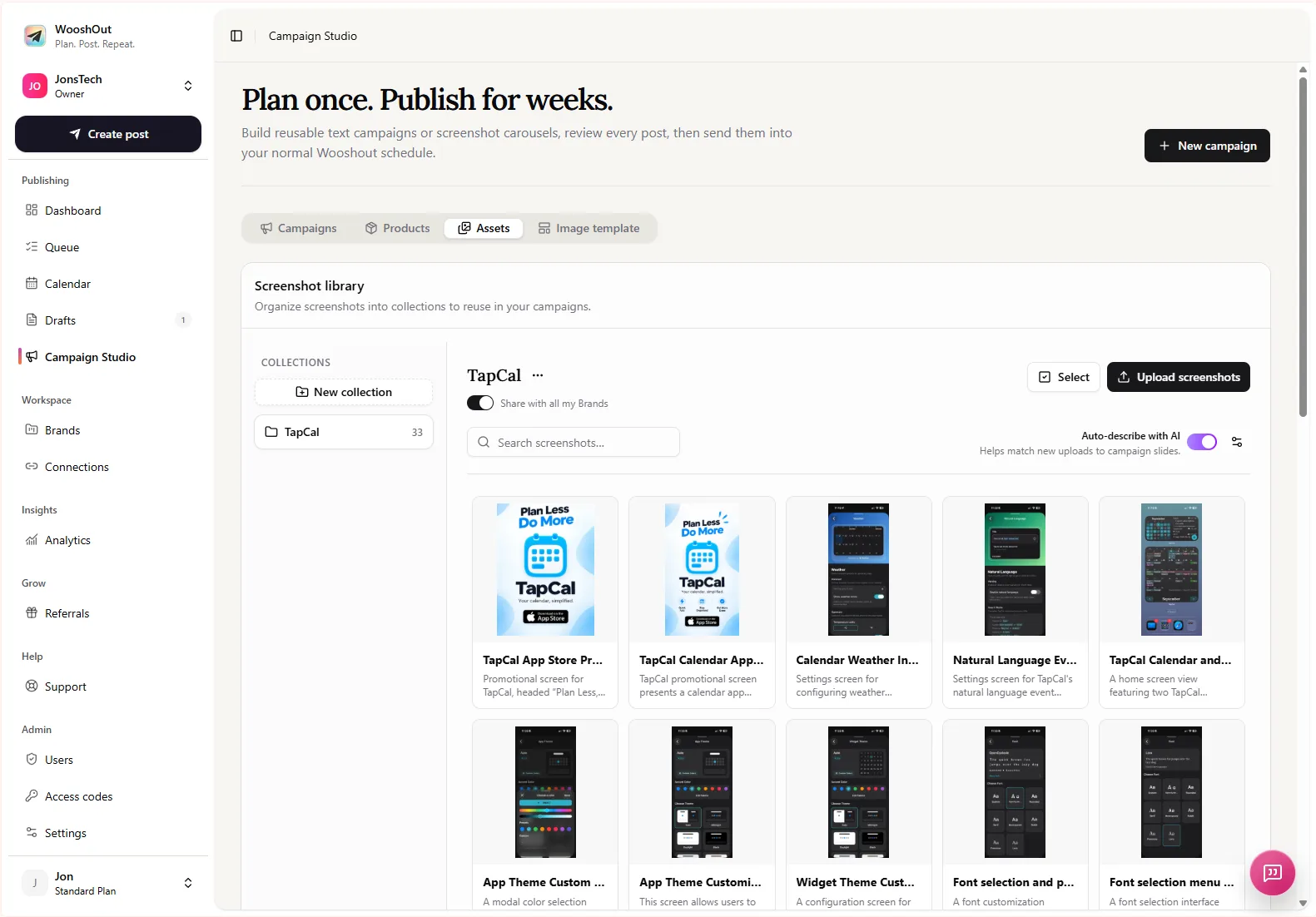
Campaign Studio’s text campaign flow is for creating a batch of editable standalone posts from a product description, campaign brief and optional audience. Text campaigns are directed at Facebook, Threads and X. You choose the connected destinations after reviewing the campaign, so you can decide where each post belongs rather than treating the generated batch as automatically suitable for every account. WooshOut’s feature overview describes the campaign workflow and supported channels.
For a sample TapCal brief, you might write: “Introduce the calendar widget and scheduling features to people who want a clearer view of upcoming plans. Use straightforward language. Explain one benefit per post. Do not invent user testimonials, performance results or features that are not shown in the product.” Include the product description and audience you can genuinely support, then use the generated copy as a set of drafts to work through.
Read each draft for accuracy and voice. Replace broad claims with details someone can verify in the app. If a post says a feature saves time or solves a particular frustration, check whether you have evidence for that claim. If not, describe what the feature does instead. AI can help you get past a blank page, but you make the final decisions.
Make image posts from real screenshots
For a visual campaign, add approved product screenshots to the reusable asset library and select the ones that support your message. Campaign Studio combines selected screenshots with headlines, a gradient and a phone frame in carousel posts. Each carousel contains three to six slides. You can edit the generated post and its slide headlines; the output is a screenshot-based image post, not a newly generated illustration or video.
A useful sequence might show the calendar widget, the schedule view and a screen that helps explain how someone uses the feature. Give each slide one job. If a screenshot is hard to read at carousel size, choose a clearer image or simplify the headline rather than adding more copy.
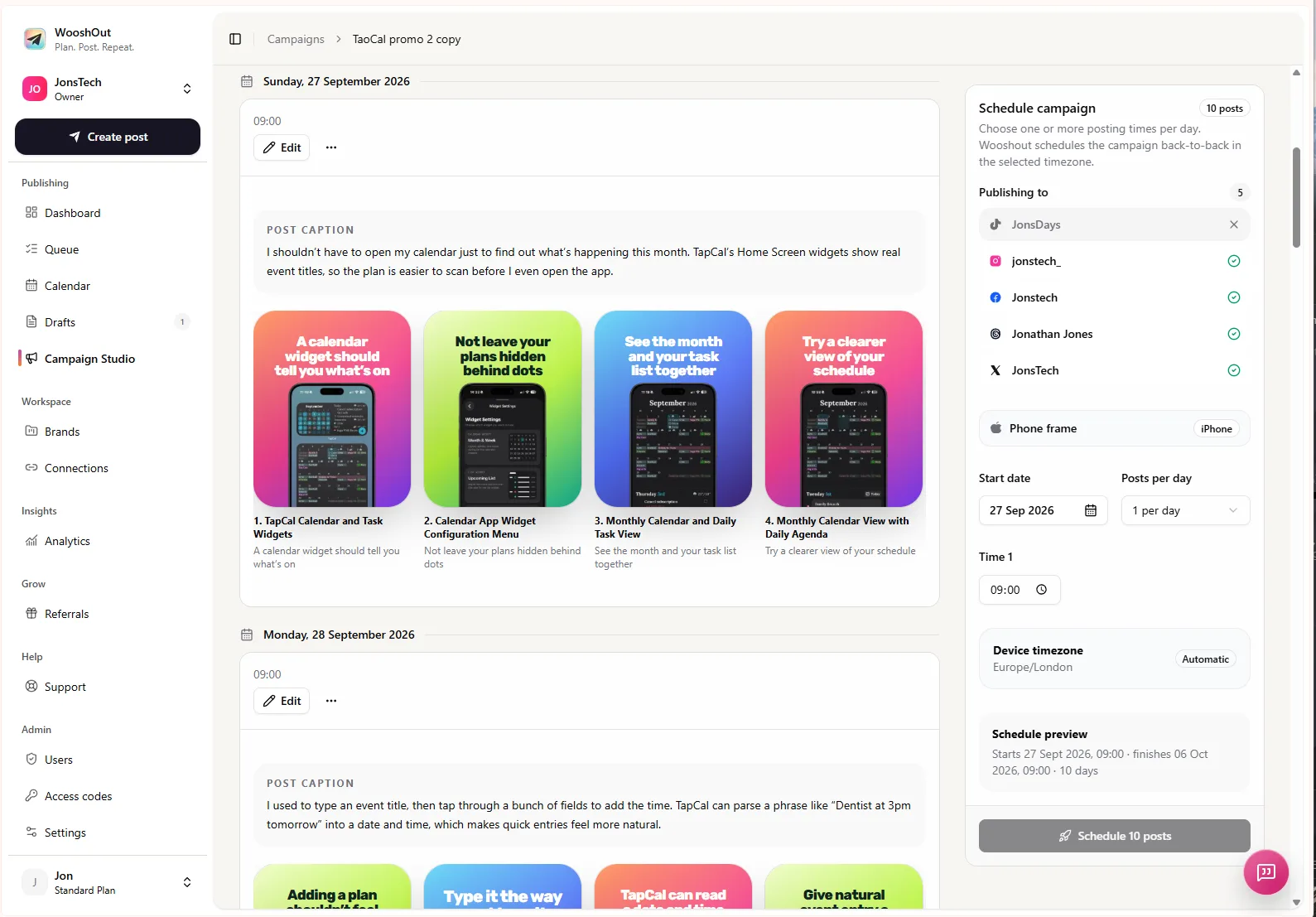
Choose destinations according to the campaign type and the post’s compatibility. Image campaigns support TikTok, Instagram, Facebook, Threads and X, subject to the selected image mode and compatibility checks; YouTube is not an image-campaign destination. Platform options and provider rules can change, so check WooshOut’s current controls before planning around a specific format.
Review the campaign before scheduling
A practical review is more than a quick spellcheck. Confirm that every product detail is accurate, the screenshots show the current interface, and each post makes one clear point. Check that any call to action matches the stage of your launch, whether that is following along, joining a waitlist or trying an available product. Remove invented claims and anything that sounds as though a customer said it when no one did.
Then choose the connected accounts and review the available settings for those destinations. Set a start date, posting cadence and timezone that work for your plan. Approved campaign posts are added to WooshOut’s normal calendar and queue, where you can follow the schedule and publishing outcomes. Each destination has its own result; a problem with one does not mean the other outcomes disappear.
A simple way to get started
Before drafting, gather three things: a concise description of what your app does, one audience you want to address, and a real example such as an approved screenshot or feature detail. Pick one of the four angles, write a short brief, and review the output against the actual product. If you have clear screenshots, try an image campaign; if your strongest material is an explanation or tip, start with text.
You do not need to publish every generated idea. Keep the posts that are useful, accurate and suited to the chosen destination, edit them into your voice, and schedule only the approved work. For more practical publishing advice, browse WooshOut’s guides or review the Campaign Studio workflow.