

Published 12 October 2026 · By JonsTech
How to Batch Social Media Content Without Posting the Same Thing Everywhere
A practical weekly workflow for turning one content theme into distinct, reviewed social posts, then organising them in drafts, the calendar and queue.
Batching social content works best when you batch the thinking, not the finished wording. Choose one weekly theme, write a reusable core message, then give each platform its own angle, caption and suitable format. In WooshOut, you can prepare posts in the composer, save unfinished work as drafts, schedule approved posts and check them in the calendar and queue. The aim is a coherent week of content, not the same caption copied into every account.
Start with one weekly theme
Pick a theme that answers a real question your audience has, or helps them understand a product or idea. For an indie app, that might be “make your calendar easier to manage”. For a small business, it could be “what to check before booking a first appointment”. A theme gives the week a thread, while leaving room for different posts to explain, demonstrate or question it.
Before writing captions, jot down three or four useful points under the theme. They might be a common frustration, a practical tip, a product detail and a question people often ask. This small idea bank gives you material to adapt without forcing every post to make the same point in the same way.
Write a core message, not a universal caption
Write one short source note for the week: the audience, the problem, what you want them to understand and any useful proof or example. It is a reference for creating posts, not copy that must appear unchanged everywhere. Keep claims specific and check that any product detail is accurate before using it.
Then choose a different job for each post. One could explain the problem; another could show a feature in context; a third could invite people to share how they handle it. You may reuse a key phrase or link where it makes sense, but change the opening, supporting detail and call to action to fit the post you are making.
A worked example: one app idea, three different posts
Imagine a calendar app launching a feature that helps people see their month at a glance. The theme is “make planning feel clearer”. The examples below are hypothetical starting points, not platform rules or guaranteed approaches. Facebook, Threads and X all support text posts in WooshOut, so a team could draft these as text-first variations:
Facebook: “A busy month can feel like a list of separate plans. Our new calendar view puts the month in one place, so you can see what is coming up before you fill the gaps. What do you like to get organised first?”
Threads: “Do you plan the week as it comes, or look further ahead? We’ve been working on a clearer month view for people who like to see the shape of their plans before adding more.”
X: “New: a clearer month view for planning ahead. See your calendar in one place, then decide what needs your attention next. Take a look: [link]”
The shared idea is the same, but the emphasis changes: a question for discussion, an invitation to reflect, or a concise update with a link. Replace the placeholder with a real destination, check that each version sounds like your brand, and remove any claim the product cannot support. If a visual would explain the feature better, plan a separate image post rather than assuming one asset fits every destination.
Prepare and adapt posts in one workflow
When the ideas are ready, create posts in WooshOut’s composer. Choose the connected accounts that suit each post, add the shared starting copy if useful, and adjust the caption or supported settings for individual destinations. The composer is designed for one source post with room to tailor its details, not a command to publish identical content everywhere.
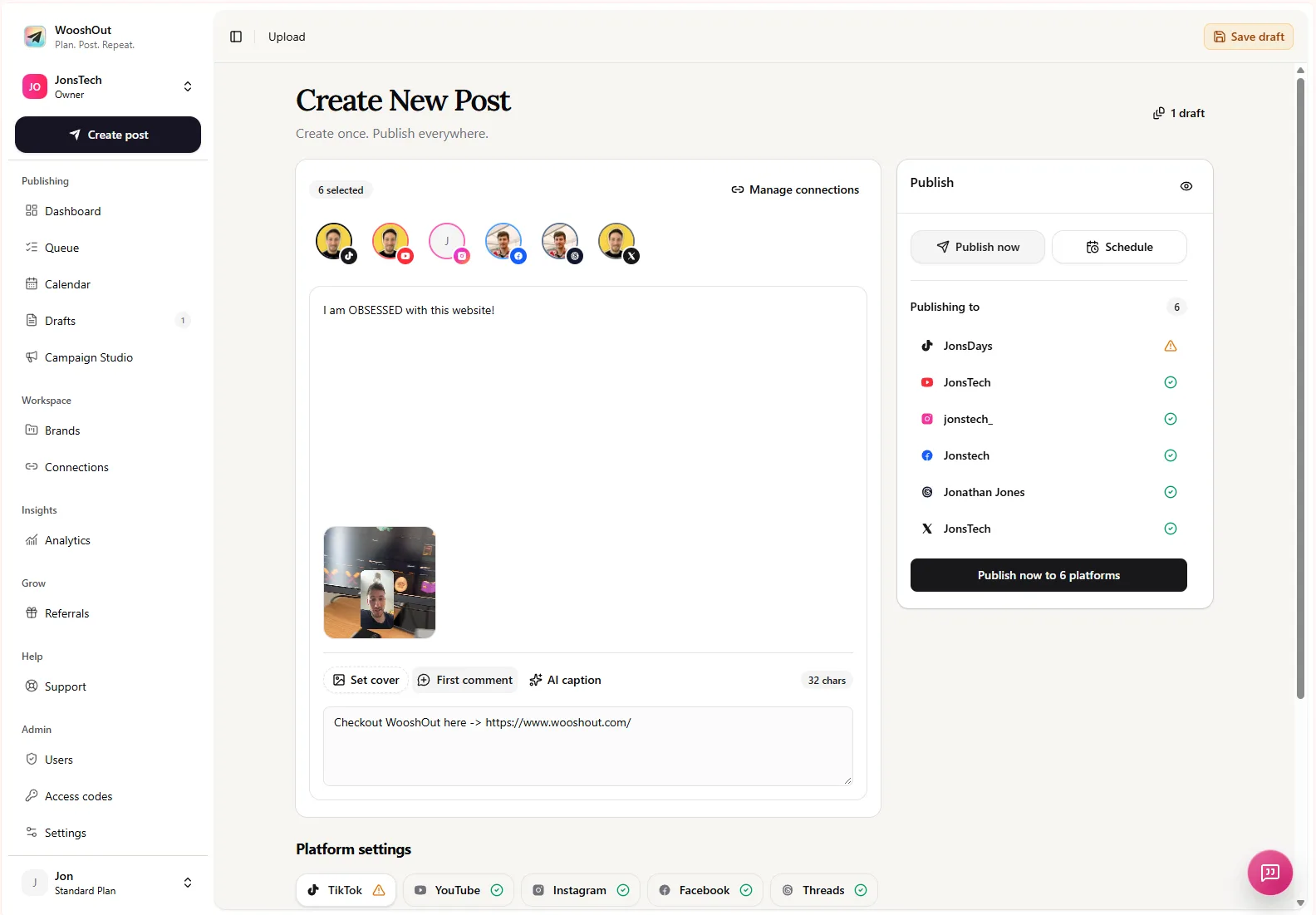
The Create New Post screen shows selected accounts, a content area, media preview and publishing options together. Available controls depend on the post and destination, so review the settings WooshOut presents for each selected account. Compatibility checks can show whether a combination is ready, needs attention or is blocked. Resolve a warning or change the destination when needed rather than treating cross-posting as automatic approval.
AI caption suggestions can give you an editable starting point, but they still need a human check for tone, accuracy and platform fit. If you already have copy, keep it and make targeted changes instead of asking AI to rewrite every post. Save work that is not ready as a draft, then reopen it when you have finished the review.
For a batch of text posts intended for Facebook, Threads and X, Campaign Studio is another option: it can generate editable posts from a brief, which you review and adjust before choosing connected destinations and scheduling. Use that as a source of drafts, not as a substitute for deciding what each post should say.
Schedule the week, then check the plan
Once the copy and destinations are approved, choose a date, time and timezone for each post. Give the week a sensible rhythm: for example, an explanatory post early on, a product example later, then a question or follow-up. Leave space to respond to what happens during the week rather than filling every available slot just because you can schedule it.
The Calendar gives you a month view of scheduled posts and publishing outcomes. Check it for awkward bunching, gaps, duplicate ideas or a post assigned to the wrong account. It is an overview for review, not a replacement for checking the details of an individual post.
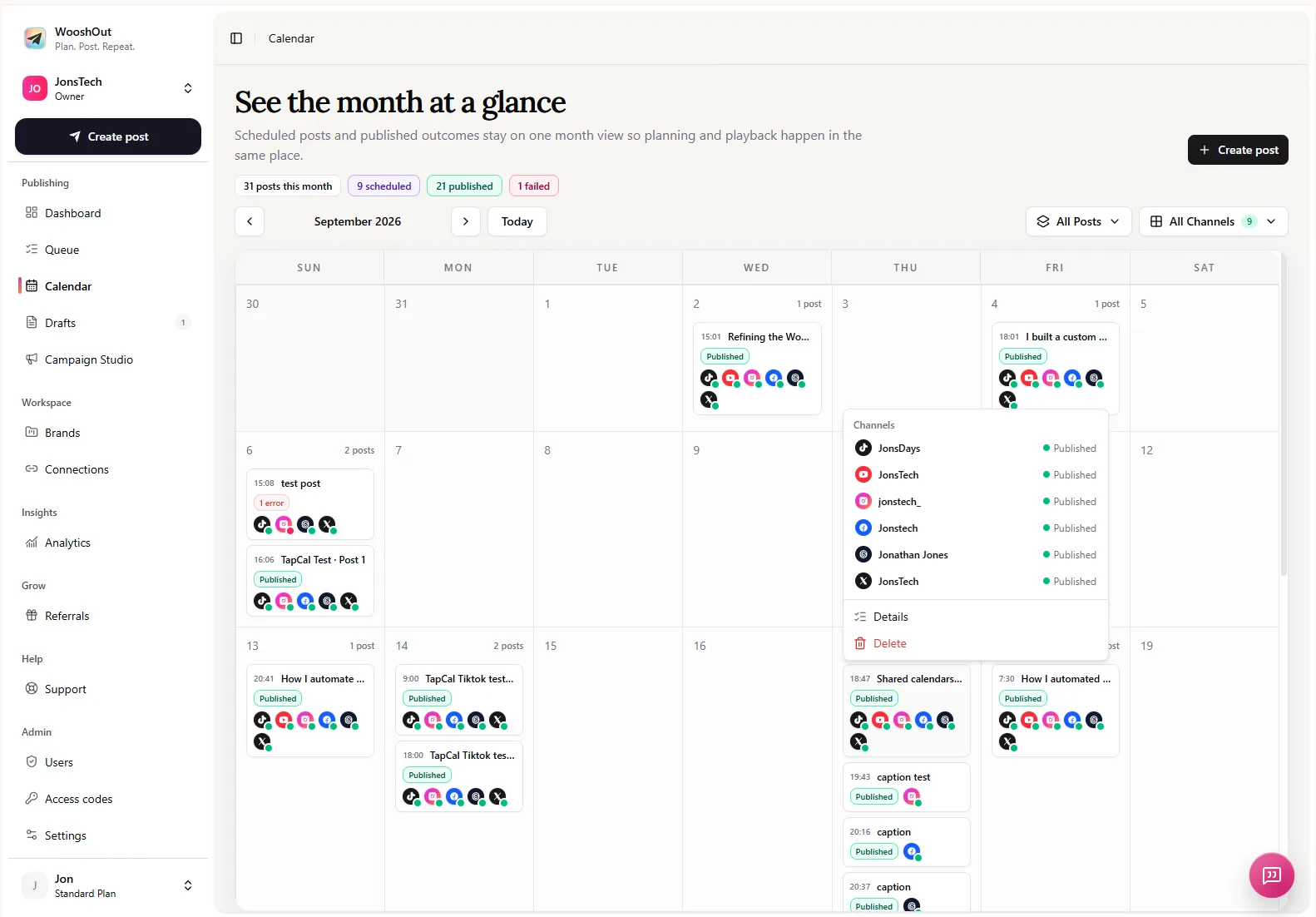
The Queue is the closer view of upcoming and published work. After scheduling, use it to check post status and, where a destination needs attention, inspect the details and available actions. Each selected network has its own outcome: one destination’s failure does not mean every other destination failed too. Do not assume every issue will retry automatically.
A short batching checklist
Choose one useful theme and list several distinct points within it.
Write a core message as a reference, then decide the purpose of each post.
Adapt each caption, asset and supported setting for its selected destination.
Review every draft, check compatibility and confirm the accounts and schedule.
Use the Calendar to review the plan and the Queue to follow publishing outcomes.
Batching should make the work easier to organise without making the content feel mass-produced. Keep the theme consistent, let each post do a different job, and make the final call yourself. For a step-by-step look at account selection, compatibility checks and scheduling, see WooshOut’s publishing workflow.