

Published 28 September 2026 · By JonsTech
Turn Product Updates into a Week of Social Media Posts
A practical way to turn a product update into distinct, useful social posts: find the reader benefits, draft different angles, then review and schedule them across connected channels.
Start with the problem your update solves, not the announcement sentence. Pull out a few distinct benefits, tips or use cases, then give Campaign Studio a product description, audience and brief. Review its post ideas, edit them into genuinely different messages, and schedule the approved posts across connected Facebook, Threads or X destinations. The result should feel like a useful series, not the same launch announcement copied several times.
First, find the different stories inside the update
A release note usually describes what changed. Your social posts need to explain why someone should care. Before drafting, look for separate angles: a benefit for a particular user, a small task that is now easier, a practical tip, or a limitation people should understand. Each angle gives you a reason to publish another post without stretching one claim across a week.
For example, an update about a new export option might support one post about the problem it solves, another showing where to find it, and a third explaining which file types it supports. If those are the only meaningful details, stop there. A shorter, relevant series is better than adding filler just to fill the calendar.
A worked example using a supplied WooshOut update
The source for this example is a product capability described in WooshOut’s supplied product brief. It is not presented as a dated release note. Campaign Studio can generate editable text-post ideas from a campaign name, product description, brief and optional audience. Users review the posts, choose connected destinations from Facebook, Threads and X, and schedule the approved series.
A concise source note might read: “Campaign Studio creates editable text-post drafts from a product brief. Review the posts, choose Facebook, Threads or X destinations, and schedule the approved series.”
That note combines several useful angles: starting from a brief, editing rather than blindly accepting generated copy, choosing destinations after review, and scheduling a series. Here are hypothetical edited examples that give those points their own space:
The workflow angle: “Got a product update to share? Start with the product, audience and campaign brief, then use Campaign Studio to shape a set of post ideas. Treat the first drafts as material to work with, not copy to publish without a read.”
The editing angle: “A useful campaign post should make one point clearly. Review each Campaign Studio draft, remove repeated claims and add the product detail your audience needs to understand the update.”
The publishing angle: “You do not have to send every post to every channel. Review the series, choose connected Facebook, Threads or X destinations that suit each post, then schedule the approved work across different days.”
These are example edits based only on the supplied product details. They do not claim a particular number of posts, a posting result or a launch date. For your own update, replace the general wording with verified details from the release note and make sure each post earns its place.
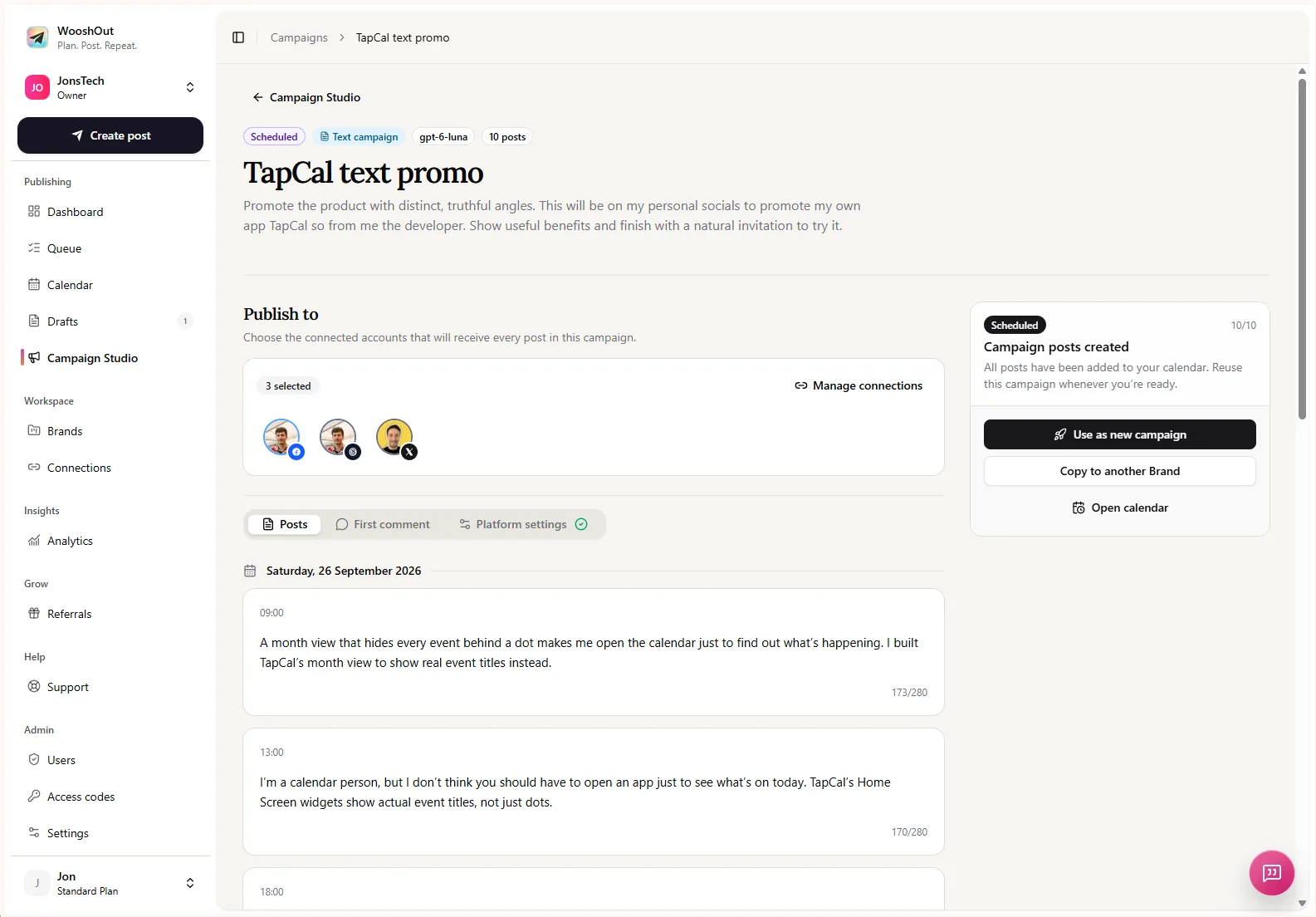
The Campaign Studio screen above shows a scheduled text campaign with post cards, selected social accounts and tabs for posts, first comments and platform settings. It illustrates the review-and-manage stage; it is not a substitute for checking the options available to your own connected accounts.
Build the campaign from a useful brief
In Campaign Studio, provide the context a colleague would need to write about the update accurately. Include the product description, who the update is for, what changed, why it matters and any limits or details that must be preserved. A vague prompt encourages broad copy; specific source material gives you something concrete to check.
A practical brief could say: “Write a series for indie developers evaluating this feature. Explain the user problem first, include one practical use case, and avoid claims about performance or results. Keep each post focused on a different point. Use only the product facts below.”
Campaign Studio generates editable standalone text posts for Facebook, Threads and X. The user chooses actual connected destinations after reviewing the campaign. It is not a promise that every generated draft will be suitable for every channel, or that all platform settings are identical. Check the destination choices and compatibility shown in your account before scheduling.
Edit for substance, not just wording
Read the generated ideas beside the original update. Keep only posts that add a distinct benefit, instruction, example or necessary context. If two drafts make the same point, combine them or remove one. Then check every product name, capability, qualification and call to action against the source.
Make the copy sound like your product team. Replace generic praise with a real detail, use the words your users use, and give each post a clear purpose. One post might introduce the problem; another could show how to use the feature; a later post might answer a common question. If the update has no genuine how-to or extra benefit, do not invent one to lengthen the series.
Also review the destination for each post. A sentence that works as a short conversational update may need more explanation elsewhere. Tailor the copy where it helps, and avoid assuming that identical text is the best fit for every network. WooshOut lets you review campaign posts and platform settings before scheduling; the final editorial decision stays with you.
Schedule the series, then check what happened
Once the posts are ready, select connected Facebook, Threads or X destinations that fit them. Set the campaign’s start date, posting times and timezone, then review the schedule before confirming. Spacing posts across days gives each idea room to stand on its own; it does not guarantee that every post will reach or engage more people.
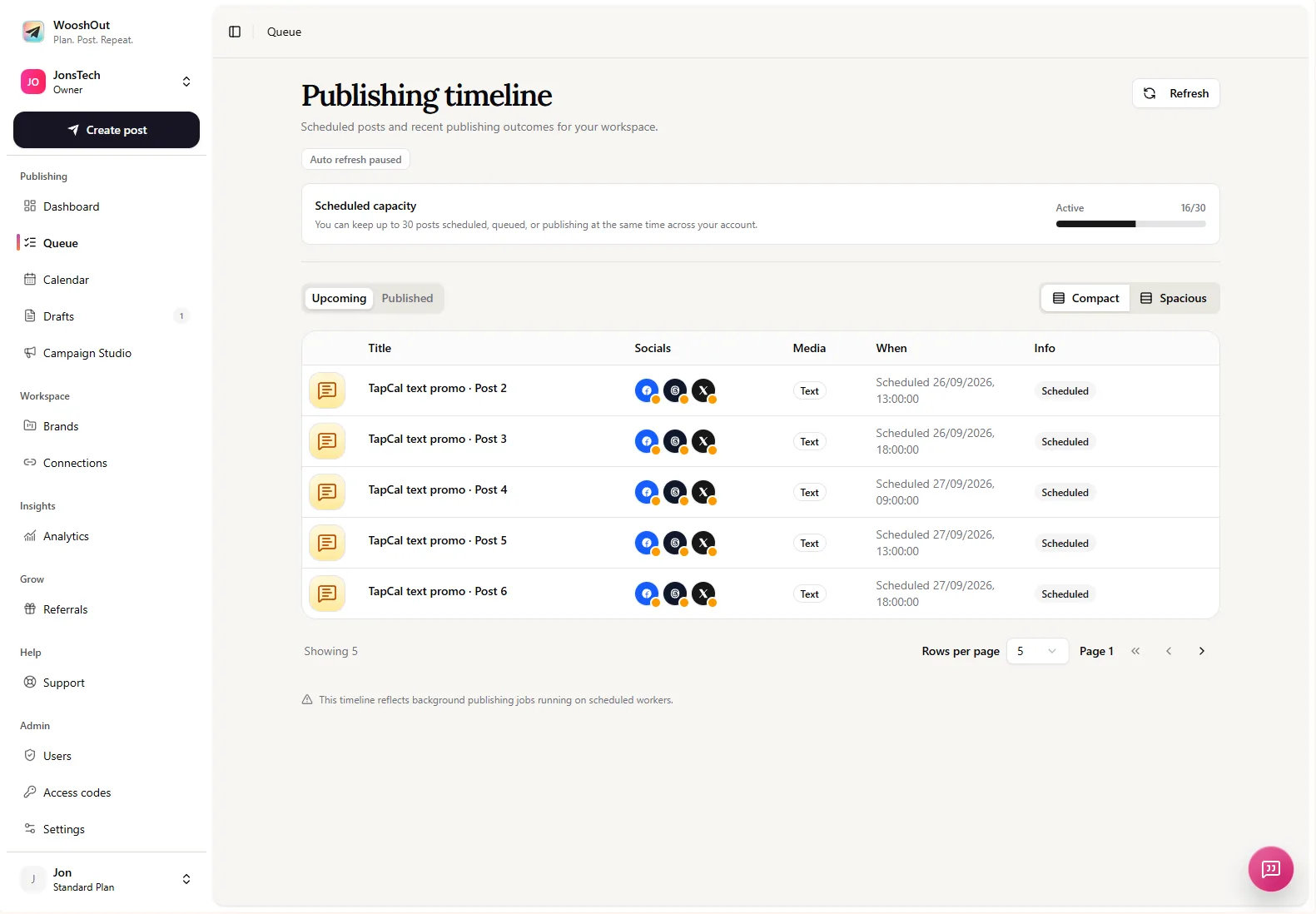
After scheduling, the Queue gives you a closer view of upcoming work and provider-specific publishing status. Each destination has its own outcome, so you can see which posts published and which need attention. If something fails, check the displayed details and use a retry option when WooshOut offers a safe one. Do not assume every provider issue recovers automatically.
To make the next product update easier to plan, keep the original release note and your final edited posts together as a reference. When you are ready to organise the full publishing workflow, see the WooshOut workflow guide.