

Published 13 October 2026 · By JonsTech
How to Plan a SaaS Product Launch Countdown on Social Media
A practical countdown plan for SaaS founders: shape launch messages, prepare platform-appropriate posts and schedule approved content ahead of launch day.
Build your launch countdown around a handful of useful moments, not a fresh post every day: name the problem, reveal the product, show one feature, remind people when it launches, then share the launch-day announcement. Write and review those messages in advance, adapt each for the destinations you choose, and schedule the approved posts. WooshOut’s Campaign Studio can help turn a brief into editable text posts or screenshot-based image carousels, so you can prepare a campaign without treating an AI draft as finished copy.
Here’s a hypothetical timeline for a small SaaS launch. Move the dates to suit your release, and use only claims, screenshots and availability details your team has approved.
Start with a five-part countdown
A countdown works best when each post gives people a reason to understand, remember or try the product. You don’t need to publish every idea on every network. Treat this as a core sequence, then choose the formats and destinations that fit your audience and launch material.
Ten days before: describe the problem. Show that you understand a specific frustration your intended users face. For example, a project-planning app might explain how scattered task lists make it harder to see what needs attention. Keep the focus on the problem, rather than making a feature list.
Seven days before: reveal the product. Introduce its name, who it is for and the job it helps with. Use clear, approved product details. If the release date or access arrangements are not final, don’t imply that people can sign up or buy today.
Five days before: demonstrate one feature. Choose a short screen recording, a product screenshot or a simple explanation of a real workflow. Make the benefit understandable without suggesting that one feature solves every user’s problem.
Two days before: post a launch reminder. Repeat the confirmed date and time, say what will be available and tell readers what to do next. A reminder is useful even for people who saw the reveal but haven’t acted.
Launch day: announce what is live. Share the working product page or signup route, explain who can access it and mention any real limits or eligibility conditions. If something changes, update the post instead of leaving outdated information scheduled.
Turn the sequence into a campaign brief
Before opening a scheduler, collect the details that will keep the campaign consistent: the target launch date, product description, intended audience, approved feature claims, destination link and any words or promises to avoid. Gather screenshots or other launch assets your team is allowed to use. That preparation gives you a better starting point than asking an AI tool to invent a product story from a vague prompt.
In WooshOut Campaign Studio, add your product details and campaign brief, then choose a text campaign or an image campaign. Text campaigns generate editable standalone posts for Facebook, Threads and X. Image campaigns use screenshots you supply to make carousel posts with three to six slides; they are not AI-generated product artwork or video. The available format and destination depend on the campaign type and compatibility checks.
A useful brief could ask for one problem-led post, a product introduction, a feature explanation, a date reminder and a launch announcement. Specify the voice, audience and factual boundaries. If you have a set of approved app screenshots, select images that support different points rather than repeating the same screen in every carousel. Treat generated text and layouts as working drafts, not approved marketing.
Review for people and platforms
Read every draft before it goes into the queue. Check that product names, dates, links and feature descriptions are correct, and remove anything that sounds like a promise you cannot support. Make the opening line clear enough to stand on its own. A launch post should tell people what is happening, not make them hunt through a vague teaser to find out.
Next, choose where each post belongs. A text campaign is directed at Facebook, Threads and X; an image campaign can use selected compatible destinations such as Instagram, TikTok, Facebook, Threads and X. Don’t assume the same copy or creative is a natural fit everywhere. Adjust the caption, call to action and post settings for each network where the composer supports it. WooshOut’s platform compatibility review can flag combinations that need attention before publishing.
If you want a YouTube launch video, for instance, plan and schedule it separately through the main composer rather than treating it as a Campaign Studio text post or carousel destination. The main composer supports compatible video posts across selected accounts, with per-platform settings to review. Formats and account requirements can vary, so check the choices shown for the connected accounts you intend to use.
Schedule backwards from launch day
Once the sequence is approved, set a start date and posting times in your chosen timezone. For the hypothetical ten-day countdown, you might schedule the five key posts at ten days, seven days, five days, two days and launch day. Leave room for a useful update if the product changes, rather than filling every available slot.
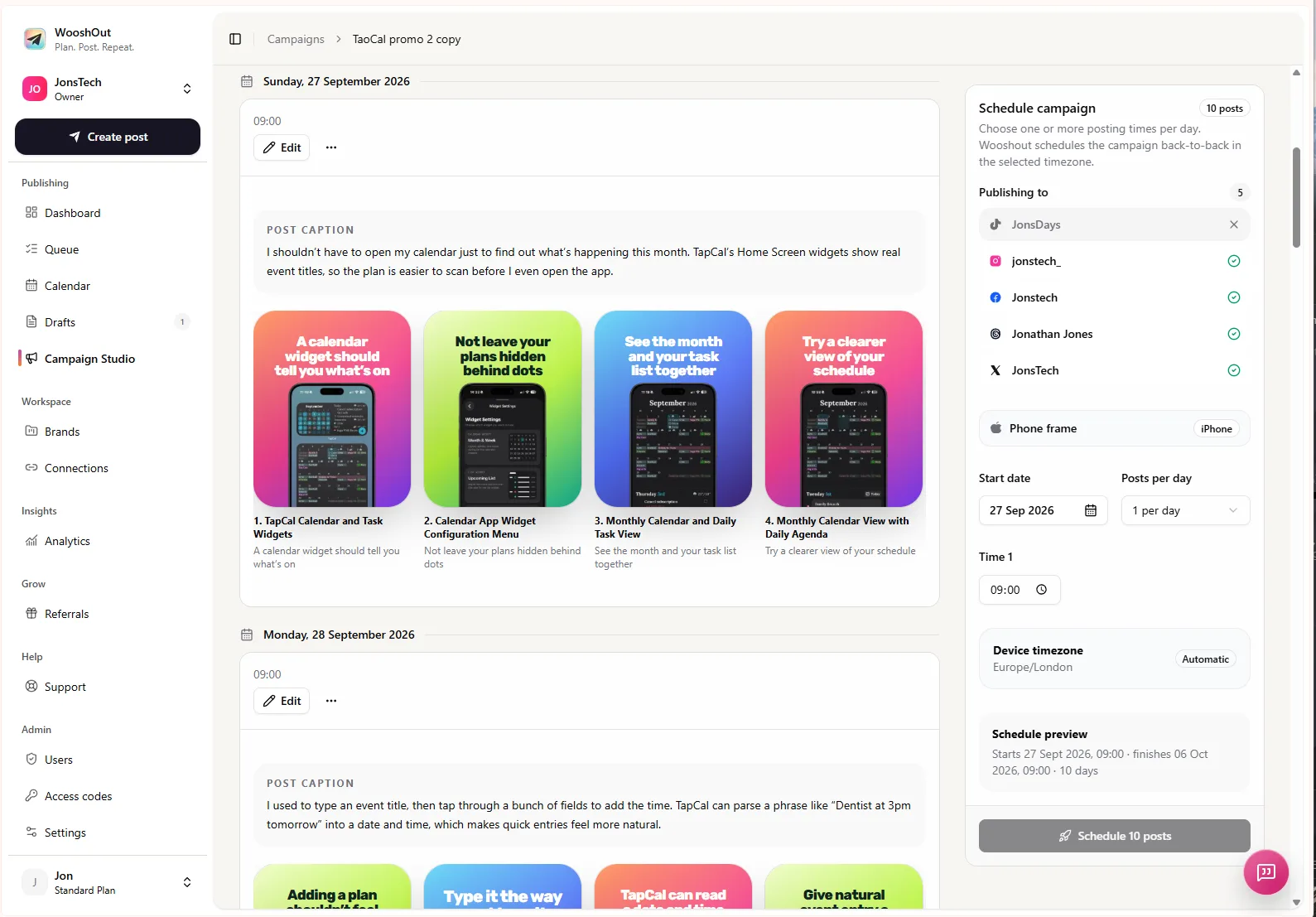
In Campaign Studio, review the generated posts, select connected destinations and set the campaign cadence before scheduling the approved series. The posts then appear in WooshOut’s Calendar and Queue. For anything outside that campaign format, use the composer to create a separate post, customise its platform versions and schedule it for the right moment. The
publishing workflow explains how destination checks, scheduling and per-platform results fit together.
Do a final check before launch
Scheduling ahead helps avoid rebuilding each post at the last minute, but it does not remove the need to check the campaign. Before the countdown begins, confirm that the social accounts are connected, the launch details are still current and each scheduled post points to the right destination. Check the calendar for timing clashes and the queue for posts that need attention.
Publishing results are tracked separately for each destination, so if one post needs attention you can see which account is affected without assuming every other destination failed too. Provider issues can still occur, and retries depend on the available action for that post. After launch, use provider-reported analytics as one input to your next plan; figures are cached and availability differs by network, so they are not live counters or proof that a particular post caused a result.
The practical next step is to write the five messages and gather the assets before you schedule anything. Then use Campaign Studio to shape editable drafts, review the platform fit and put the confirmed launch sequence on your calendar.