

Published 1 October 2026 · By JonsTech
How to Build a Social Media Posting Rhythm for a SaaS Launch
A practical way to extend a SaaS launch beyond day one: plan a small sequence, review it in WooshOut Campaign Studio, and schedule the posts you’re ready to publish.
You don’t need a brand-new idea every day after launch. Plan a short sequence that introduces the problem, shows the product, answers a likely question, explores a feature or use case, then returns to the core message from another angle. WooshOut Campaign Studio can help turn a product brief into editable text posts or screenshot-based image carousels, which you can review, adapt and schedule for connected accounts.
The point is to keep useful launch information moving, not to fill every date on a calendar. A clear post that helps someone understand your product is better than a daily update written only to maintain a streak.
Give each post a different job
A launch announcement tells people your product exists. It rarely explains everything a potential user needs to know. Someone may want to recognise the problem first; someone else may need to see the product in action or understand whether it suits their workflow. A small sequence lets you address those questions without making every post another version of “we’ve launched”.
Try this flexible order. It’s a set of angles, not a required posting frequency:
Name the problem. Describe a familiar frustration in plain language.
Show the product. Use a screenshot or a short demonstration to make the idea concrete.
Answer a common question. Explain who the product is for, how a key part works, or what someone needs to get started.
Spotlight a feature or use case. Focus on one useful detail rather than listing everything the product can do.
Revisit the main message with a fresh angle. You might explain why you built it or show a different step in the same workflow.
Space the posts according to your launch plans and the material you have. If a product question keeps coming up, address it. If you have nothing new to add, leave a gap rather than publishing filler.
Start with a brief grounded in the product
An AI campaign draft is only useful when it has real product context. Before opening Campaign Studio, write down the audience, the problem you’re addressing, what the product actually does and any claims you should avoid. Add screenshots you can stand behind. That gives you something specific to review instead of a batch of generic launch language.
Here’s a sample brief for TapCal, based on the product screenshots shown in WooshOut’s Campaign Studio. The example stays close to what those images show: calendar widgets and scheduling. It is a starting brief, not a claim about every TapCal feature.
Product: TapCal, presented here through screenshots of calendar widgets and scheduling.
Audience: People who want to see calendar information in a widget and organise their schedule.
Campaign aim: Explain the product visually and give people a few distinct ways to understand what it offers.
Source material: Approved TapCal screenshots showing calendar views, widgets and scheduling screens.
Editorial guardrail: Describe only what the selected screen demonstrates. Don’t promise productivity gains or imply features that aren’t visible or confirmed.
An editor-reviewed five-post example
The sequence below is sample copy written from that brief. It is not presented as text generated by WooshOut or as a published TapCal campaign. Before publishing, the product owner should verify that each line matches the current app and add an appropriate destination for the reader.
Problem: “When your calendar is out of sight, checking the week can mean opening another screen. What would you want to see at a glance?”
Product view: “Here’s a closer look at TapCal’s calendar widget. The screenshot shows the kind of calendar information you can bring into view.”
Question: “What should a calendar widget show first? This TapCal screen puts the calendar view front and centre. Take a look and decide whether it fits the way you plan.”
Feature angle: “A look at scheduling in TapCal. This screen shows the scheduling view; check the app for the options that suit your routine.”
Fresh angle: “A calendar can be easier to understand when you can see the layout. Here’s another TapCal view, with the widget and schedule shown from a different angle.”
These drafts deliberately avoid claims about saving time, never missing an event, or supporting a particular calendar integration. Add those details only if you have verified them. The same editorial check applies to calls to action: link to the current product page or app listing only when the destination is accurate.
Choose text or screenshot-based image campaigns
Campaign Studio supports two different approaches. A text campaign generates editable standalone posts from a product description, brief and optional audience. The current Campaign Studio information describes text campaigns for Facebook, Threads and X. You review the drafts and choose the connected accounts you want to publish to.
An image campaign uses screenshots from your asset library to create promotional carousels. Each carousel contains three to six slides, combining selected screenshots with headlines and a reusable template. It creates image posts, not AI-generated video or new artwork from a text prompt. Supported destinations depend on the image mode and compatibility checks; YouTube is not an image-campaign destination.
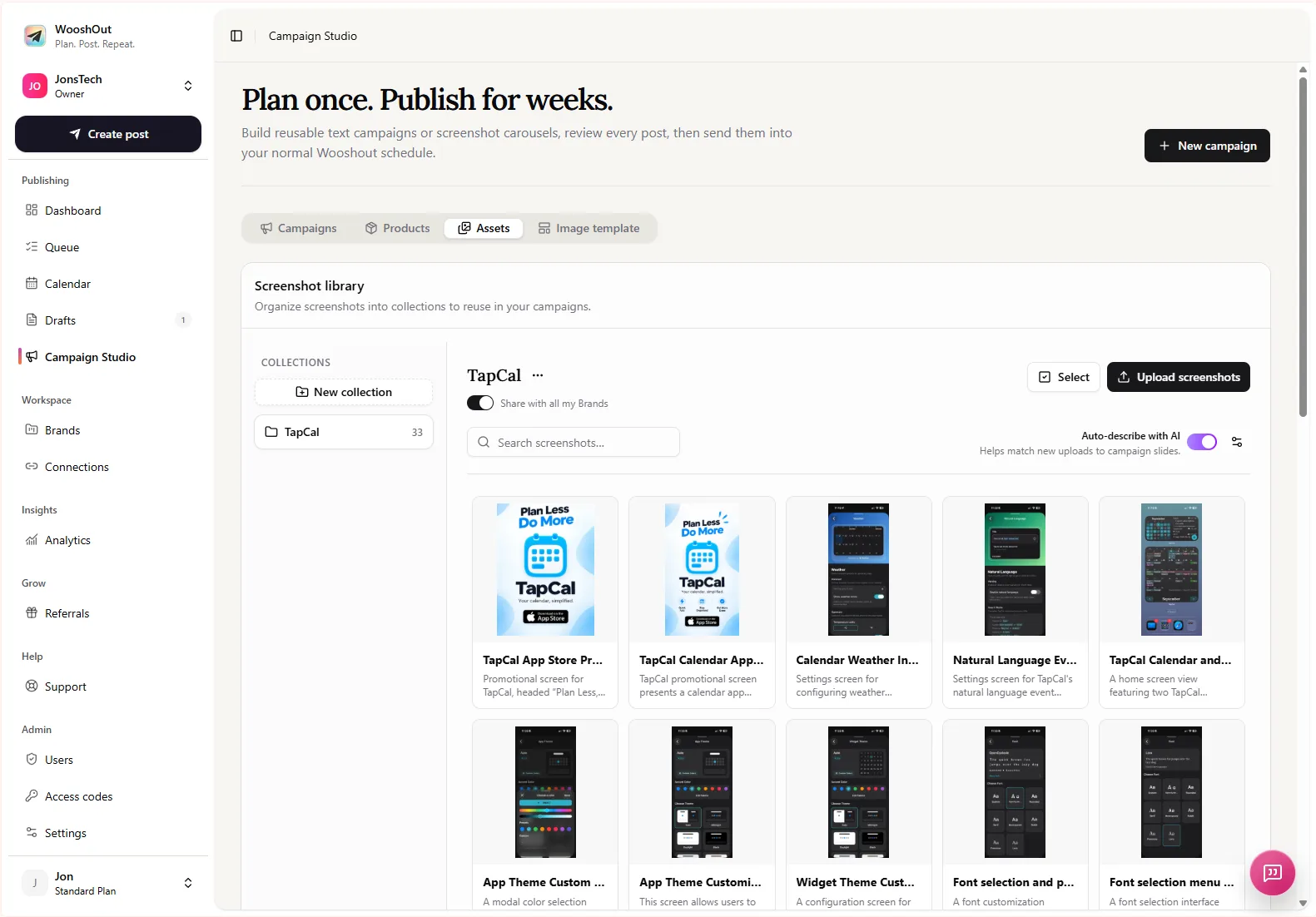
For the TapCal example, text posts could explain the problem or a product view, while a carousel could show several approved calendar and widget screens in sequence. Use the image route when the screenshots do the explaining. Use text when the idea is clearer in a short written post or you have not prepared suitable images.
Review the campaign, then schedule what is ready
In Campaign Studio, provide the product context and brief, generate a batch, then inspect the posts before they go out. Edit or remove weak drafts, select the actual connected destinations, and check each post’s caption, media and platform settings. AI gives you editable starting points; it does not know whether a product claim is current or whether a draft sounds like your team.
When the sequence is ready, choose its start date, posting times and timezone, then schedule the approved posts. The campaign’s timing controls help you lay out a cadence across days; they don’t mean you must publish every day. Fit the schedule around your material and your capacity to respond to comments or questions.
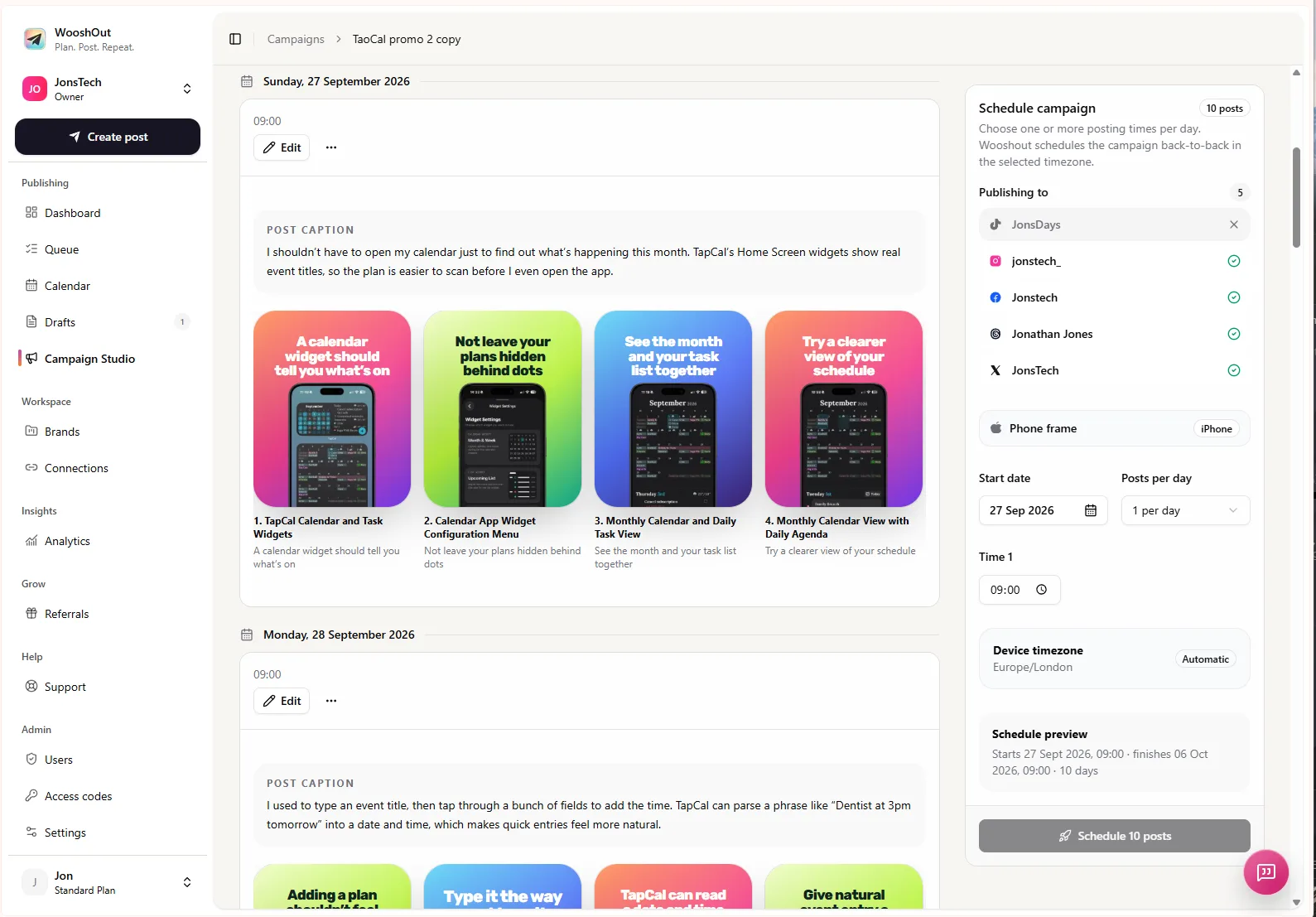
The scheduling view shown here includes connected accounts, a start date, posts per day, posting time, timezone and a schedule preview. For text campaigns, the review screen shows the campaign posts and publishing destinations before you use the scheduled series.
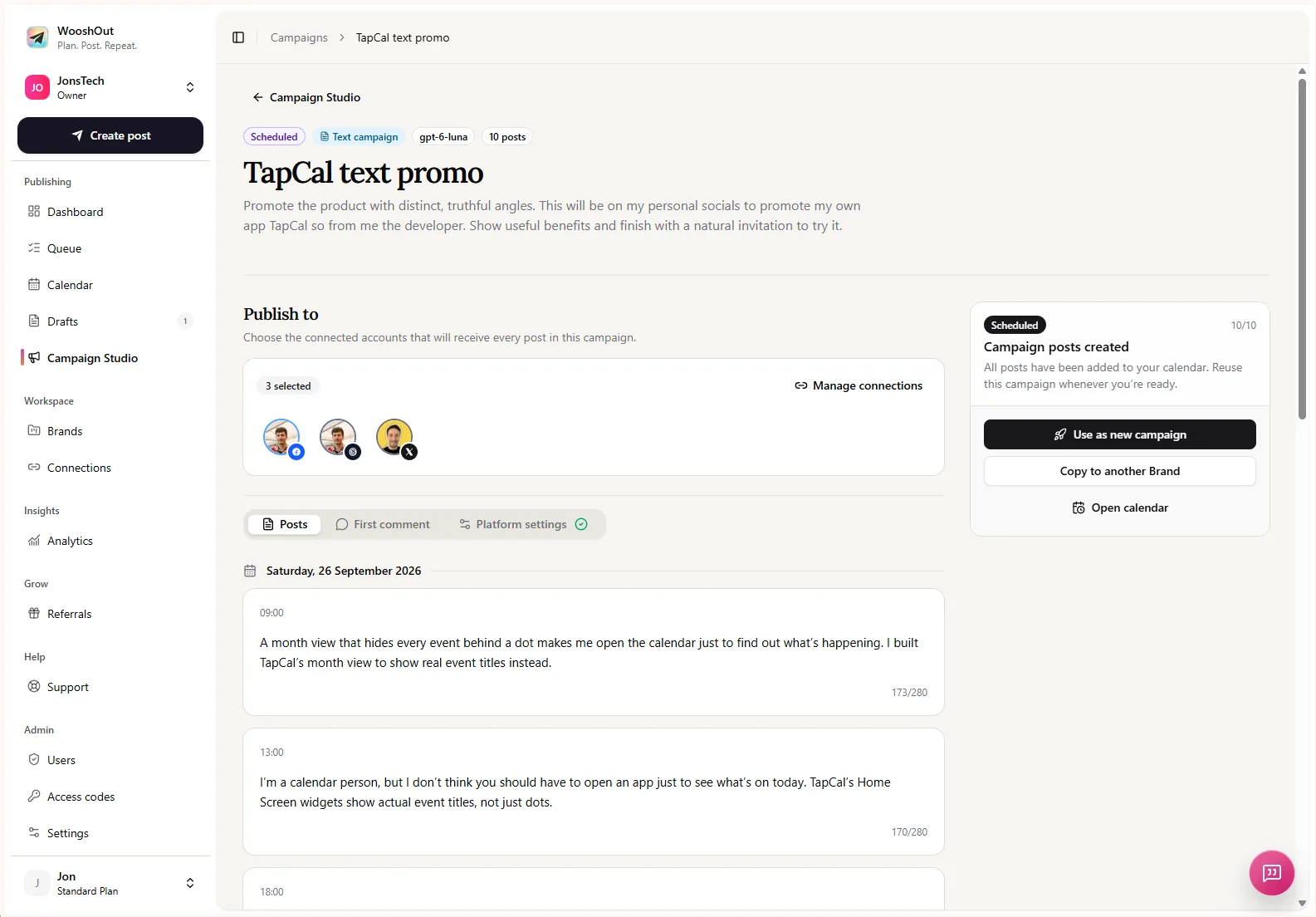
After scheduling, use the Calendar to see planned posts and the Queue for a closer look at publishing progress. WooshOut tracks outcomes separately by destination, so you can see which account published and which one needs attention. A scheduled post still needs a sensible review, and platform compatibility or account connection issues can affect delivery.
Keep the rhythm useful, not busy
A sustainable launch sequence comes from reusing verified product material and changing the question each post answers. Start with a small batch, edit it in your own voice, and schedule only the posts you’re comfortable standing behind. If feedback reveals a useful question, add a post that answers it. If the story is complete for now, let the campaign pause.
For a closer look at Campaign Studio, cross-platform publishing and scheduling, explore WooshOut’s features.