

Published 20 October 2026 · By JonsTech
Text Posts or Screenshot Carousels for a SaaS Launch?
Choose between text-led SaaS launch posts and screenshot-based carousels by asking what best explains the feature. See a worked example and a practical Campaign Studio workflow.
Use a text post when the idea, benefit or explanation is the main event. Choose a screenshot carousel when seeing the product makes the feature easier to understand. Neither format is automatically better: the right choice depends on what a reader needs to grasp, and on the material you can show accurately.
For a SaaS launch, that can mean explaining why a feature matters in a concise post, then using a separate carousel to show how it works. WooshOut Campaign Studio supports both approaches: it can produce editable text-post drafts from a brief, or build 3–6-slide image posts using screenshots you upload. You review the posts, select compatible destinations and schedule the approved work.
A quick way to choose
Choose text if the post is about a problem, decision or benefit that can be explained clearly without showing the interface.
Choose a carousel if the sequence matters: a reader needs to see the screen, the next step, and the result to understand the feature.
Use both when they do different jobs. A text post can introduce the reason for the feature; a carousel can demonstrate the workflow.
Use neither format just to fill the calendar. If the message is unclear or the screenshots are out of date, fix the source material first.
A text post is usually the simpler starting point when the story is still being refined. A carousel asks more of the product material: the screens should be legible, in a useful order and consistent with the version people will encounter. It is also worth checking that the feature can be shown without exposing private customer data.
One feature, expressed two ways
The Campaign Studio screens supplied for this article show TapCal campaign material about calendar widgets and scheduling. That gives us a concrete feature to work with. The examples below are draft illustrations of how the same feature story might be framed; check the product details and approve the copy and screenshots before publishing.
Text-post version
“Want to check your day without opening your calendar? TapCal widgets can put your upcoming plans on your home screen, so your schedule is easier to glance at. Set up a widget and choose the calendar view that suits your routine.”
This version makes the idea and benefit carry the post. Before using it, confirm that the feature works as described, replace general wording with the product’s actual options, and include a useful next step if there is one. No screenshot is required for the main point to make sense.
Screenshot-carousel version
A carousel could tell the same story in a short visual sequence:
Opening slide: “Your schedule, at a glance.”
Show an approved home-screen screenshot with the calendar widget visible.
Show the relevant setup screen, with a brief explanation of the choice being made.
Show another approved view that clarifies what the user sees after setup.
Closing slide: a clear next step, such as viewing the feature details.
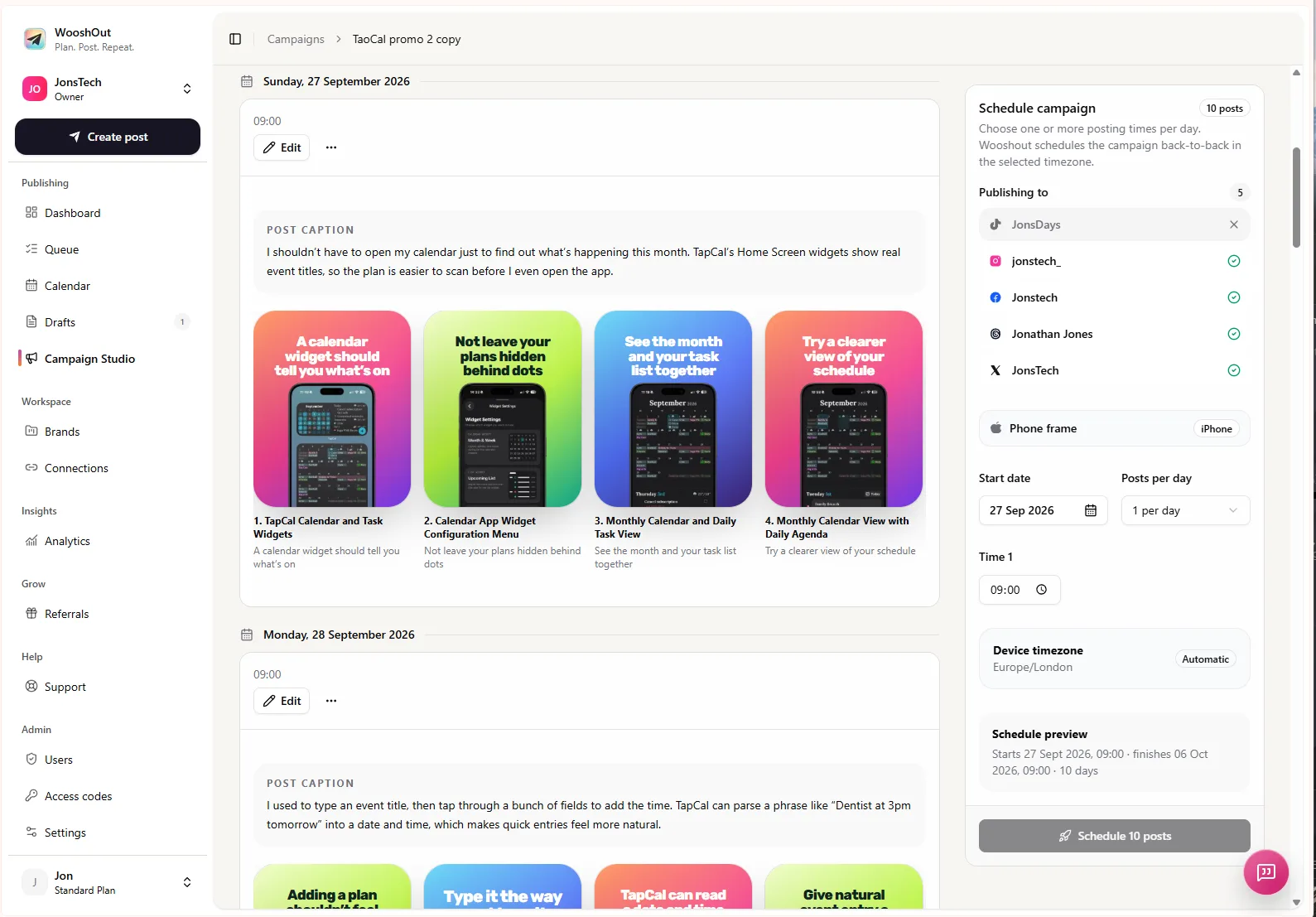
The supplied Campaign Studio image shows a scheduled image campaign with carousel-style graphics and a scheduling panel. For a real launch, use genuine product screenshots that have been checked for accuracy and approved for public use. Campaign Studio arranges uploaded screenshots into a template; it does not create original product artwork from a text prompt.
What Campaign Studio does, and what you still decide
For a text campaign, give Campaign Studio a campaign name, product description and brief, with an audience if it helps. It can create up to 30 editable standalone post drafts for Facebook, Threads and X. You review and edit the copy, then choose the connected destinations for the posts.
For an image campaign, upload and select product screenshots from the asset library. Campaign Studio makes carousel-style image posts with 3–6 slides, using a headline, gradient and phone frame around the screenshots. You can review the generated posts and edit their captions and slide headlines. The finished carousel is an image post, not a Reel or AI-generated video.
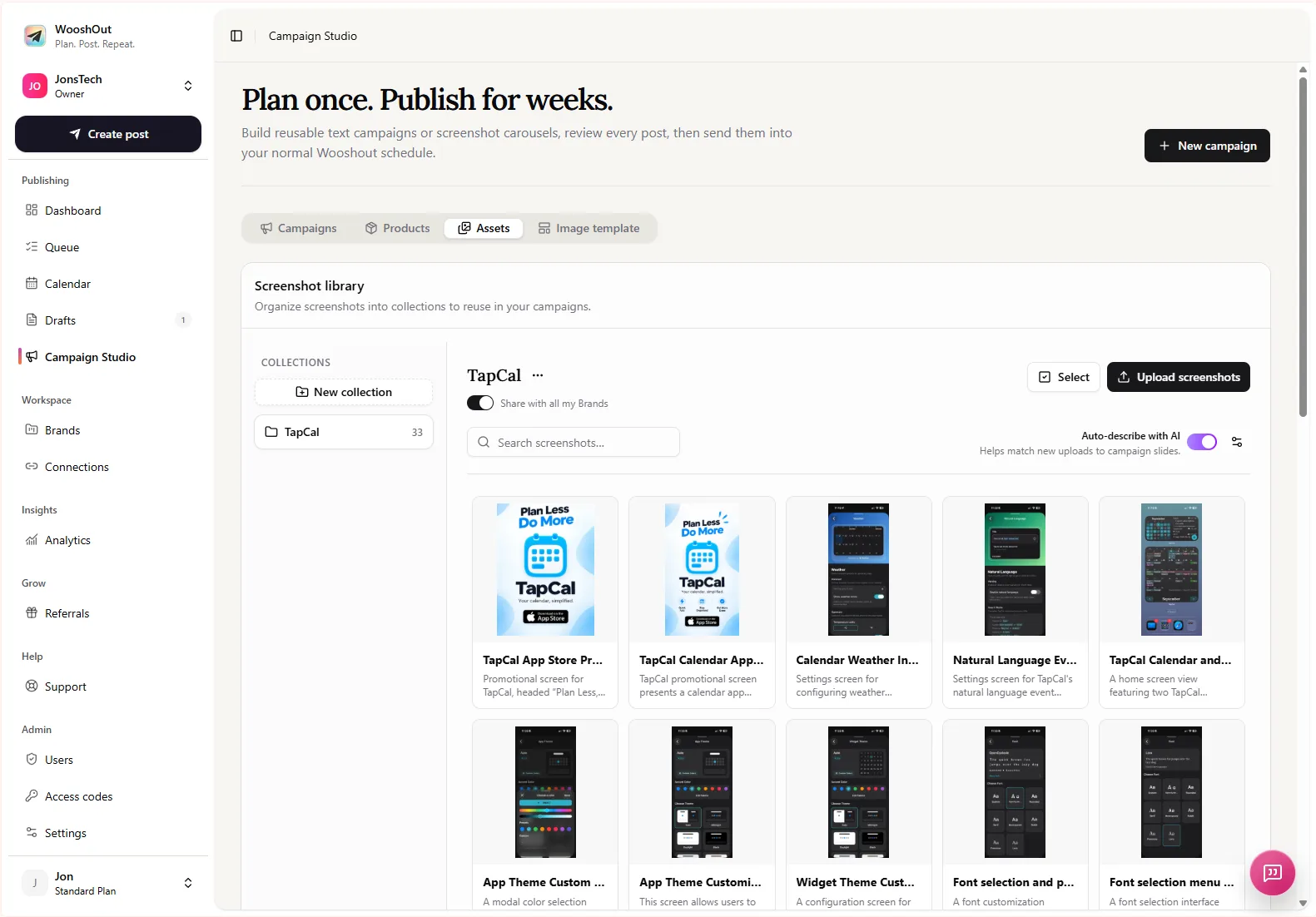
The screenshot library is useful when you have several approved product views to reuse. Give assets clear names or descriptions so it is easier to choose the right screen for each message, and remove anything stale before generating a new campaign.
After reviewing the drafts, choose accounts and settings that fit the post. Text campaigns are directed at Facebook, Threads and X. Image campaigns can target TikTok, Instagram, Facebook, Threads and X, subject to the selected mode and compatibility checks. Destination options and publishing requirements differ, so do not assume one carousel is ready for every account just because it is ready for one.
Build a launch sequence, not a pile of variants
A useful launch campaign gives each post a distinct purpose. For the calendar-widget example, you might introduce the problem of checking plans repeatedly, explain the widget’s benefit in text, show the setup in a carousel, and later answer a common question. That creates variety without pretending every post needs to announce the product again.
Avoid making the text post and carousel near-identical copies. If both formats repeat the same claim, give them different angles or publish only the one that communicates more clearly. Adapt captions and settings where the destination calls for it; the point is to reuse the underlying feature story, not to force identical content everywhere.
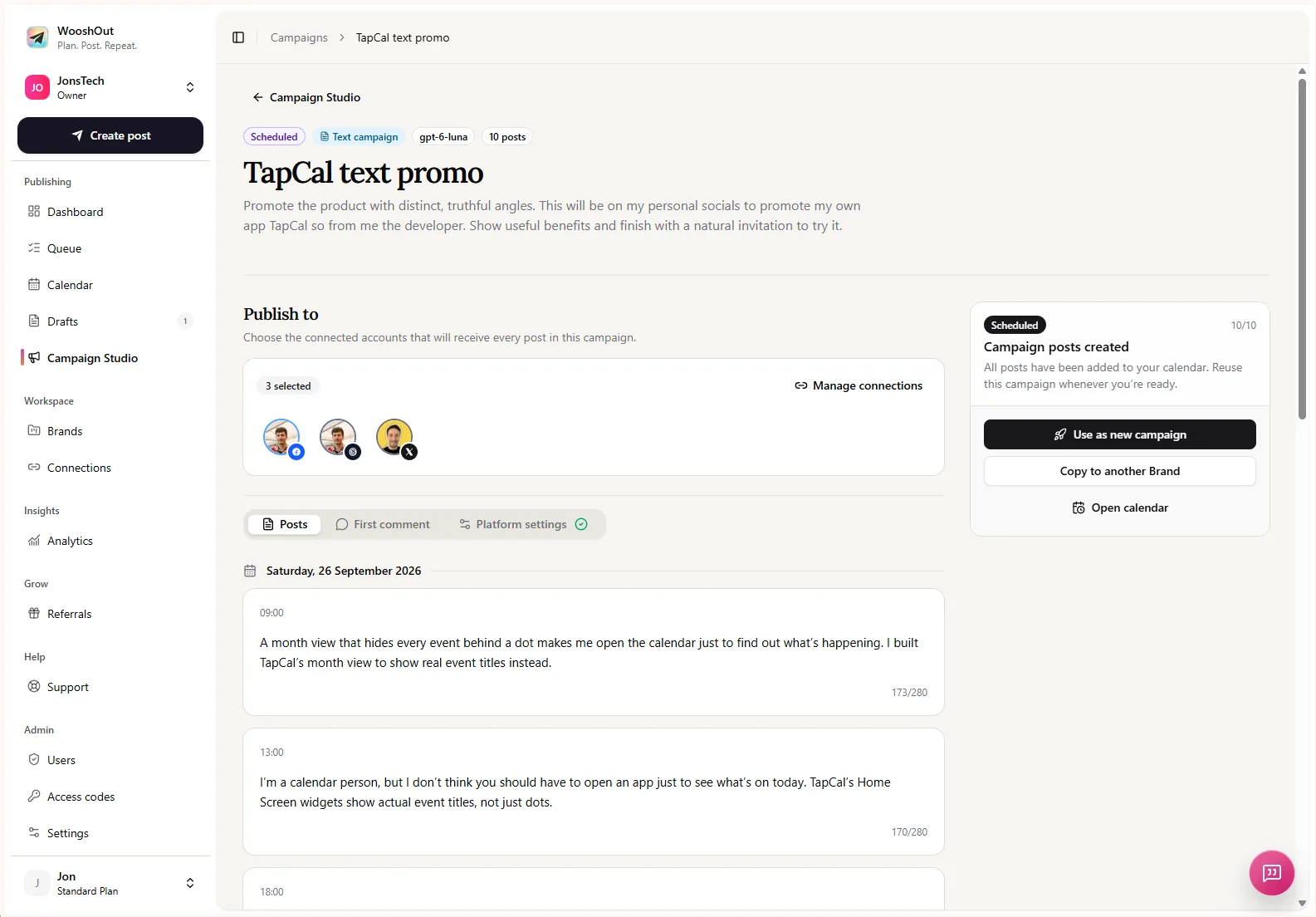
Once the posts are reviewed, choose the start date, posting times and timezone, then schedule the approved campaign. Its posts appear in the normal publishing calendar and queue, where you can follow their status. WooshOut tracks results separately by destination, so one account’s outcome is not hidden by another’s. For the full create, compatibility-check and scheduling process, see the WooshOut publishing workflow.
Make the format decision before you schedule
Before turning a feature into a campaign, check three things: Is the benefit accurate and specific? Would a screenshot help someone understand the feature, or merely decorate the post? Are the screens current, readable and approved for public sharing? If the first answer is yes and the second is no, start with text. If seeing the interface genuinely explains the feature, build a carousel from the real screens.
Campaign Studio can prepare editable drafts in either format, but the format choice and final checks remain yours. Start with the story you need to tell, choose the material that makes it clearest, then schedule only the posts you would be comfortable publishing yourself.