

Published 9 October 2026 · By JonsTech
How to Schedule a Week of SaaS Social Media Content
A practical weekly workflow for turning a SaaS product brief into varied, reviewed social posts and scheduling them in WooshOut Campaign Studio.
To plan a week of SaaS social posts without building every one from a blank page, start with one clear weekly theme and a short product brief. In WooshOut Campaign Studio, use that brief to generate a set of editable post drafts, review and tailor them, then schedule the approved posts at chosen times. Check the planned posts in Calendar and follow their publishing status in Queue. The AI supplies starting points; you decide what is ready to publish.
That process is useful when you have a launch, feature update or recurring product story to tell, but do not want to recreate each post and scheduling job from scratch. It is not a guarantee of more reach or engagement. A good weekly plan gives each post a purpose, keeps the message accurate and leaves room to adapt copy for the accounts you select.
Start with a theme, not seven captions
A week of posts works better when it has a thread. Choose one useful subject, such as introducing a new app, explaining a feature or answering a common customer question. Then give each post a different job: explain the problem, show how the product helps, answer an objection, share a practical tip or invite people to try it.
Before opening Campaign Studio, collect the facts the posts need: what the product does, who it is for, what has changed and what a reader should do next. Note any claims that need careful wording. A short, specific brief is more useful than a long list of vague instructions.
A hypothetical SaaS launch week
Here is a hypothetical example, not a report of customer results. Imagine a small SaaS team launching a browser-based invoice reminder tool for freelancers. Its weekly theme is “fewer missed follow-ups”. A simple brief might say: “The tool helps freelancers organise invoice reminders and see which follow-ups are due. The audience is independent consultants. Explain the workflow plainly, avoid promising that users will get paid faster, and point readers to the product page.”
The team could shape five posts around that theme: introduce the follow-up problem, show the reminder workflow, share a checklist for writing a polite nudge, answer a question about keeping track of invoices, and close with a product introduction. Each post covers a different angle, rather than repeating “try our new tool” five times.
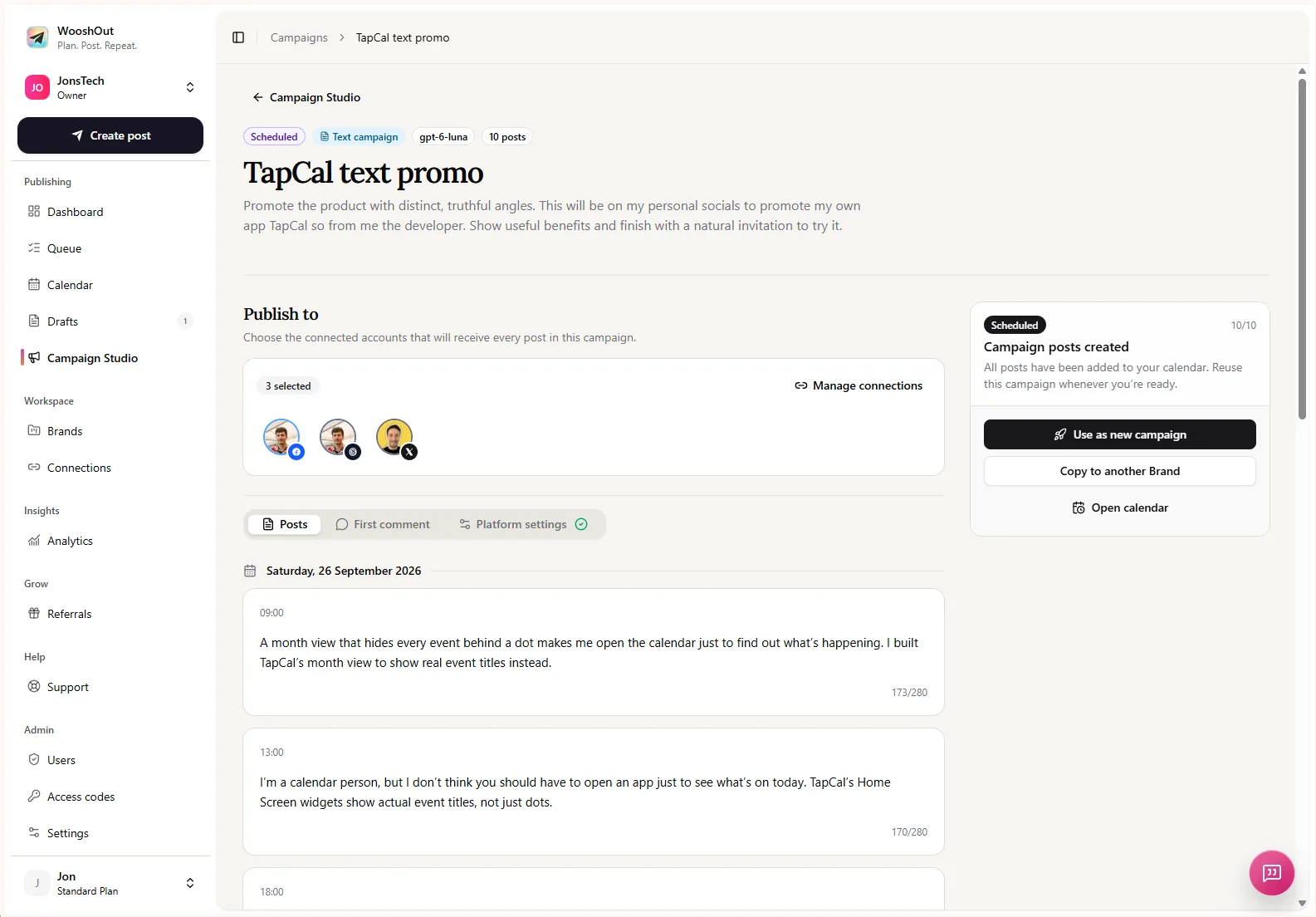
The Campaign Studio screenshot shows a text campaign with posts, selected accounts and scheduling information in one place. It illustrates the workflow, not a promise that every campaign or account will look identical.
Build the first drafts in Campaign Studio
In Campaign Studio, provide a campaign name, product description, brief and, if useful, an audience. Choose how many posts to generate, then treat the results as editable drafts. For the hypothetical launch, a five-post series gives the team a starting point for the week without requiring it to accept five finished captions unchanged.
Text campaigns are directed at Facebook, Threads and X. You choose connected destinations after reviewing the campaign. If your plan depends on publishing text posts to other networks, check the available formats before you build the week around them. Campaign Studio also supports image campaigns made from uploaded screenshots, but these are carousel-style image posts, not AI-generated video or artwork from a text prompt.
Review every post before scheduling
Read each draft as if it were the only post a potential customer sees. Check that the product details are right, that the posts differ from one another and that each call to action makes sense. Remove invented specifics, unsupported performance claims and wording that sounds more certain than the product can justify. Rewrite anything that does not sound like your brand.
Next, select the connected destinations you actually want to use. Consider whether the opening line, length, tone and call to action fit each network. A campaign gives you a series to work from; it does not make identical copy the right choice everywhere. WooshOut lets you review and edit campaign posts and, where supported, set platform details and a first comment.
If one of the drafts needs more work, leave it out of the schedule or edit it before approving the series. A smaller set of accurate posts is preferable to filling every day with copy you have not checked.
Choose a posting rhythm and schedule the series
Once the posts are ready, set a start date, timezone and posting times for the campaign. Campaign Studio supports a schedule of one to three posting times per day. For the hypothetical launch week, the team might spread its five approved posts across selected weekdays, leaving gaps for customer replies or timely news. The useful cadence is the one your team can maintain, not the busiest one the interface allows.
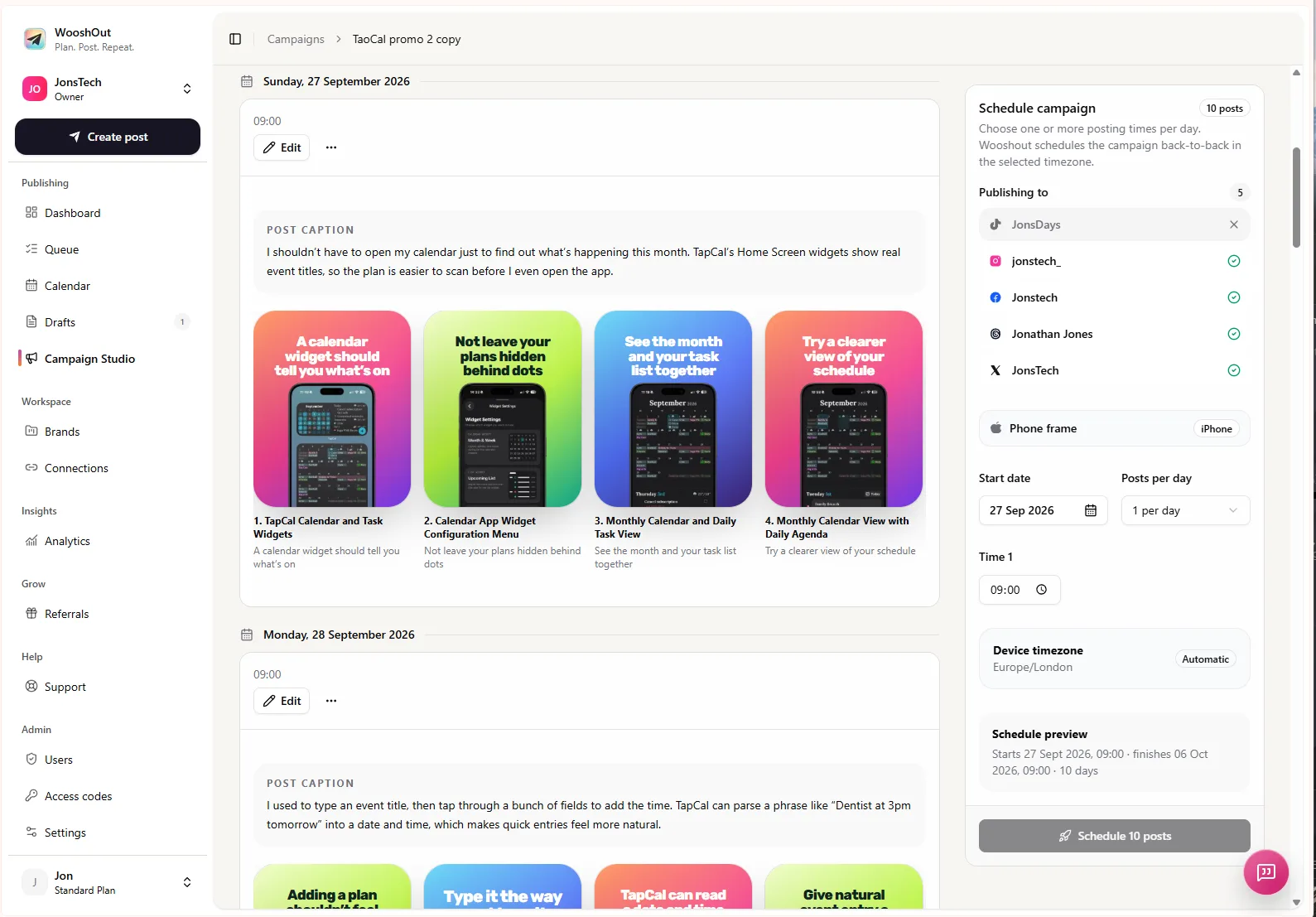
The scheduling screen provides a place to choose publishing accounts, a start date, posting frequency and time, then review the schedule before proceeding. Confirm the timezone and destinations carefully, especially if you publish for an audience in another region. Scheduling prepares the posts for background publishing; the social networks still determine their own processing and availability.
Use Calendar and Queue to check what happens next
After scheduling, use Calendar to see the posts in the context of the week. It helps you spot gaps, crowded days or a post that no longer fits the sequence. Queue gives a closer view of upcoming and published work, including destination-specific status. If a destination fails, you can inspect its outcome and any available error details rather than assuming every selected network had the same result.
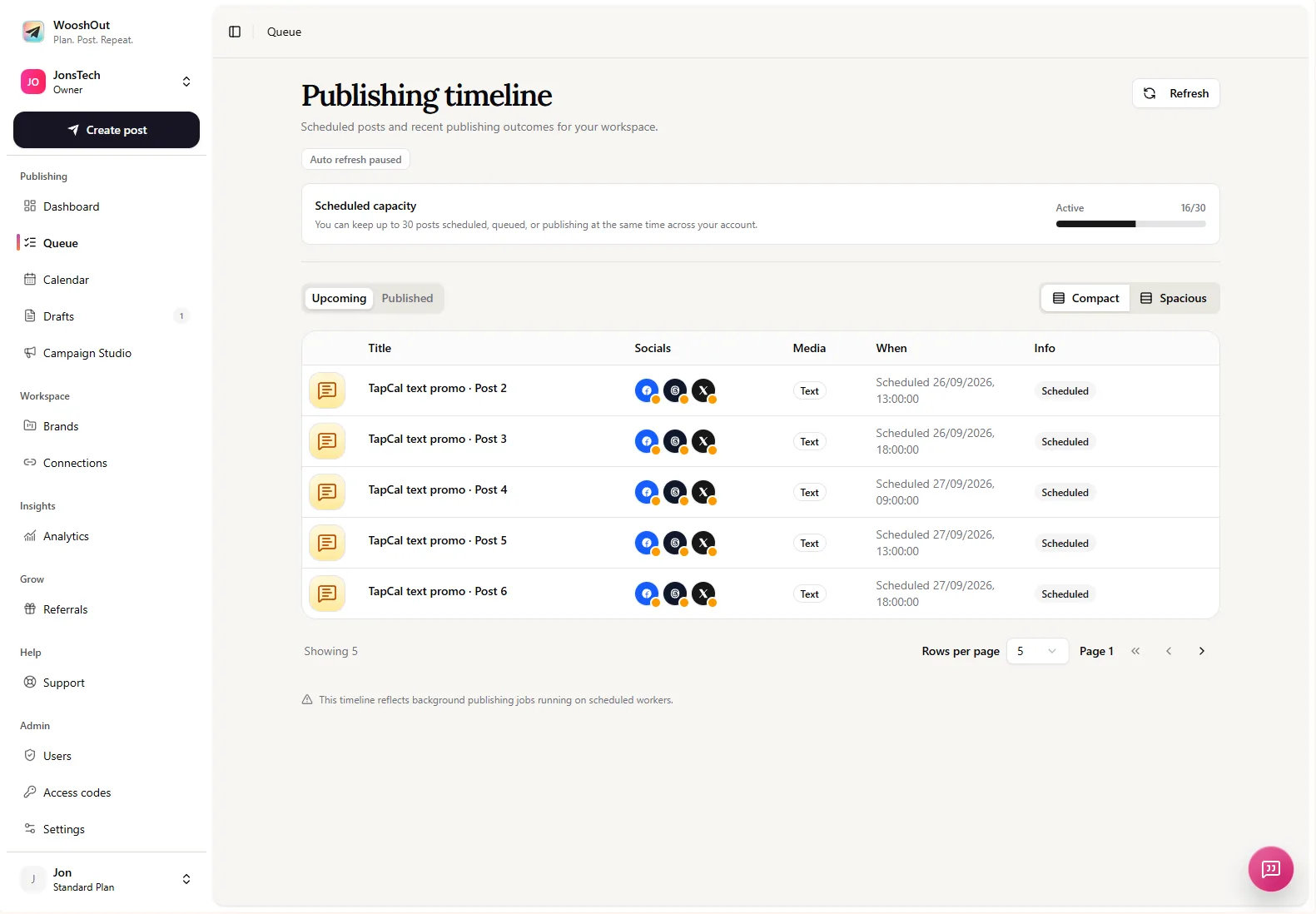
A queue is a status view, not a guarantee that every post will publish successfully. Provider rules, account permissions and temporary errors can affect an individual destination. Check the status shown in WooshOut and use a retry option only when it is offered as appropriate for that post.
Keep the weekly plan useful, not mechanical
A campaign is a practical way to turn one product brief into a reviewed series, but it should not replace judgment. Leave space to respond to customer questions, correct a detail or change a post when circumstances shift. If you already have product screenshots, an image campaign can turn selected assets into carousel posts; if you want a text series, keep the brief focused on distinct questions or ideas rather than asking for several versions of the same announcement.
For another way to plan a launch cadence, read how to build a social media posting rhythm for a SaaS launch. If you are ready to see how WooshOut’s publishing process fits together, explore the workflow guide.