

Published 19 October 2026 · By JonsTech
Social Media Scheduling Queue vs Calendar: Which Should You Use?
Learn when to use a social media calendar for planning and when to use a publishing queue to check progress, destination status and posts that need attention.
Use a social media calendar to plan when posts should go out; use a publishing queue to check what is coming up and what happened after publishing began. In WooshOut, Calendar gives you the month-view overview, while Queue shows upcoming and published work in a timeline, with status and details for each destination. They do different jobs, so a practical routine is to plan dates in Calendar, then check Queue when you want to follow progress or investigate a problem.
Calendar is for the shape of your schedule
A calendar answers the planning questions: Is launch week crowded? Have you left space between product announcements? Which days have nothing planned? WooshOut’s Calendar lays scheduled posts and publishing outcomes across a month, so you can scan the overall pattern instead of reading a list one item at a time.
That wider view is useful when you are preparing a SaaS release, mapping out a week of educational content, or coordinating posts across several channels. A creator might check whether a video announcement and its follow-up posts are spread sensibly across the month. A small business might look ahead and spot a quiet week before it arrives.
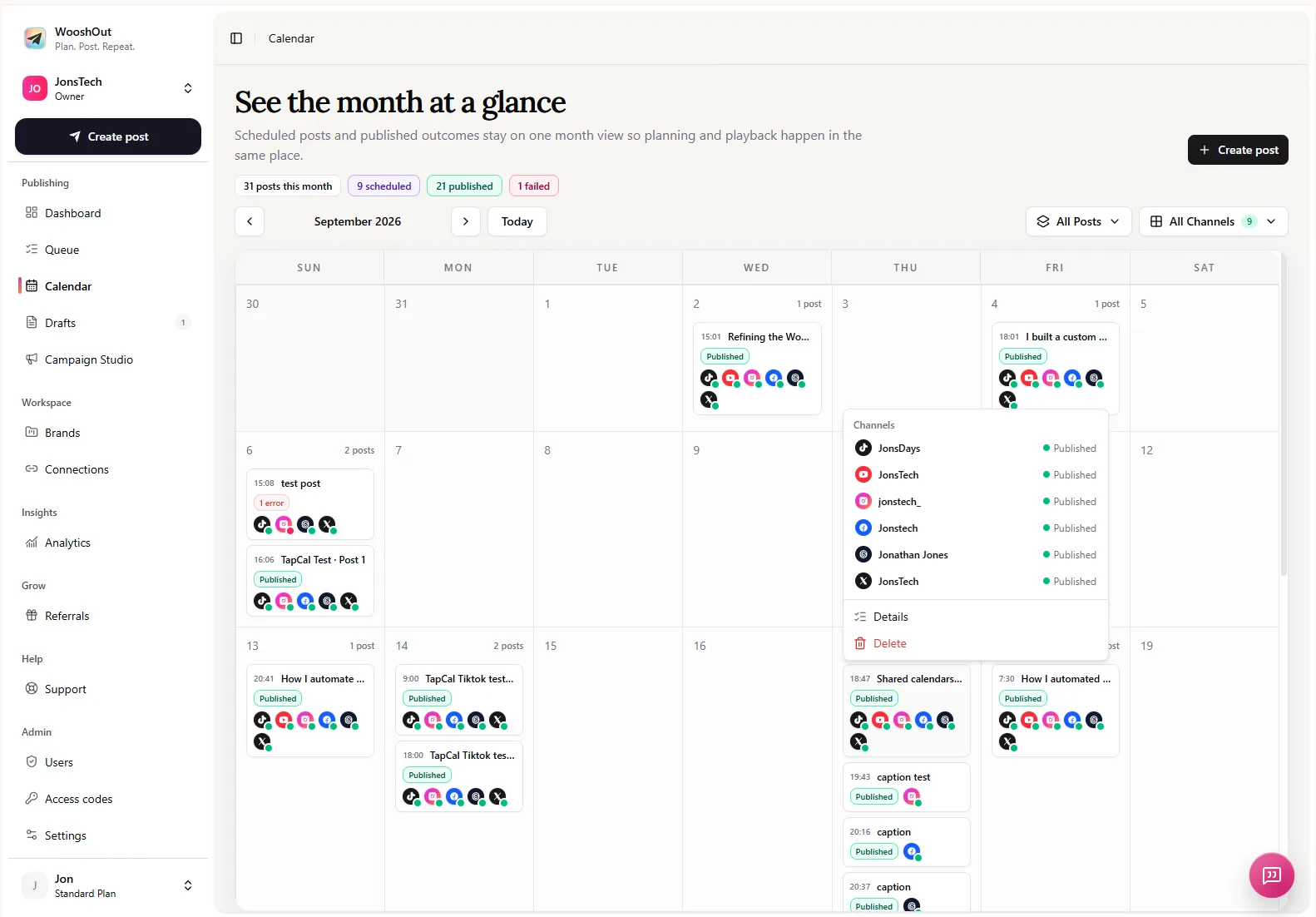
The supplied Calendar screenshot also shows how destination results can be inspected separately. In the open details menu, individual social accounts each have their own Published status. That is more informative than treating a multi-platform post as one all-or-nothing result: you can see the result attached to each destination. The example shown has Published statuses; it is not an example of a failed destination.
Queue is for progress and follow-up
The queue answers a more immediate set of questions: What is due next? Has the post been published? Did one destination fail or need attention? WooshOut’s Queue separates upcoming and published work and shows a publishing timeline with status information for each post and destination. Open an item when you need its details rather than using the calendar to monitor every step.
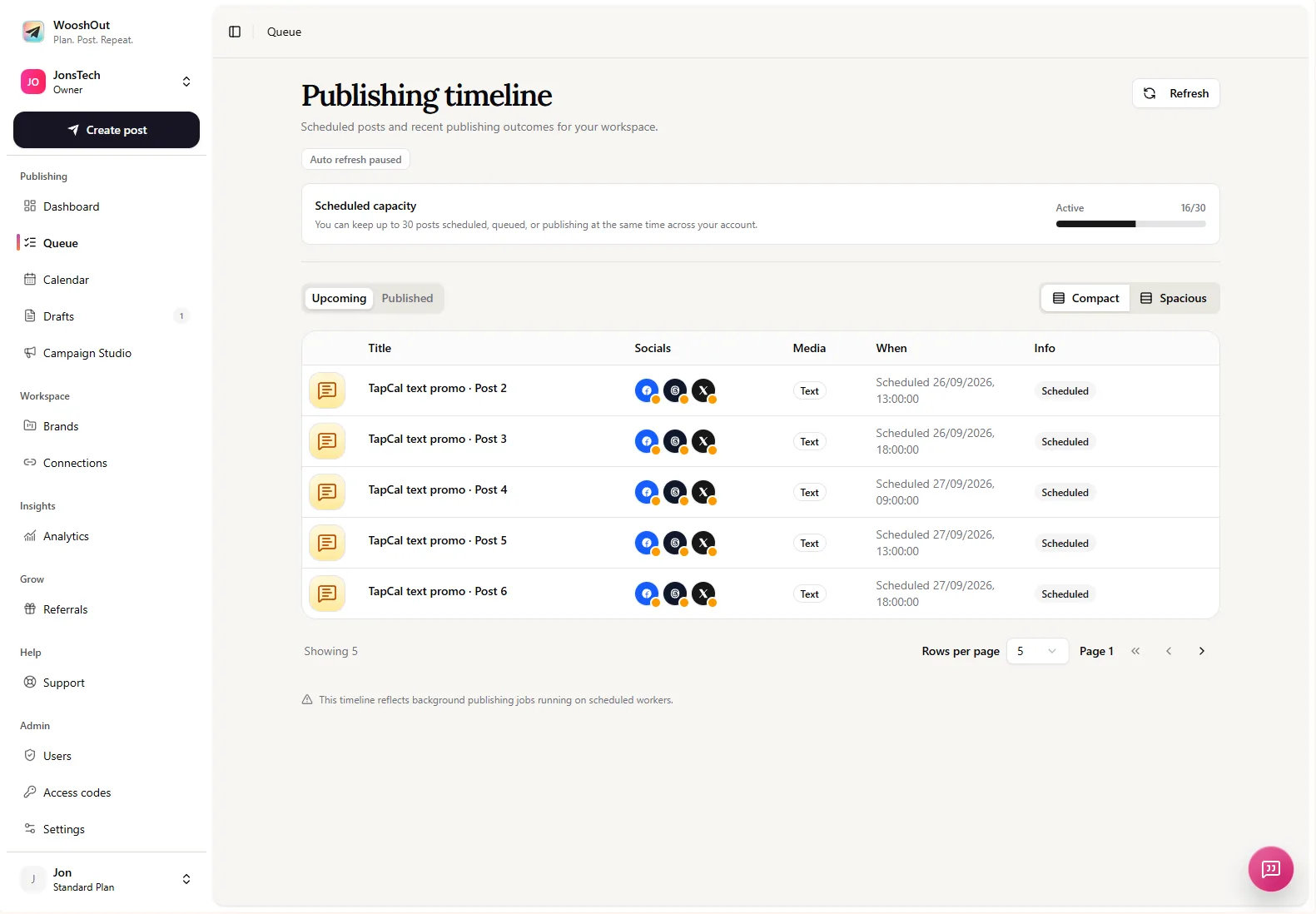
In the Queue screenshot, the Upcoming tab lists scheduled posts with their destination icons, planned times and Scheduled status. That list is handy for checking the near-term workload. For a post that has already entered publishing, the per-destination view is the place to look for separate outcomes, error details and any retry option the interface makes available.
Separate destination statuses matter when you cross-post. One platform may publish successfully while another needs attention. WooshOut keeps those outcomes distinct, so a problem on one network does not hide the result on the others. A retry may be available for a failed destination, but it depends on the status and the options shown for that item. Do not assume every failure will recover automatically.
A simple routine: plan first, check second
You do not need to choose one view and ignore the other. Use them in sequence:
Plan the cadence in Calendar. Scan the month, choose dates for each post and look for gaps or bunching. Think about the rhythm of the campaign, not just the next item due.
Schedule through the composer. Choose the connected destinations that fit the post, adjust captions or settings where needed, then select a date, time and timezone. The post appears in Calendar and Queue once scheduled.
Return to Calendar for the overview. Check that the planned sequence still makes sense as you add or change work. Use it to notice a crowded day or an empty stretch.
Check Queue for operational follow-up. Review upcoming work before publishing windows and inspect published items or destination-specific issues afterwards. Use an available action, such as a supported retry or publish-now option, only when it is offered for that post.
For example, suppose you schedule a product update to several connected networks. Calendar helps you decide where that update sits among the rest of the launch content. Later, Queue helps you see whether it is still scheduled or has moved into publishing, and whether each selected destination has its own result or needs attention.
Do not treat Calendar as a drag-and-drop control panel
A month grid can look like a place to move posts around, but WooshOut’s Calendar should be understood as an overview of scheduled work and outcomes, not as a drag-and-drop rescheduling tool. If a post needs changing, check the actions actually available for it in the app. Queue actions also depend on the post’s state; the interface may offer a way to cancel, publish now or retry, but those options are not universal.
Likewise, a scheduled label is not proof that a post has already gone live. Use Queue to follow its progress, and inspect the destination details if you need to confirm the result. Provider errors, connection issues and available recovery actions can differ by account and network.
The short answer
Choose Calendar when you are planning dates and checking the shape of a campaign. Choose Queue when you are checking what is next, following publishing progress or investigating a destination that needs attention. For day-to-day work, use both: Calendar to make the plan, Queue to see how it is going.
For a closer look at how posts move from composition to scheduled work and separate destination results, read WooshOut’s publishing workflow.