

Published 1 November 2026 · By JonsTech
How to Schedule First Comments on Social Media Posts
Learn when a scheduled first comment is useful, how to prepare one for a post, and why comment controls and provider behaviour can differ between social platforms.
Yes, you can schedule a first comment alongside a social media post when the platform and publishing flow support it. It can be a useful place for a resource link, a detail that would crowd the caption, or a clear next step. But don’t assume every network handles comments the same way: prepare the comment with the post, then check the controls and preview for each selected destination before scheduling.
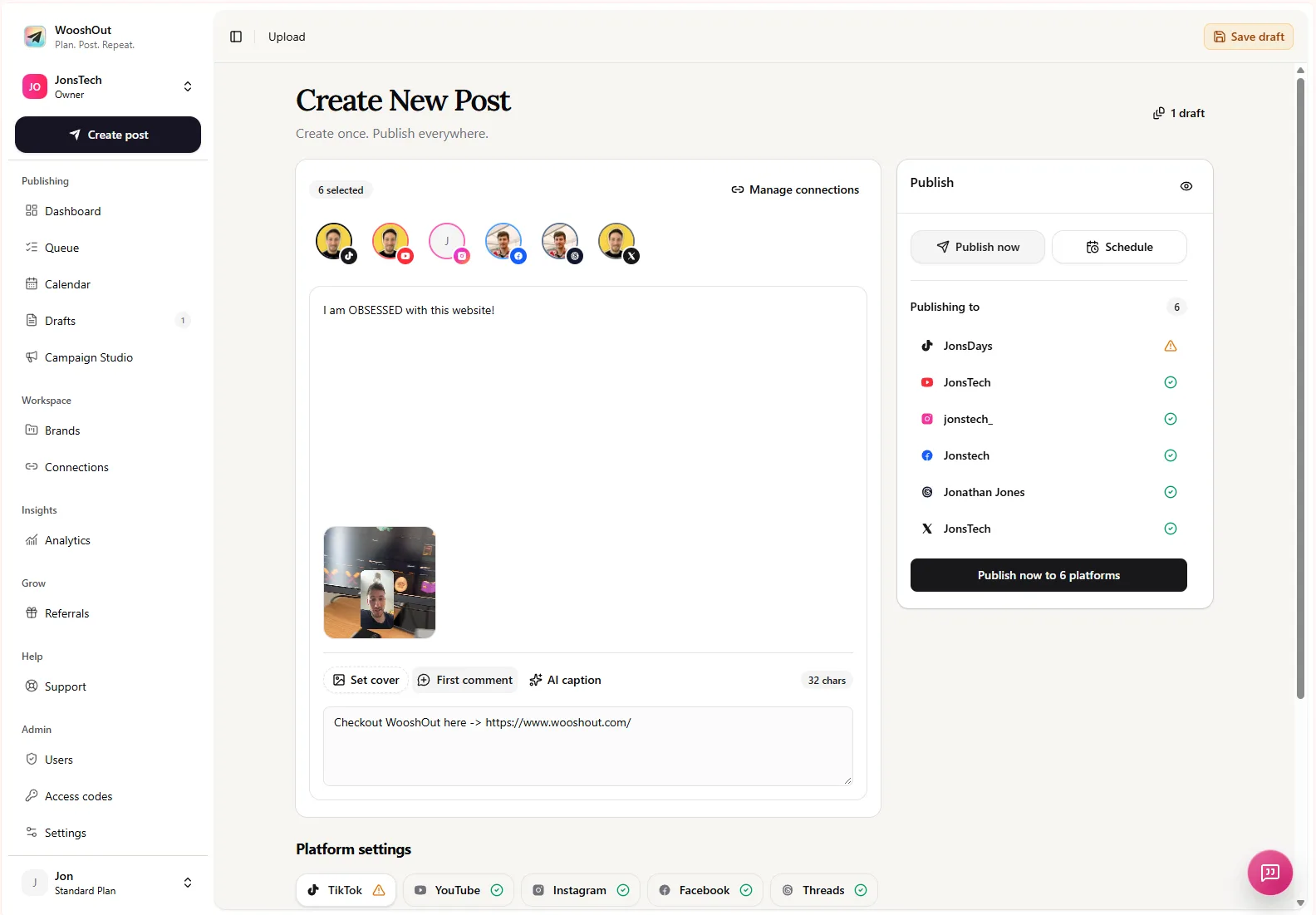
In WooshOut, you can start in the Create New Post composer, select the accounts that fit the content, and use the first-comment controls where they’re available. The composer keeps destination-specific options separate, so you can review what is set for each network rather than treating one shared comment as a promise of identical behaviour everywhere.
What a first comment is for
A first comment is a planned follow-up to the main post, not a replacement for its caption. The caption should still make sense on its own. The comment can add something helpful once the post is published, provided that destination supports the behaviour and the comment is relevant there.
For example, a SaaS founder might publish a short demo with a caption explaining what changed, then use a comment to point readers to the full release notes. A creator could add the name of a tool mentioned in a video, or a marketer could share a link to a longer guide. These are useful when the extra detail has a clear connection to the post. They’re less useful when the comment is just a second sales pitch or a string of unrelated links.
Keep essential information in the caption or post itself. A comment may be hidden, displayed differently, or unavailable in a particular publishing flow. Don’t make the comment the only place readers can find a date, price, eligibility condition or other detail they need in order to understand the post.
When scheduling a first comment helps
A planned comment is most useful when it adds context without interrupting the main message. Consider it for:
A relevant resource, such as documentation, a tutorial or release notes.
A short clarification that helps readers act on the post, such as where to find a feature.
An optional next step, like inviting people to read a guide or try a demo, if that invitation suits the platform and the post.
A small piece of extra context that would make the main caption harder to scan.
Write the comment as a natural continuation, not as a trick to make the caption look shorter. If you’re adding a link, check that it works, leads to the intended page and makes sense without extra explanation. If the platform has different display or link behaviour, keep that in mind when deciding where the link belongs.
Why platform-specific review matters
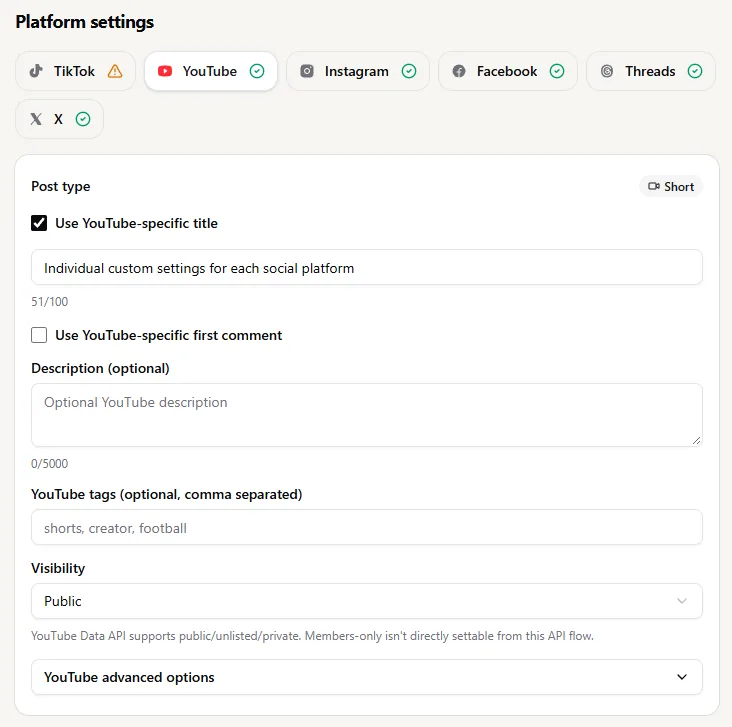
A post sent to several networks becomes a separate publishing operation for each destination. The available comment controls can differ, and a provider may not support the same behaviour as another. WooshOut’s feature information describes first comments as available where supported; the composer shows which options are present for the selected networks. That means you should check the actual controls for your connected accounts rather than rely on a universal list or assume one setting will work everywhere.
For example, the YouTube settings panel in WooshOut includes an optional checkbox for a YouTube-specific first comment. That illustrates why it’s worth opening each destination’s settings: the comment may be an individual platform option rather than a single shared field that applies unchanged to every account.
The feature is not a guarantee that a comment will be delivered in the same way or at precisely the same moment on every network. Provider capabilities, permissions and account conditions can affect publishing. Treat the options shown in the composer for your selected destinations as the practical guide, and check them again if you change accounts or post type.
Prepare and schedule the post in WooshOut
A straightforward workflow keeps the caption, comment and destination choices together:
Open Create New Post and add your media or write a text post. Select the connected accounts that fit the content.
Write the main caption so it communicates the post’s essential point without relying on a follow-up comment.
Open the platform settings and look for a first-comment control on each destination. Add the comment only where the option is available and appropriate.
Review each destination’s effective post. Check the caption, comment, account, media and any platform-specific settings. Edit or remove a comment that doesn’t fit a destination.
Choose Publish now or Schedule, then confirm the date and time before saving.
If you’re cross-posting with different captions as well as different comments, review each version together. A resource link that makes sense after one caption might feel abrupt after another. WooshOut lets you adapt content and settings for selected platforms; the final wording still needs your judgement. For more on tailoring captions, see how to schedule social media posts with different captions per platform.
Check the result after publishing
After a scheduled post is due, check its destination-level results in WooshOut’s Queue. Selected networks publish separately, so one result may need attention while others have completed. If a destination fails, review its status and details, then use a retry only if the app offers one for that item. Don’t assume a failed comment or post will automatically fix itself.
The useful rule is simple: prepare a first comment when it gives readers something relevant, keep the main post complete on its own, and review comment support destination by destination. For the full create, check and schedule process, see WooshOut’s publishing workflow.