

Published 23 October 2026 · By JonsTech
How to Reuse One SaaS Launch Post Across Social Platforms
A practical way to adapt one SaaS launch announcement into platform-appropriate video, image and text posts, then review and schedule each version in WooshOut.
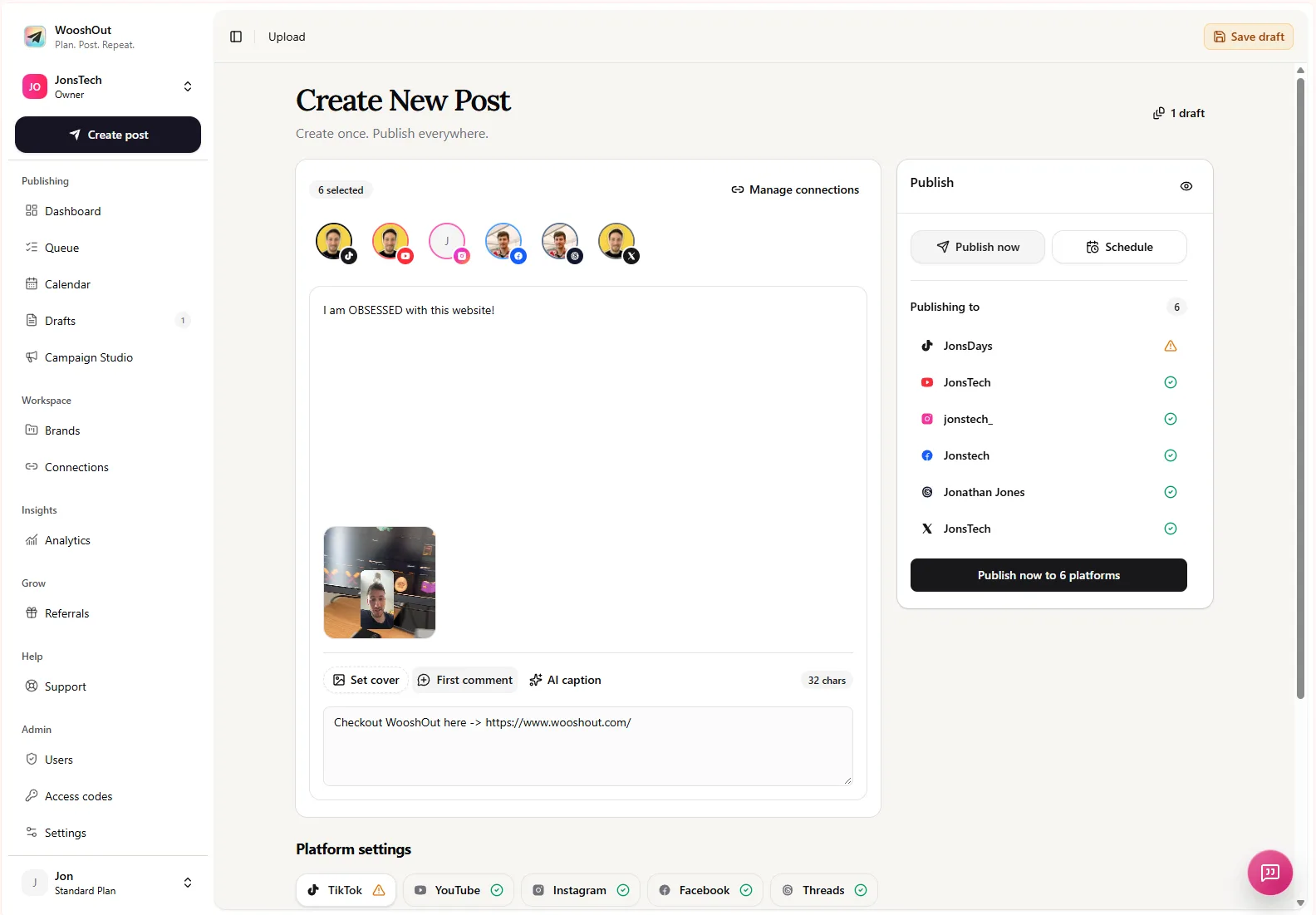
Start with one clear launch announcement, not one finished caption for every network. Keep the core message consistent, then reshape the hook, format and call to action for each destination. In WooshOut’s composer, you can build a post, choose compatible connected accounts, adjust supported captions and settings, check the preview, then publish or schedule the approved versions. The key is to reuse the idea, not blindly duplicate the post.
That distinction matters for a SaaS launch. A short product demo may suit TikTok or Instagram Reels; a set of product screenshots might work better as an image post; and a text announcement can give people on Threads, X or Facebook the essential details without asking them to watch a video. You are making a few thoughtful versions of one announcement, not starting from a blank page each time.
Keep the launch message; change the treatment
Before writing captions, jot down the few points every version should preserve: what the product does, who it helps, what is new, and what someone can do next. Keep this as your source message. Then decide which media and format make sense for each audience and platform.
Here is a clearly hypothetical example. Imagine a SaaS app called Deskflow launching a feature that turns meeting decisions into assigned tasks. The shared message could be: “Deskflow is launching Decision Capture, a way to turn meeting outcomes into assigned tasks.” That is a useful starting point, but it is not yet a compelling post for every feed.
The product name and launch information stay steady. The opening line, supporting detail and next step can change. For example, a video can show the feature in action; an image carousel can walk through the steps; and a text post can lead with the problem it solves. These are sample copy ideas, not claims about a real product or its results.
Build a few versions around the media
A launch post is more than its caption. Choose a format that carries the message well, then write copy that supports it rather than repeating what the viewer can already see.
Video for TikTok, Instagram Reels or YouTube: open with the pain point, show a short product action, then invite people to see the launch details. Hypothetical opening: “Your meeting ended. Did the decisions go anywhere?” A caption might add: “Meet Decision Capture in Deskflow. See how it works on our launch page.” YouTube is a video destination; whether a suitable upload is classified as a Short depends on the media, not a manual Shorts switch.
Screenshots for an image post: make the first slide state the benefit, then use later slides to show the feature or workflow. For the hypothetical app, the first slide might read “Stop losing decisions after the meeting”, followed by a screenshot of captured decisions and another showing assigned tasks. The caption can explain who the feature is for and invite people to explore it. Instagram and Facebook support image feed posts; other image destinations depend on the selected post mode and compatibility.
Text for Threads, X or Facebook: lead with a useful observation and explain the announcement in plain language. Hypothetical Threads copy: “A meeting can end with clear decisions and still leave nobody sure who owns the next step. We’re launching Decision Capture in Deskflow to turn outcomes into assigned tasks. Take a look at the launch details.” For X, make a tighter version if needed; for Facebook, you might add context for customers who are less familiar with the feature.
These are options, not a checklist that every launch must follow. You may not have a polished demo video, or your screenshots may explain the feature more clearly than a short clip. Choose the formats you can support with useful creative, and make sure the post type is available for the accounts you plan to use.
Adapt the announcement in one composer
In WooshOut, open Create post and add the media for that version: a video, one or more images, or text. Select the connected accounts that suit the format. You can start with shared copy, then use platform-specific captions and supported settings where they are available. A video, carousel and text-only announcement are different post jobs, so create the appropriate version for each rather than expecting one media asset to suit every destination.
For the Deskflow example, the video caption might focus on watching the feature in action, while the image-post caption explains what each screenshot demonstrates. A text version can make the announcement and next step clear on its own. You can also adjust supported details such as the YouTube title or platform-specific publishing options. Available controls differ by network, so use the settings shown for each selected destination rather than assuming every platform offers the same choices.
WooshOut supports publishing to TikTok, YouTube, Instagram, Facebook, Threads and X, subject to each account’s format and permission requirements. For instance, Facebook publishing uses an authorised Page, while Instagram publishing requires a compatible professional account. Review the current publishing workflow for the connection, compatibility and scheduling steps.
Preview compatibility before you schedule
Before committing to a launch date, check the effective post for each destination. WooshOut marks compatibility as ready, warning or blocked, and checks for known connection problems before work is queued. A warning is a reason to inspect the relevant account or settings; a blocked combination needs a change before that destination can publish. Check the preview too: captions, selected accounts, media and provider-specific options should match the version you intended to send.
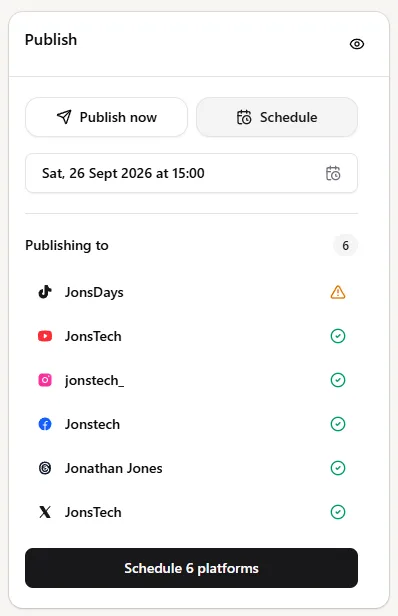
The destination status shown above helps make account readiness visible, but it is not a guarantee that every provider will accept a post. If a destination later fails, the queue keeps its outcome separate from the others, so you can see what published and what needs attention. WooshOut offers a targeted retry when one is available.
Schedule the approved versions
You can publish now or choose a future date, time and timezone for each post. If the video, screenshot and text versions work better on different days, schedule them as separate posts rather than forcing the same release moment across every channel. The Calendar gives you the broader view of planned posts and outcomes; the Queue shows publishing progress in more detail.
Before scheduling, read each caption aloud and check that its call to action makes sense without context from another platform. Confirm that any launch date, feature name and destination link are correct. If you are announcing a feature rather than a whole product, say so plainly. A clear, accurate post is more useful than a grand claim about what the launch will achieve.
One announcement, not six copy-paste jobs
The practical workflow is simple: preserve one accurate source message, choose media that suits each destination, tailor the hook and call to action, then review compatibility and schedule the versions you approve. WooshOut brings those publishing steps together without promising that the same post will fit every network or that publishing will guarantee a particular result.
For a closer look at changing captions by destination, read how to schedule social posts with different captions per platform.