

Published 14 October 2026 · By JonsTech
How to Schedule Facebook Page Posts in Advance
A practical guide to connecting an authorised Facebook Page in WooshOut, preparing a compatible post and checking its schedule and publishing status.
Yes. A small business can schedule Facebook Page posts in advance with WooshOut: connect an authorised Page, create a compatible text, image or Reel post, check the Page and post settings, then save a draft or choose a future date and time. Before you start, make sure you can grant the permissions requested during Facebook’s connection flow. WooshOut publishes to authorised Pages, not personal Facebook profiles. The Facebook formats WooshOut lists are text posts, image feed posts and Page Reels, but account access and provider rules can affect what is eligible.
What you need before scheduling
First, you need a Facebook Page that you’re authorised to manage. During connection, sign in to Facebook, choose the Page you intend to publish to and approve the requested access. Meta’s Page access flow distinguishes Pages a person can manage; if the Page you want isn’t offered, check your Page access and the Facebook account you’re using before continuing.Meta’s Page access documentation
In WooshOut, open Connections in the Brand you want to use and add Facebook. A Brand is a separate workspace, so check that you’re connecting the Page to the right business. Once authorised, confirm that the correct Page name appears and that its connection is healthy. If WooshOut asks you to reconnect, resolve that before adding new scheduled work. Facebook permissions and account eligibility are provider-controlled, and a successful connection does not mean every post or format will be accepted.
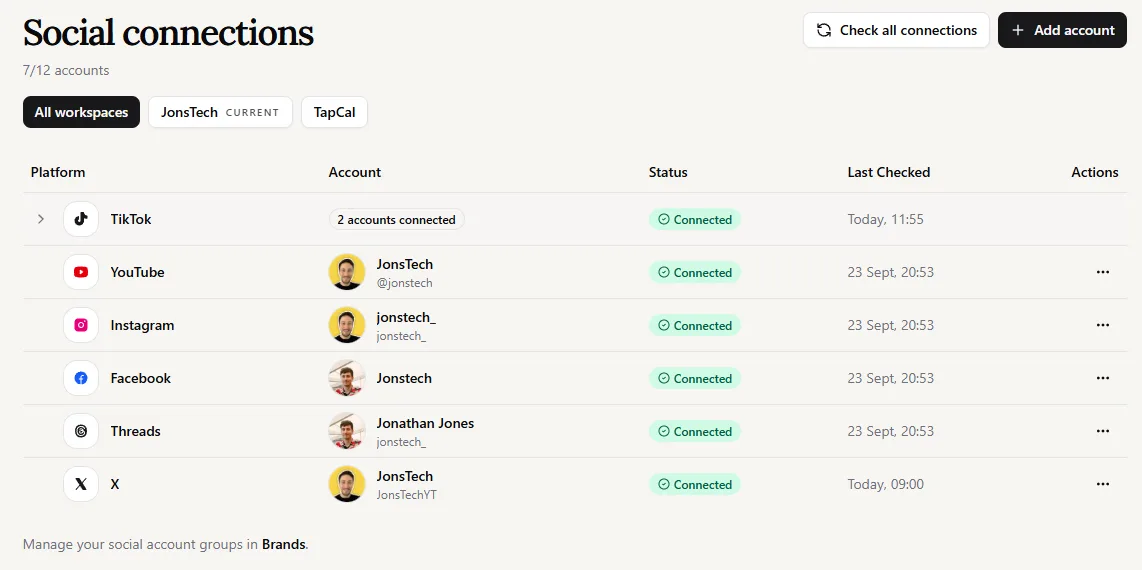
The Connections screen above shows Facebook among the linked social accounts. It is a view of connected accounts, not a step-by-step record of Facebook’s authorisation screens. For the complete create-and-schedule sequence, see WooshOut’s publishing workflow.
Create a post for the Page
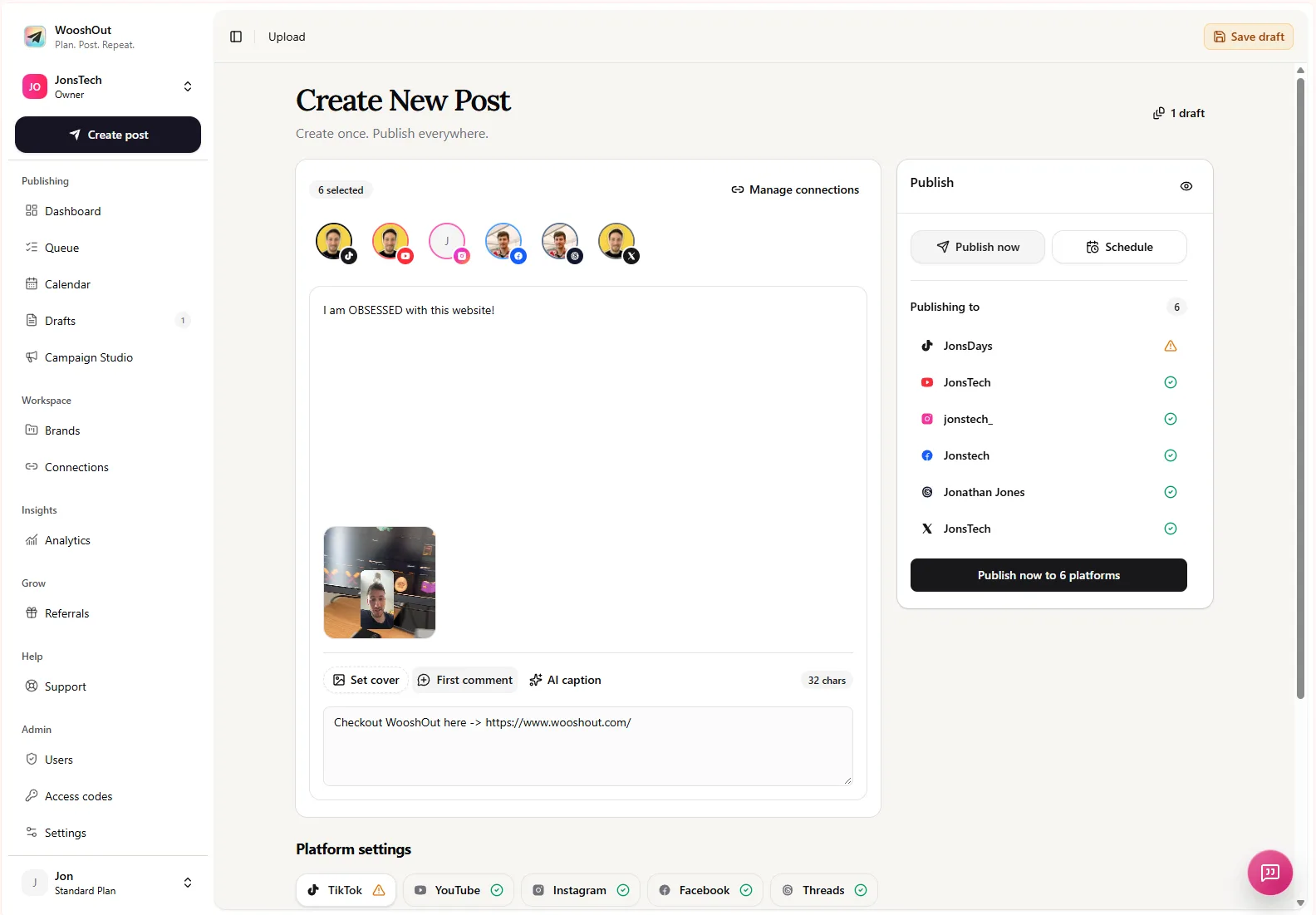
Open Create post and select the Facebook Page you connected. Choose the kind of post you’re preparing: WooshOut lists text posts, image feed posts and Reels for Facebook Pages. Add your copy and, for an image post or Reel, the media you want to use. If you’re also selecting other networks, check each one separately; the same text or media may not suit every destination.
WooshOut’s composer lets you keep shared copy or customise captions and supported settings for individual destinations. Before scheduling, review the Facebook selection, post preview and any compatibility notices. A warning may mean you can continue with a caveat; a blocked status means you need to address the issue shown. Available options depend on the post type and provider. Meta’s Reel publishing documentation describes a Page-based publishing flow, but the current provider rules and your account’s eligibility still apply.Meta’s Reel publishing API guide
If the copy or image isn’t ready, save the post as a draft rather than setting a date just to clear it from your to-do list. Drafts keep unfinished work separate from approved posts. Reopen one later to finish editing and choose its Page and schedule.
Choose a schedule and check it
When a post is ready, choose Schedule, set a future date and time, and confirm the timezone before saving. Alternatively, save it as a draft or publish it now. WooshOut continues queued publishing in the background after you leave the page, but a scheduled time is not a guarantee of successful publication: provider checks, permissions or temporary errors can still affect an individual destination.
After scheduling, check Calendar to see the post in the context of your publishing plan. Use Queue for a closer look at upcoming work and destination-level status. If you selected multiple networks, results are shown separately, so a Facebook issue need not hide what happened on the others. Look for an error or reconnect notice, then use a retry option if WooshOut offers one for that item.
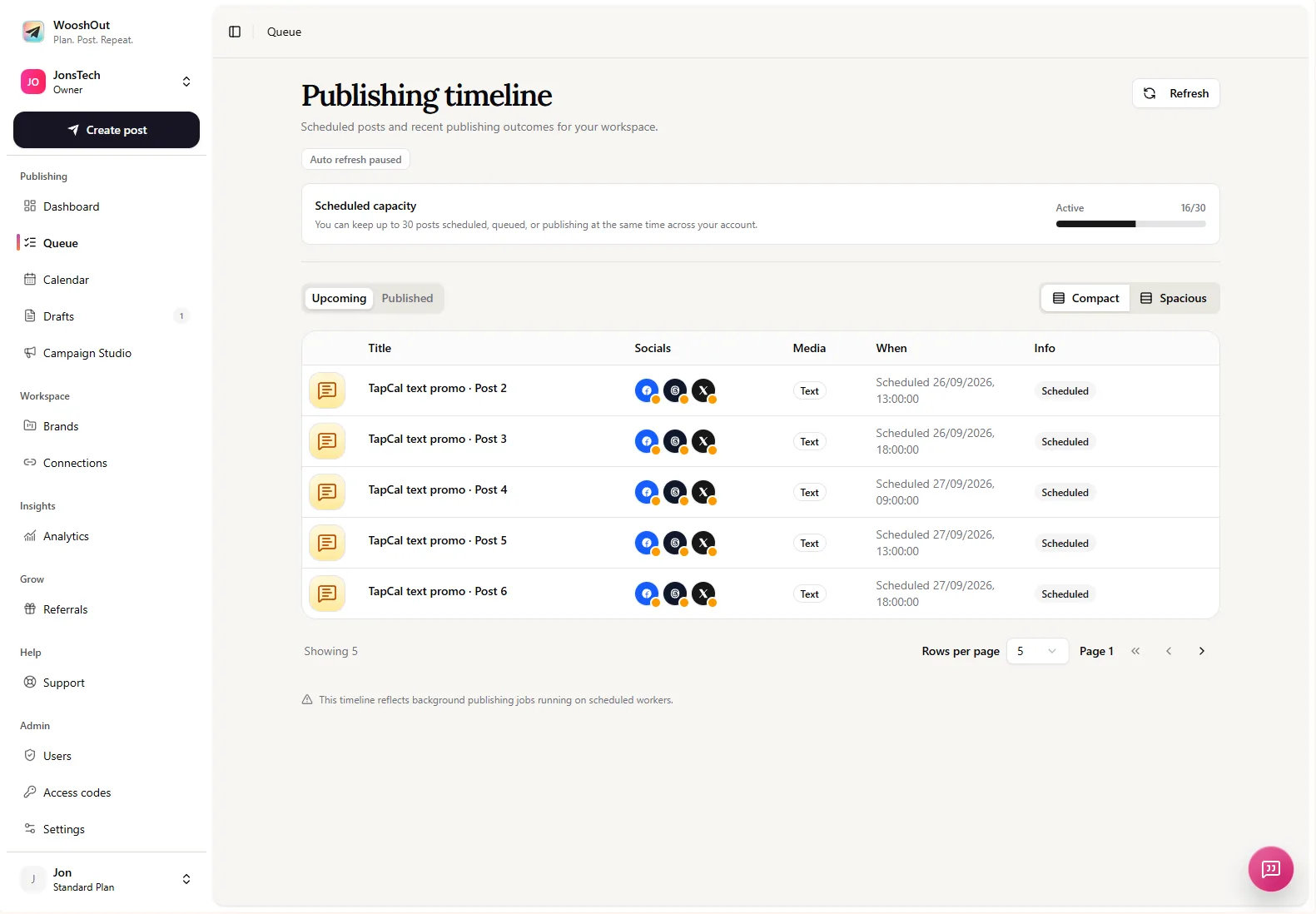
This Queue screenshot shows upcoming scheduled posts and their statuses. It illustrates how to review queued work, though it is not a Facebook-only schedule. WooshOut’s feature overview lists the supported networks and explains the composer, scheduling, drafts and per-destination results.
A practical Page plan for a small business
Here’s an illustrative weekly plan for a hypothetical neighbourhood bakery, not a report of a real business’s results. It gives each post a clear purpose and leaves room for the team to answer customers between posts:
Monday: a photo of a product available that week, with a short description.
Wednesday: a text post answering a common question, such as when pre-orders close. Check the answer against the bakery’s actual policy.
Friday: a short Reel showing a real preparation or decorating process, if the footage is suitable and the Page is eligible to publish it.
This is a starting point, not a rule to post three times every week. Swap a post for a current opening-hours update, seasonal item or useful reminder when you have something accurate to share. Before scheduling, check the date, selected Page, media and wording; then make sure the planned pace leaves someone available to respond to comments or messages.
Check the destination, not just the date
A quick final review can prevent common mix-ups: confirm the active Brand, check the Facebook Page name, read the post preview and make sure the status is scheduled rather than draft. If a post is also going elsewhere, review those destinations independently. WooshOut helps bring creation, scheduling and status into one workspace; Facebook still sets its own access requirements and publishing rules.
To see the full connection-to-queue process, visit WooshOut’s workflow guide. Before this article is published, replace or supplement the illustrative bakery plan with an approved real Page content plan, and add a screenshot of Facebook’s Page connection flow. The supplied connection screenshot shows connected accounts, not the authorisation flow itself.