

Published 2 October 2026 · By JonsTech
Why Can’t I Schedule Instagram Posts from a Personal Account?
Instagram scheduling through WooshOut requires a compatible professional account and valid permissions. Use this checklist to check your account type, connection health and authorisation before trying again.

WooshOut can schedule Instagram posts only from a compatible professional account, with the required permissions still in place. If your Instagram profile is personal, it won’t meet that requirement. Switching to Creator or Business is an important first check, but it does not by itself guarantee that publishing will work: the account must also connect successfully, stay authorised and support the post format you’re trying to send.
Meta’s Instagram platform documentation describes publishing access for professional accounts, meaning Business and Creator accounts, and says consumer personal accounts are not accessible through that API. The exact setup can also depend on the authorisation route a publishing tool uses. WooshOut’s connection and permission checks are therefore part of the process, not an optional extra.Read Meta’s Instagram API documentation
First, check what kind of Instagram account you have
Instagram distinguishes personal accounts from professional accounts. Professional accounts can be set up as Creator or Business. Either may be suitable for publishing integrations, subject to the tool’s connection flow, granted permissions and Instagram’s current rules. A profile that looks professional, has a public bio or uses a business name is not necessarily a professional account in Instagram’s settings.
Open Instagram and check the account-type setting in your profile settings. Instagram may adjust menu labels, so use its settings search if you cannot find it.
Confirm that the account is set to Creator or Business, rather than Personal.
If it is personal, follow Instagram’s prompts to switch to a professional account. Choose the type that reflects how you use the profile, and review any changes Instagram describes before confirming.
Return to WooshOut and connect or reconnect the account. Switching the type alone does not renew an expired connection or grant missing permissions.
Meta also documents native scheduling in Instagram as a feature for professional accounts. That’s useful context, but a successful schedule inside Instagram doesn’t automatically mean a third-party connection is authorised: the external tool still needs its own valid access.Meta’s help page on scheduling posts and Reels
Check the WooshOut connection before retrying
In WooshOut, open Connections from the workspace navigation. Check that you are viewing the Brand that should own the Instagram account, then find Instagram in the connected accounts list. The Connections page shows account status and offers actions to add or manage connections. If the account is already listed, check whether its status indicates that it needs attention or reconnection before creating another scheduled post.
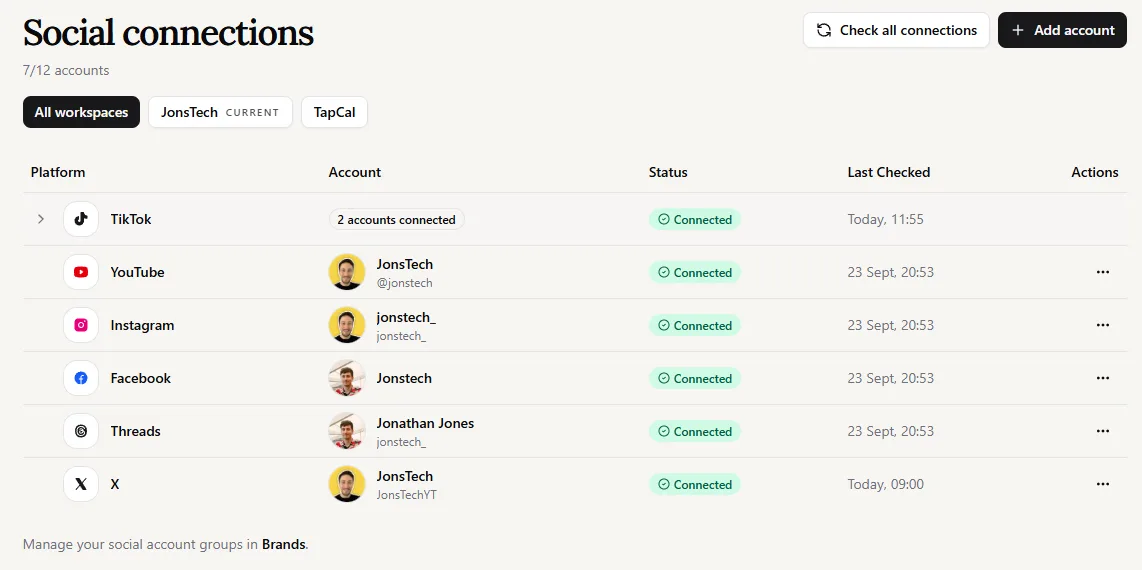
The screenshot shows WooshOut’s Connections screen, including an Instagram row and its connection status. It illustrates where to check the account, but it is not a screenshot of Instagram’s account-type settings or the live authorisation flow. Those screens can vary by account and change over time.
Check the Brand or workspace selector. WooshOut keeps connections organised by Brand, so make sure you are not looking at a different workspace from the one you intend to publish from.
Look at Instagram’s connection status. If WooshOut flags a reconnect requirement, use the account’s available reconnect action instead of repeatedly trying to schedule from a stale connection.
If the account is not listed, choose Add account and follow the Instagram authorisation flow. Sign in to the intended Instagram account, review the access request and complete the flow without closing it part-way through.
During authorisation, check that you have selected the intended account and approved the access needed for publishing. If you manage the account through another person or business, make sure you have the appropriate access to authorise it.
After the flow returns to WooshOut, check Connections again. A completed sign-in is not enough if the account still appears disconnected or requires attention.
Permissions can be the missing piece
A professional account can still fail to connect or publish if WooshOut does not have the necessary authorisation. This can happen if access was declined during setup, if the wrong Instagram profile was chosen, or if a previously granted connection has expired or been changed. Depending on the authorisation route, Meta may present a Facebook login or Page-related selection as part of the flow. Follow the options actually shown for your account rather than assuming every Instagram setup has the same steps.
If you are unsure which access is needed, reconnect through WooshOut and read the permissions screen carefully. Avoid revoking permissions elsewhere unless you are prepared to authorise the connection again. If Meta reports that you lack access to an account or Page, ask the person who administers it to check your access before retrying.
Make sure the post itself fits Instagram
A valid connection does not make every post compatible. WooshOut supports Instagram Reels and image feed posts, with compatibility depending on the media and options selected. In Create post, check that Instagram is selected as a destination, review its format and settings, and resolve any warning or blocked status before scheduling. If you are cross-posting the same source post elsewhere, remember that each network can have different format and caption requirements.
WooshOut’s workflow explains the sequence: connect the account, create a source post, tailor and review its destinations, then publish or schedule. A connection problem should be resolved before the post enters the queue; a provider-side issue after scheduling is shown separately from outcomes on other destinations.See WooshOut’s publishing workflow
One important Facebook distinction
WooshOut’s Facebook publishing is for an authorised Facebook Page, not a personal Facebook profile. That is separate from connecting Instagram: having a Facebook personal account does not turn a personal Instagram profile into a professional account, and connecting a Page does not remove Instagram’s account-type and permission requirements.
If it still won’t schedule
Once you have checked the account type, workspace, connection status, permissions and post compatibility, try the schedule again. If it still fails, note the exact message WooshOut shows and whether the problem appears during account connection, compatibility review or publishing. Those details help distinguish an authorisation issue from a format restriction or a provider error. If the account needs reconnection, fix that before queuing new work; changing account type alone is not a reliable fix for every failure.
In short: a personal Instagram account is not enough for WooshOut publishing. Check that it is Creator or Business, reconnect it in the correct WooshOut Brand if needed, approve the requested access, and review the specific post’s compatibility before scheduling.