

Published 10 October 2026 · By JonsTech
How to Repurpose a Product Demo into Social Media Posts
A practical workflow for turning one SaaS demo into platform-specific social posts with video transcription, tailored captions, compatibility checks and scheduling.
Start with one useful moment in your product demo, not the whole tour. Use its transcript to find the clearest benefit, write a caption for each platform, then publish only where the video and message fit. WooshOut brings those steps into one composer: you can add a video, use transcription as context for AI-assisted copy, adjust destination-specific settings, check compatibility and schedule the selected accounts. It does not edit the video or generate a new one for you.
That distinction matters. Reusing a demo should mean adapting its most useful idea, not pushing an identical caption and format to every network. A short product walkthrough might suit a Reel or TikTok, while a YouTube upload may need a more informative title and description. A text post may be better on Threads or X if the video itself adds little.
1. Pick a moment with one clear point
A demo often contains several possible posts: a frustrating problem, a feature in action, a result, and a next step. Choose one. If the clip moves between unrelated screens or needs a long explanation before it makes sense, it may be too broad for a single social post.
For example, imagine a SaaS demo showing how a user turns a support question into a saved answer. The useful moment is not necessarily the full product tour. It is the before-and-after: a repeated question comes in, the user finds the approved reply, and the response is ready to personalise. That gives you a focused story to build captions around.
2. Use transcription to recover the useful detail
Add your existing video to WooshOut’s Create post composer. Its video transcription can provide context for caption creation and content review. That is helpful when the strongest point is spoken aloud, or when you want to check the wording without replaying the clip repeatedly. Transcription is a text aid; it does not cut, reframe or otherwise edit the video.
For the example above, an illustrative transcript excerpt might be: “Instead of searching through old replies, I open the saved answer, check it, and tailor it before sending.” Treat that as a working example, not a transcript from a real customer or a claim about a particular product. In your own demo, check the transcription against the original audio and correct product names, numbers or technical terms before using it as source material.
Then decide what the post should prove. In this case, the point is that an approved answer is easier to find and adapt. Avoid turning that into a broader promise, such as eliminating support work, unless your product evidence supports it.
3. Draft for the destination, not just the transcript
In the composer, write a shared starting caption, select your connected destinations, then add platform-specific copy where the opening, detail or call to action should change. WooshOut’s AI can suggest captions from the post or video transcript, but you should review and edit the result. The transcript supplies context; it is not a finished social post.
Here is one way the same demo idea could be adapted. These are illustrative caption drafts, not platform rules:
Before: “See our support software in action. Book a demo.”
Short-form video caption: “Still rewriting the same support reply? Here’s how to find a saved answer and make it your own.”
YouTube version: “How to find and personalise a saved support reply” followed by a description explaining the steps shown and who the feature is for.
Text-led version for Threads or X: “A saved reply should be a starting point, not a copy-paste trap. Find it, check it, then tailor it to the person asking.”
The short-form caption leads with a recognisable task. The YouTube version names the tutorial more plainly and can use its separate title and description fields. The text version makes the idea understandable without asking the reader to watch. Keep the actual feature and call to action accurate for your product; do not imply the demo proves more than it shows.
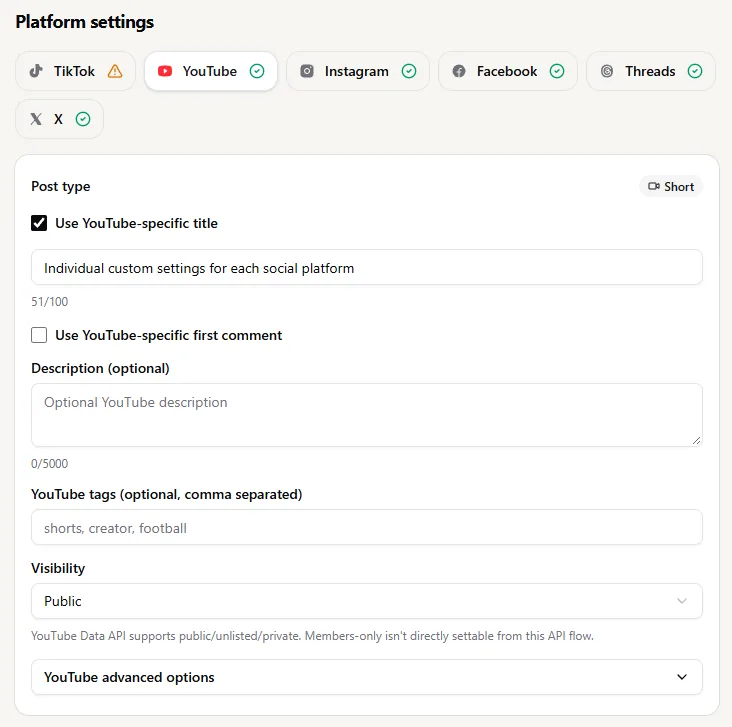
4. Choose formats and settings that fit
A suitable clip may be publishable as a TikTok video, YouTube video, Instagram Reel, Facebook Reel, Threads video or X video. The available post types and settings differ by destination and account. YouTube may classify a suitable upload as a Short based on the media; do not assume you can switch that classification manually. Facebook publishing goes to an authorised Page, and Instagram requires a compatible professional account.
Before scheduling, check the current upload guidance for file type, duration and size. Limits depend on the destination and may change; a file accepted by one network may not suit another. WooshOut’s composer reviews the selected post against the chosen platforms and marks destinations as ready, warning or blocked. Resolve a block, and consider whether a warning means that destination should be left out.
You can also tailor supported settings for each network, rather than assuming one shared setup works everywhere. For example, YouTube has its own title, description, tags and visibility fields. Other destinations expose their own post-type, privacy or reply options where supported. Preview the effective post and check that the caption, settings and clip tell the same story.
5. Schedule the destinations you actually want
Once the copy and destination checks are done, choose Publish now or schedule a date, time and timezone. You do not have to send the video everywhere simply because those accounts are connected. Leave out a platform if the clip, audience or caption is a poor fit; make a separate text or image post later if that would serve readers better.
After the post enters the queue, publishing continues in the background. Each destination has its own outcome, so a successful post is not hidden if another platform fails. Check the Queue or Calendar to see what published and what needs attention; when a safe retry is available, it applies to the failed destination rather than requiring you to rebuild the entire job. The WooshOut workflow explains the connection, compatibility and status checks in more detail.
Keep the demo intact, adapt the publishing
The repeatable method is simple: choose one clear moment, use the transcript to recover its key details, draft and edit captions for suitable destinations, review compatibility, then schedule only the versions you would be happy to publish. WooshOut can reduce repeated setup by keeping the video, captions, destination settings and schedule in one composer. Your judgement still decides what the demo proves and where it belongs.
For more practical examples, browse the WooshOut publishing guides.