

Published 2 November 2026 · By JonsTech
How to Plan a SaaS Social Media Launch Week
A practical launch-week sequence for a small SaaS team, with a sample plan and a simple way to draft, review and schedule posts in WooshOut Campaign Studio.
A small SaaS team can plan a useful launch week by moving from the problem it solves to a product demonstration, a specific use case, the launch announcement and a follow-up. Draft the sequence together, then schedule only as much as the team can realistically review and support. WooshOut’s Campaign Studio can help turn a product brief into editable posts; the Calendar and Queue make it easier to check what is due before launch.
The aim is not to fill every day or publish the same copy everywhere. It is to give people several clear ways to understand the product, while leaving room to answer questions and adapt if launch plans change.
Build the story before the schedule
A launch-week sequence works best when each post has a different job. Start with the audience’s problem, show how the product addresses it, make the use case concrete, announce that the product is available, then follow up with an answer, tip or next step. That gives the week a thread without requiring a brand-new idea every morning.
For a small team, choose a cadence you can maintain alongside product work and customer support. Five planned posts do not have to mean five separate production sessions. A demo can provide material for a short clip, a screenshot post and a written explanation, provided each version is adapted to suit its destination.
A sample launch-week plan
The schedule below is a hypothetical example for a fictional SaaS app called FlowNote, which helps freelancers organise client follow-ups. It is a planning template, not a recommendation based on performance data. Shift the days, formats and frequency to fit your audience and capacity.
Monday, the problem: Describe the missed follow-up or scattered notes that the intended customer recognises. Ask a relevant question or offer one useful observation, rather than leading with a list of features.
Tuesday, the demonstration: Show a short walkthrough of one task in FlowNote, such as turning a client conversation into a reminder. Keep the post focused on a single action and its purpose.
Wednesday, the use case: Explain how a freelancer might use the app during a normal working week. A concrete scenario helps make the product relevant without implying every customer works the same way.
Thursday, the launch: Say clearly that FlowNote is available, who it is for, and where people can find it. Include a direct next step, such as trying the product or reading the setup guide.
Friday, the follow-up: Answer a question raised during the week, share a practical getting-started tip, or clarify what the product does not do. If the team has no useful update, it is fine to pause rather than post for the sake of the calendar.
This example uses one post per weekday, but that is not a rule. A team with limited review time might publish three well-prepared posts instead. Equally, a launch with a live event or a major release may call for a different rhythm. Decide what you can make, approve and respond to before filling in times.
Draft the series in Campaign Studio
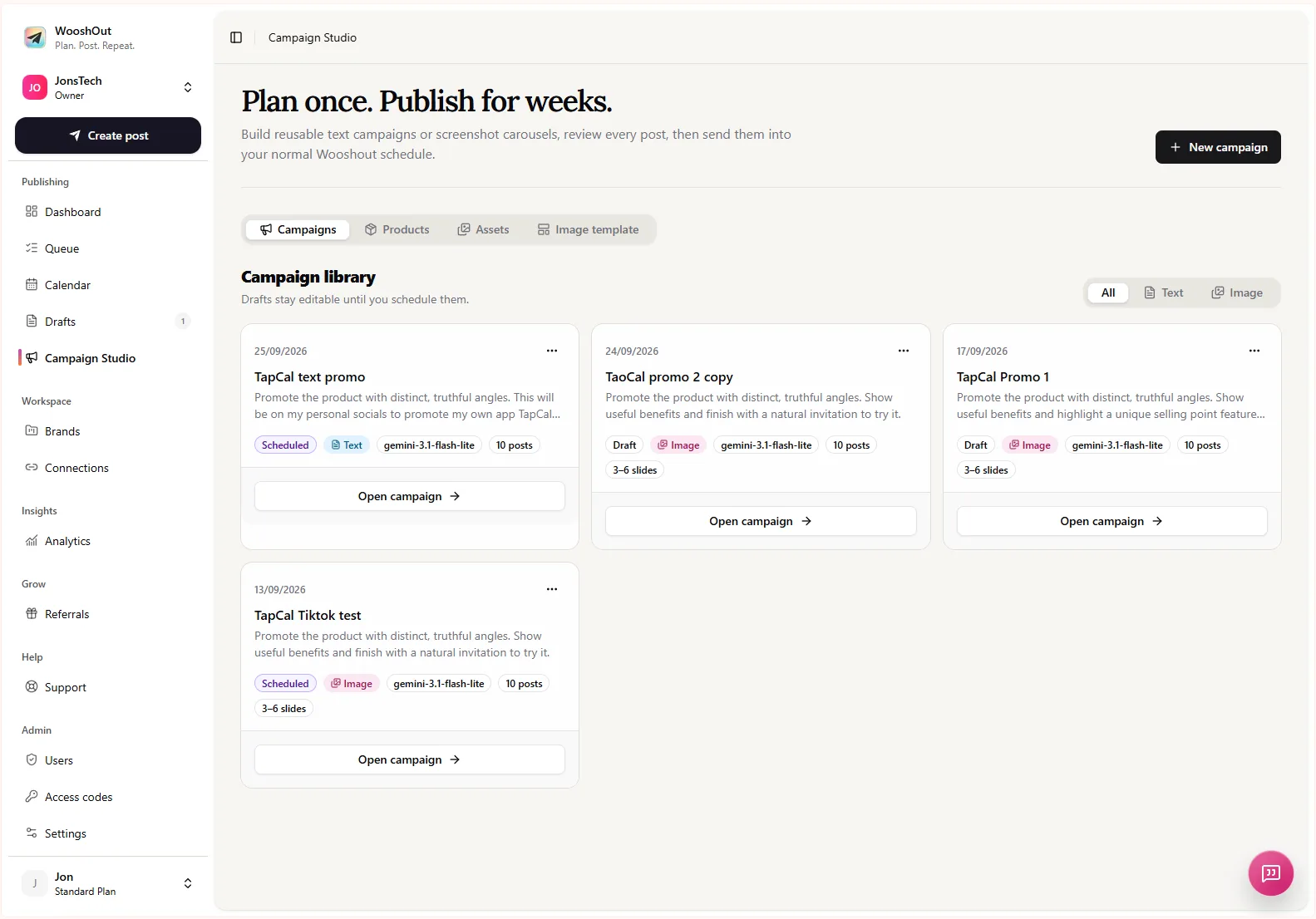
For a text series, prepare a concise product description, the audience you want to reach and a brief that sets the launch objective. For the fictional FlowNote example, the brief might ask for posts explaining the follow-up problem, demonstrating a reminder workflow and introducing the launch. Keep the request grounded in features that exist; the AI can help shape a first draft, but it cannot verify your product claims for you.
Review each draft for accuracy, tone and variety. Remove repeated points, check that calls to action lead somewhere useful, and replace vague claims with product details a reader can verify. If the campaign uses screenshots, select assets that show the relevant feature and check that any text inside them is still legible at the intended size.
Before scheduling, choose connected destinations that suit each post. WooshOut lets you review the selected accounts and make supported platform-specific changes, such as adjusting captions or settings. A shared idea can travel across networks, but it may need a different opening line, length or format for each one. Check the compatibility indicators and account connection status rather than assuming every draft is ready for every destination.
Choose posting times you can stand behind
Set a start date, posting times and the relevant timezone in the campaign schedule. Pick times that suit your audience and that someone on the team can monitor if replies or launch questions are likely. There is no need to pretend a particular hour will guarantee attention. If you have no reliable audience data, use a reasonable working schedule and learn from provider-reported results later.
Look at the schedule preview before committing. Is the launch announcement going out after the product is genuinely available? Does the demo appear before the post that refers to it? Are two posts competing for attention on the same day? A quick sequence check often catches problems that are easy to miss when reviewing drafts one at a time.
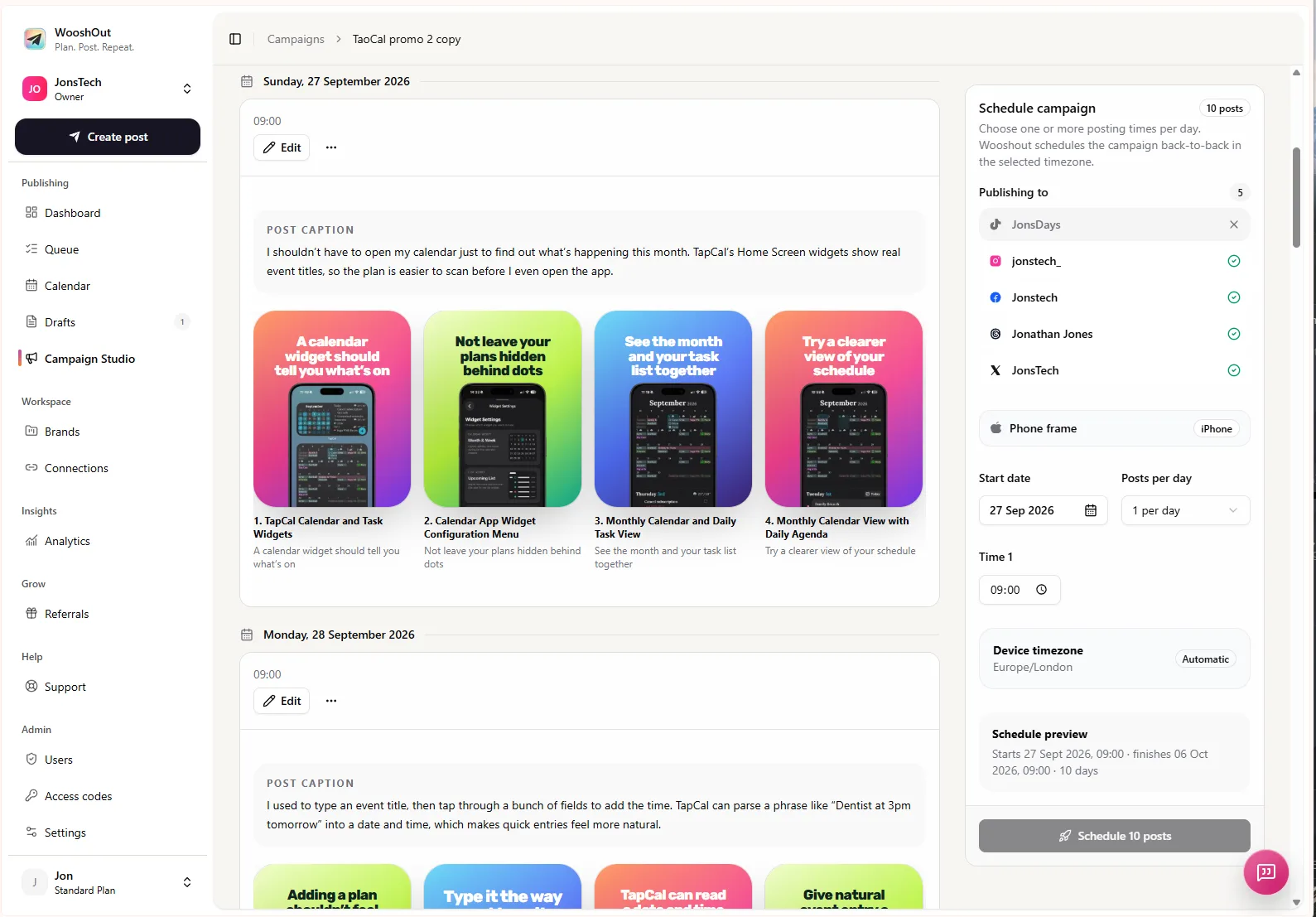
Check the Calendar and Queue before launch
After scheduling, use the Calendar to see how the week is laid out and the Queue to inspect upcoming publishing work. Campaign posts join the normal publishing workflow, so you can check dates, times and destinations alongside other scheduled content.
Check the connection health of the accounts you plan to use and leave a little room for changes. WooshOut publishes each destination as a separate operation, so one result does not stand in for every network. If a destination fails, inspect its status and error details; retry only when the interface offers a suitable option. Scheduling reduces daily setup, but it does not remove the need to check what happened.
The practical benefit is a prepared plan, not a promised launch outcome. Your posts may help explain the product consistently, but reach, engagement and sign-ups depend on factors beyond a scheduler. Keep time to answer people, notice useful questions and make sensible changes if the product or launch date shifts.
If you want to map the publishing process before setting up a campaign, read WooshOut’s workflow guide. For plan details and current allowances, check pricing before you choose a campaign size.