

Published 30 September 2026 · By JonsTech
Cross-Platform Social Media Post Publishing Checklist
A practical pre-publish checklist for adapting one social post to several platforms, checking destinations and media, and scheduling with fewer surprises.
Before scheduling one post to several platforms, check five things: the right accounts are selected, the copy and settings suit each destination, the media fits, compatibility warnings are understood, and the date, time and timezone are correct. WooshOut’s Create post flow brings those checks into one place, but a shared post still needs a human review. A green status or a scheduled time is not a guarantee that every provider will publish successfully.
That review matters whether you are launching a small app, promoting a new feature or sharing a creator video. One source post can save you from recreating the same publishing job repeatedly, while destination-specific changes help the finished posts feel intentional rather than copied everywhere.
1. Confirm every account and destination
Start with the destination list, not the Schedule button. Check the platform and the specific account name beside it. If you manage several brands or multiple accounts on one network, it is easy to select the right platform but the wrong audience.
Then check whether the destination is suitable for this kind of post. WooshOut connects to TikTok, YouTube, Instagram, Facebook, Threads and X, but those networks do not all accept the same post formats. For example, YouTube publishing is for video, while Facebook publishing uses an authorised Page rather than a personal profile. Instagram needs a compatible professional account. If a channel is unavailable or its connection needs attention, deal with that before building a schedule around it.
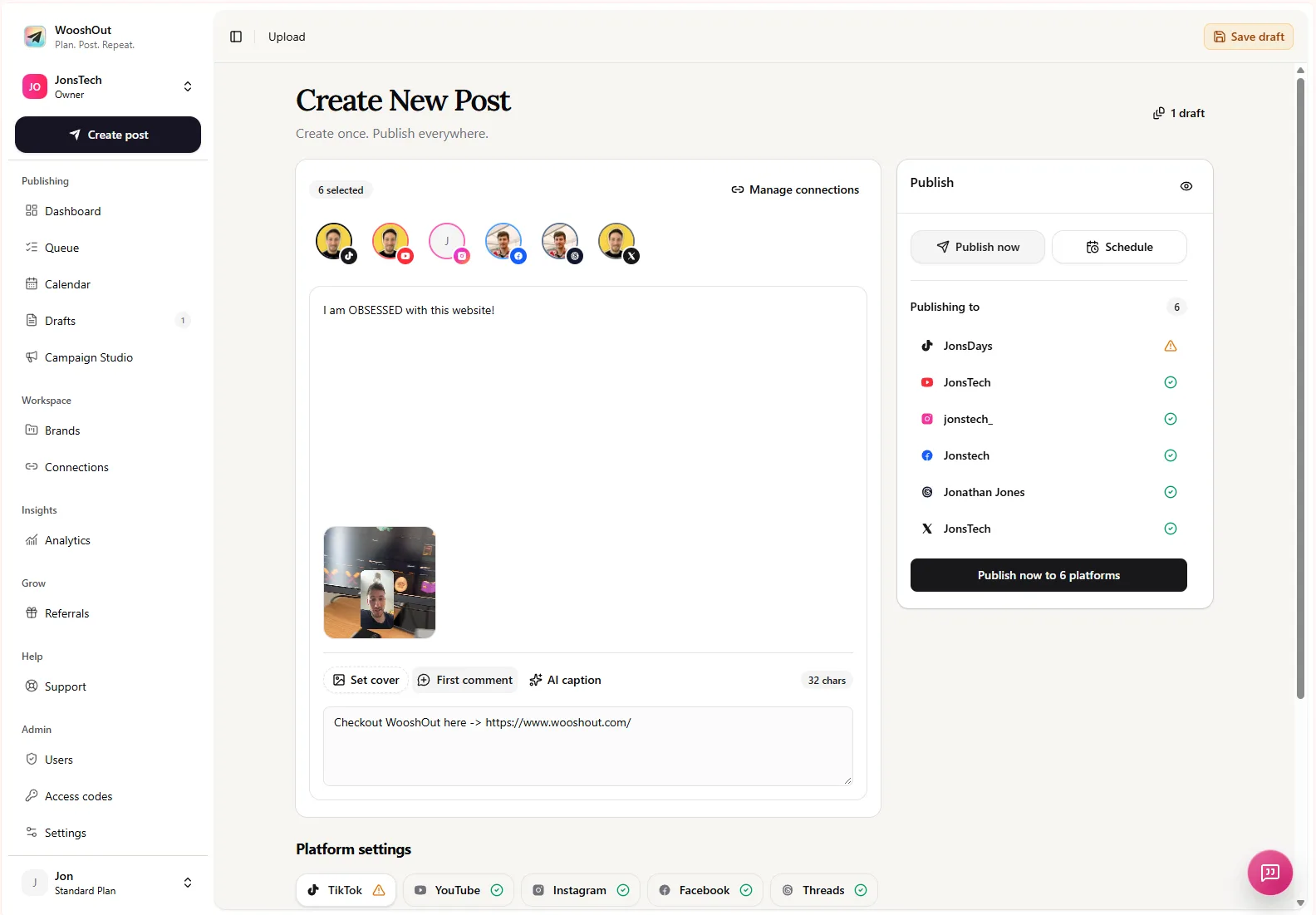
In WooshOut, the Create post composer lets you choose connected destinations for one source post. Check the selected-account icons and the publishing panel before moving on. Connection-health checks can flag known problems, but account permissions and provider requirements can change, so resolve any reconnect prompt rather than assuming an old connection is still ready.
2. Adapt the caption and settings
A shared caption is a useful starting point, not necessarily the final version for every network. Read each destination’s effective copy and ask whether it makes sense there: Is the opening clear? Does the call to action fit? Are hashtags, links or references still relevant? Remove wording that depends on context the viewer may not have.
For example, imagine an indie developer sharing a short screen recording of a new calendar feature. As a hypothetical starting point, the TikTok version might open with the problem the feature solves and use a concise caption that supports the demo. The Instagram Reel version could keep the same core video but use a caption that explains the benefit and gives viewers a clear next step. The footage is shared; the framing is adjusted. Whether either version is right depends on the creator’s audience and the current options available for those accounts.
Review settings as well as words. The available options differ by network and may affect details such as post type, visibility, title, description, tags or replies. Do not assume that choosing a destination automatically selects the setting you intended. In WooshOut, shared copy can be supplemented with platform-specific content and settings; check each platform tab and review the final version before publishing.
For a closer look at the stages from account connection through publishing and tracking, follow WooshOut’s publishing workflow.
3. Check the media and its fit
Preview the actual media you plan to send, not just the caption. Check that the right file is attached, the image order is correct, and the video starts and ends where you expect. Look for text or important visual details that might be cropped or hard to read in a different placement. A vertical video may suit short-form destinations, but that does not make every crop, duration or format appropriate for every account.
WooshOut’s common composer flow allows one video per post, and supported media and limits vary by destination. Treat upload guidance in the app as workflow guidance, not as a guarantee of every platform’s current requirements. If a post uses an unusual aspect ratio, a long clip or a large file, check the current provider rules and the live composer guidance before scheduling.
4. Read compatibility warnings before you proceed
Compatibility checks help you spot known issues before a post enters the publishing queue. WooshOut can show a destination as ready, warning or blocked. Treat those states as prompts to review the post, not as a promise of delivery: a provider can still reject a request or encounter a problem after scheduling.
A blocked destination needs attention before you proceed. A warning calls for judgement: read what it refers to, decide whether the post still makes sense there, and change the content or selection if needed. If a connection requires authorisation again, reconnect it rather than scheduling work to an account that is not ready.
Keep the outcomes separate after publishing, too. Each selected destination has its own provider operation, so one failure does not automatically mean every other destination failed. Check the publishing timeline for individual statuses and details; where WooshOut offers a safe retry, use it for the destination that needs attention.
5. Preview the effective post
Before you schedule, review what each selected destination will receive: the media, caption, available settings and any first comment you have added. This final pass catches small but consequential mistakes, such as a platform-specific caption that was never updated, a call to action that points to the wrong place, or a setting left over from another post.
Does the caption make sense without the context of another platform?
Is the chosen post type right for this destination?
Are any first comments, titles, tags or reply settings intentional?
Does the preview show the media and text you expect?
6. Set the date, time and timezone
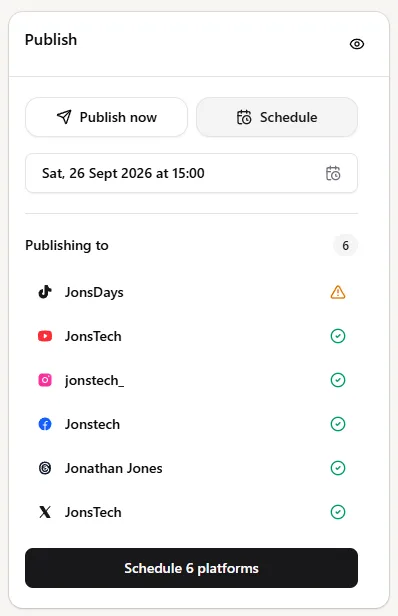
Finally, check the date, time and selected timezone in the scheduling panel. A correct clock time in the wrong timezone can put a post in the wrong part of the day for your audience. If you coordinate with people in different regions, agree which timezone the schedule uses and check any calendar entries that fall near a date change.
Choose a schedule that leaves you room to respond after the post goes live. Then confirm the destination count and the final Schedule action. WooshOut’s Calendar and Queue help you review upcoming posts and publishing outcomes afterwards, but scheduling is not a substitute for checking how each provider reports the result.
For posts aimed at audiences across regions, see the practical guide to scheduling social media posts across time zones.
A quick pre-publish checklist
Confirm the connected accounts and selected destinations.
Tailor captions and settings for each network.
Check the media, preview and current format guidance.
Resolve blocked checks and understand any warnings.
Verify the date, time and timezone before scheduling.
The point of a multi-platform scheduler is not to make every post identical. It is to keep the source work together while giving you space to make the changes each destination needs. WooshOut’s features overview explains how its composer, platform-specific controls and publishing status fit together.
Editorial note: assets to confirm before publication
Please supply current screenshots of the composer’s destination-specific settings, the effective-post preview, and the ready, warning and blocked compatibility states. Also provide a worked example showing one source video and caption adapted for two suitable networks. Before publishing this article, verify the live interface, supported options, upload limits and provider requirements; these can change.