

Published 29 September 2026 · By JonsTech
How to Schedule Social Media Posts Across Time Zones
A practical way for solo creators and small teams to plan posts for different regions, confirm the selected timezone and keep upcoming publishing work visible.
To schedule posts for audiences in different time zones, choose the region each post is meant to reach, settle on a posting rhythm you can maintain, and schedule each approved post for its intended date and time in the timezone shown by the scheduling control. Then check the Calendar and Queue before publishing. WooshOut supports scheduled publishing and background processing; it does not pick the best time for your audience or guarantee reach.
That distinction matters. A scheduled post is a job to publish at a set time, not a promise that every follower will see it then. And if you choose one fixed timezone for a post, people in other regions will encounter it at a different local time.
Start with the audience, not the clock
Before opening a scheduler, decide which audience a post is for. A solo app developer might prioritise users in the United States for a product update, while a small marketing team may plan one announcement for the UK and a separate follow-up for North America. In each case, choose the timezone that matches the post’s intended audience, rather than relying on a time you remember from your own routine.
Use a named region or city when the scheduling control offers one, and check it again when clocks change seasonally. A fixed UTC offset can stop matching local time after a daylight-saving change. If you cannot confirm which timezone the scheduler is using, pause and check before adding a week of posts.
A practical scheduling workflow
Pick a priority timezone for each post. If a post is meant for a particular region, use that region’s local time as your planning reference. For a mixed audience, decide which region matters most for that post, or make separate posts for different regions when the message and cadence justify it.
Choose a realistic cadence. Start with the number of posts you can write, review and support with replies. A few well-prepared posts are easier to track than a full calendar that depends on rushing every day.
Prepare and approve the content. Check the caption, media, destination accounts and any platform-specific settings before scheduling. One source post can be adapted for selected networks, but the same wording or format may not suit every destination.
Set the intended date, time and timezone in the scheduling flow. Confirm the selected timezone before you enqueue the post; do not assume the displayed time is automatically the audience’s local time.
Review the Calendar and Queue. Check dates and times in the Calendar, then use the Queue to inspect upcoming work and its publishing status. After posts are due, review the separate destination outcomes and deal with any failure that needs attention.
WooshOut’s public feature information describes timezone-aware scheduling. Its Campaign Studio scheduling panel also shows a device-timezone field. Check the actual timezone displayed in your scheduling flow, particularly if your intended audience is in a different region from your device or workspace. The public information does not establish that each Calendar entry displays its timezone label, so use the scheduling control as your source of truth for that selection.
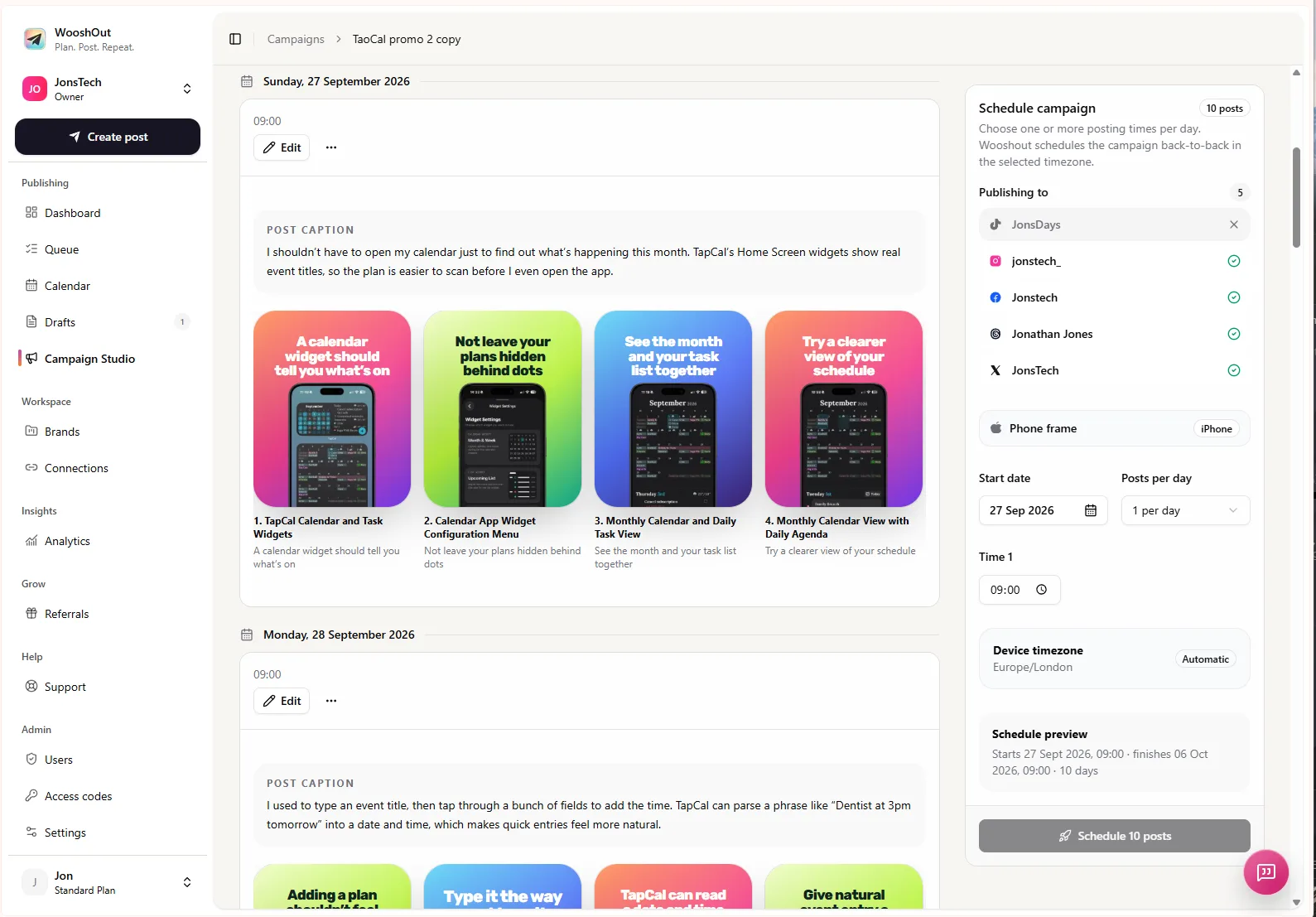
Sample week: posts planned for New York time
The example below is hypothetical. The times are there to show how a schedule can be written down and checked, not as recommendations for when to post. Assume the creator is planning for an audience in New York and selects America/New_York in the scheduling control. Each scheduled item should then appear on its chosen date in the Calendar and in the upcoming Queue. Confirm the timezone shown in the live control rather than inferring it from the calendar card.
Monday, 5 October, 09:00: product update post
Tuesday, 6 October, 12:30: short feature demonstration
Wednesday, 7 October: no post planned
Thursday, 8 October, 17:30: answer to a common product question
Friday, 9 October, 09:00: reminder with a different creative or angle
Saturday, 10 October, 11:00: optional behind-the-scenes post
Sunday, 11 October: no post planned
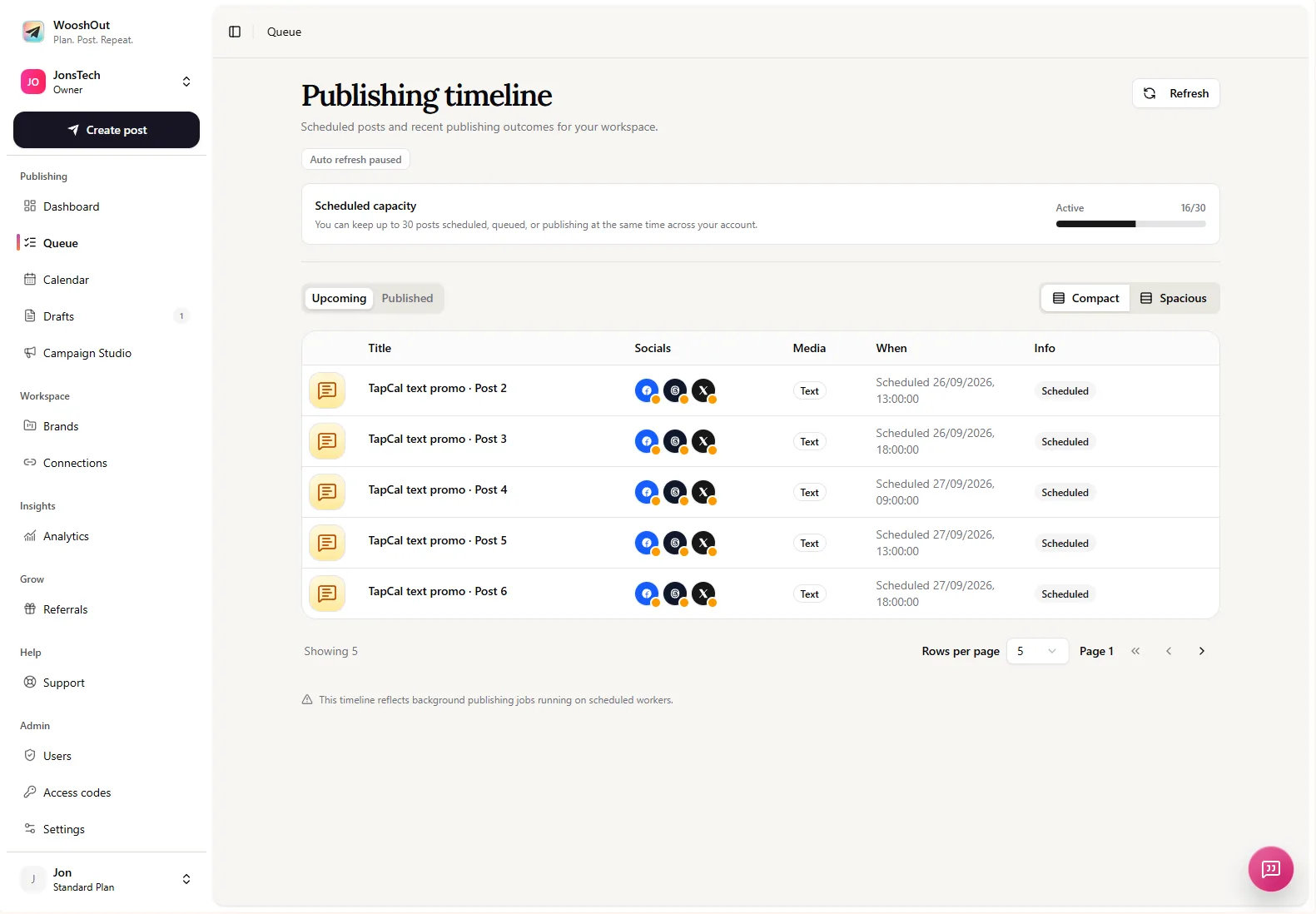
The gaps are intentional: a weekly plan does not need an item on every day. In the Calendar, these entries are spread across their scheduled dates; the Queue gives you a more detailed view of upcoming posts and their destination statuses. WooshOut’s Calendar and Queue help you check what is planned, but the example times do not predict engagement.
When you have audiences in several regions
There is no need to force one publication time to work for everyone. For a global product launch, you could plan a post for one priority region, then schedule a distinct follow-up for another region if there is a clear reason to do so. Keep the messages and publishing dates far enough apart to avoid turning regional scheduling into repetitive cross-posting.
WooshOut supports publishing to TikTok, YouTube, Instagram, Facebook, Threads and X. What can be published, and which settings are available, differs by destination. For example, Facebook publishing uses an authorised Page, while Instagram publishing requires a compatible professional account. Check compatibility and account health before scheduling; a warning or blocked destination needs attention rather than an assumption that every platform will publish identically.
Check what happened after the scheduled time
Scheduling and publishing are not quite the same as confirming a successful result. WooshOut processes scheduled work in the background, so the browser does not need to stay open. Each selected destination has its own outcome: if one platform publishes and another fails, those results remain separate in the publishing timeline. Use the Queue to inspect details and retry a failed destination when the app offers a safe retry.
For a walkthrough of the connect, create, review, schedule and track process, see WooshOut’s publishing workflow. The useful habit is simple: choose the audience timezone deliberately, verify it at scheduling, and check the Calendar and Queue rather than relying on memory.