

Published 4 October 2026 · By JonsTech
How to Manage Social Media Accounts for Multiple Brands Without Posting to the Wrong One
A practical way to organise social accounts, workspaces, reusable assets and scheduled posts for several brands in WooshOut, with a final check before you publish.
Create a separate WooshOut Brand for each business, connect that business’s social accounts to its Brand, and check the active workspace before you compose or schedule. Then confirm the selected destinations and review that Brand’s calendar. This simple routine helps keep accounts and scheduled work organised without relying on memory. WooshOut’s Brands workspace shows the separate-workspace approach in practice.
Start with one Brand per business
A Brand in WooshOut is a workspace for a business and its social connections. If you manage, for example, a software product and a separate consultancy, create one Brand for each rather than connecting everything in a single workspace. Each Brand has its own connected accounts and workspace views, helping keep its publishing work distinct.
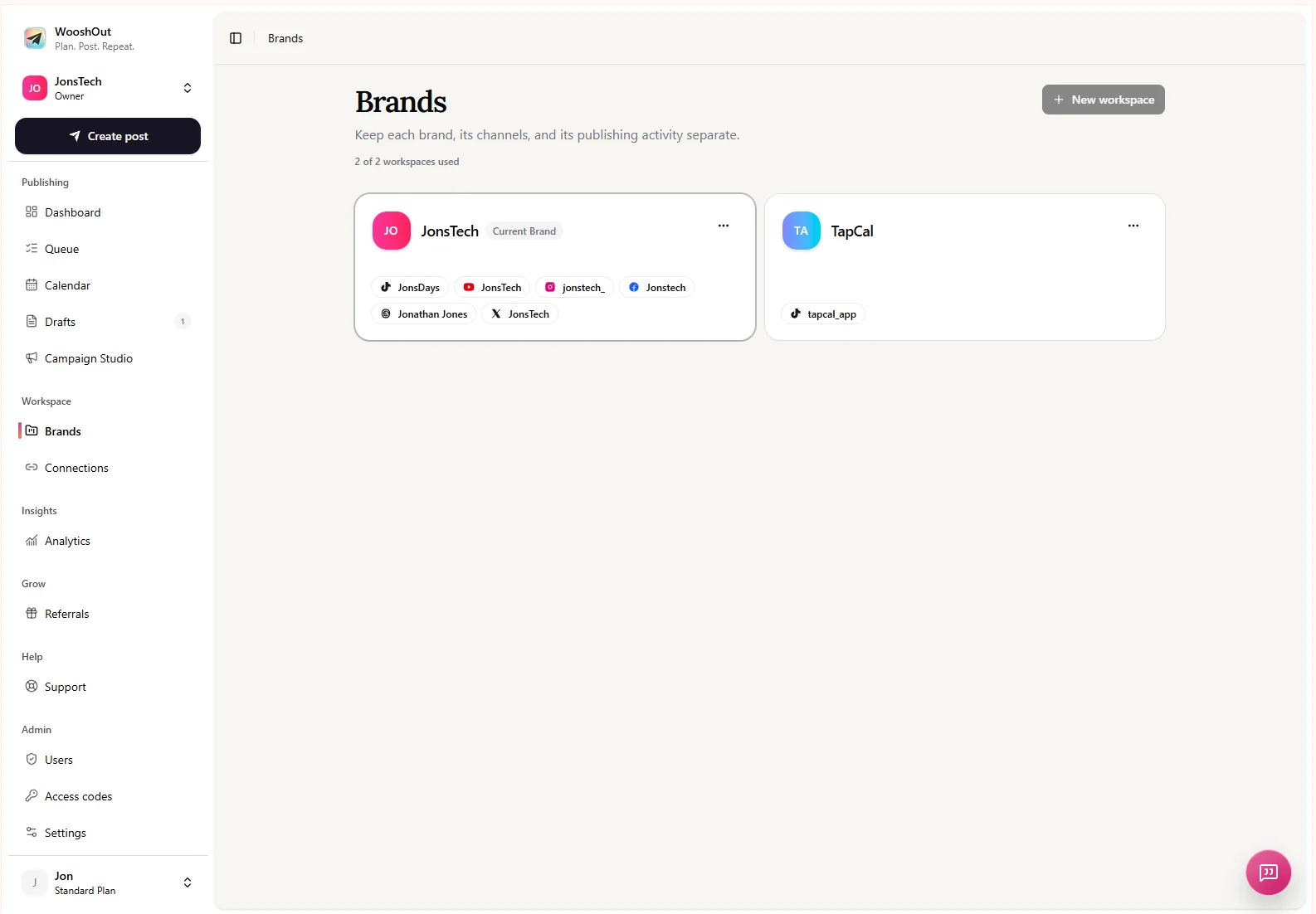
That distinction is useful even if you work alone. When you open a Brand, its account list and scheduled work give you context for the business you’re handling. It’s an organisational safeguard, not a team-permissions or approval system: don’t assume it controls who can access your account or signs off a post.
Connect each business’s accounts to its own workspace
Switch to the Brand you’re setting up, then connect the social accounts that belong to that business. WooshOut supports TikTok, YouTube, Instagram, Facebook, Threads and X, subject to each provider’s authorisation and account requirements. Facebook publishing is for an authorised Page, and Instagram requires a compatible professional account.
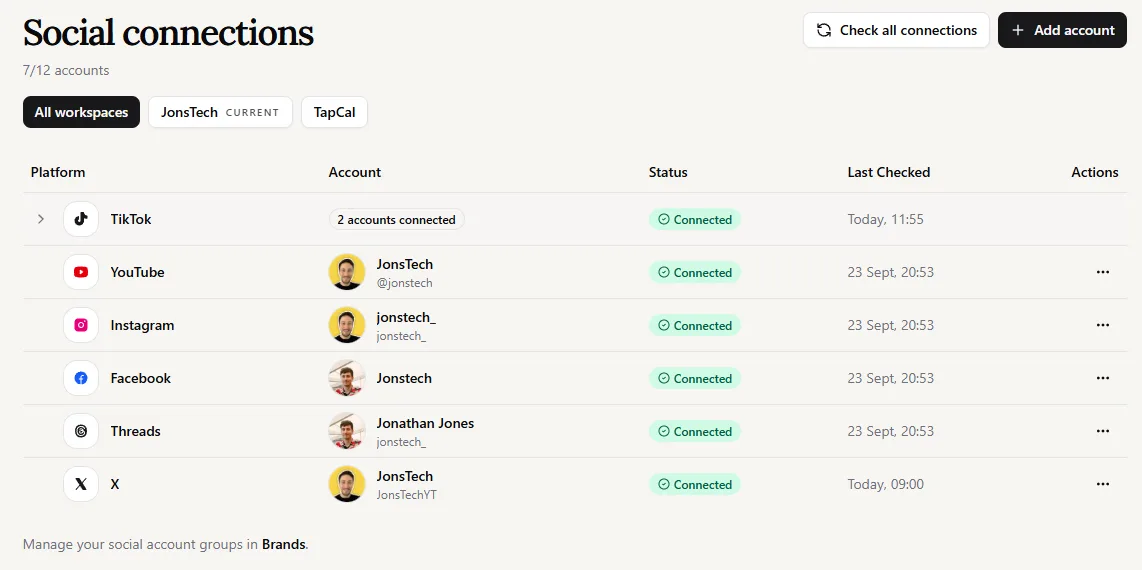
Before adding an account, check the workspace tabs or Brand selector on the Connections page. If you’re setting up the consultancy, for instance, make sure that Brand is active before connecting its Instagram account. If you spot an account under the wrong Brand, pause and correct the setup before creating posts. A connection-health warning or reconnect prompt is also a reason to resolve access before scheduling new work.
Make switching workspaces part of composing
A separate workspace only helps if you check it at the moment you publish. Before opening Create post, verify the active Brand. Then write the post, choose destinations from that Brand’s connected accounts, and review the per-platform caption and settings. WooshOut lets you prepare a source post and adapt it for selected networks, but the same copy or format may not suit every destination.
For a hypothetical example, imagine you’re preparing a feature announcement for a calendar app while also managing a design studio. The app announcement belongs in the app’s Brand, sent to its selected accounts. The studio’s client work stays in its own workspace. If both businesses have social accounts on the same network, don’t rely on the platform name alone: check the account name shown beside each selected destination.
Before scheduling, take a moment to check three things: the active Brand, the destination account names, and the post preview. If anything doesn’t match the business you’re publishing for, stop and switch or edit before confirming. WooshOut’s publishing workflow explains the steps from composing and checking destinations to scheduling and tracking outcomes.
Use the calendar as a second check
After scheduling, open Calendar in the same Brand and check that the post appears on the expected date. The calendar shows scheduled posts and publishing outcomes for the current workspace; the Queue offers a closer view of individual publishing progress. Reviewing both can catch a mix-up before you assume a post is sitting in the right business’s schedule.
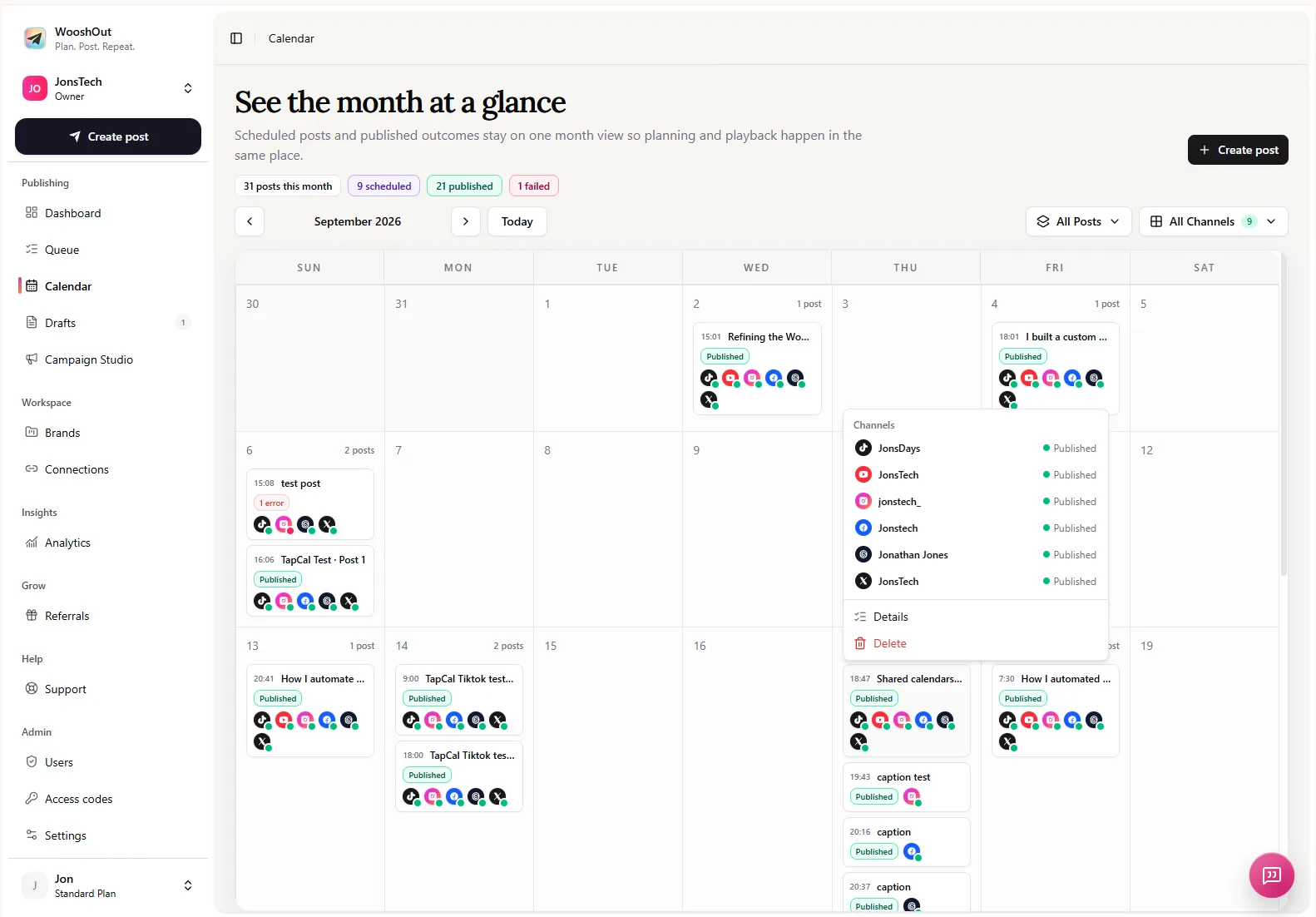
If you publish to several networks, outcomes are tracked separately by destination. So if one account succeeds and another needs attention, you can see which result belongs to which publishing job. Check the calendar or queue after scheduling, especially when working across Brands or when an account has recently needed reconnecting.
Share assets selectively, not accounts
Some creative assets may be useful for more than one business: a product screenshot, a brand-approved image, or a reusable campaign graphic. WooshOut’s asset library supports collections that can be made available across your own Brands. Use that option selectively, and check the current controls in your account before relying on it. Sharing selected assets doesn’t mean the Brands share social connections or schedules.
Keep business-specific assets in the workspace where they belong, and give collections clear names so you can tell what they contain. For instance, a set of app-interface screenshots might be useful for the app Brand but irrelevant to a service business. Reusing a suitable asset can reduce repeat setup; it doesn’t remove the need to check the final creative, caption and destination.
Check the plan before creating more workspaces
Brand and connection limits depend on the plan, and plan details can change. If you’re adding another business, check the live pricing page before building your setup around a particular workspace limit. The Brand screen can also show how many workspaces are in use on your account.
A short pre-publish routine
Switch to the Brand for the business you’re publishing for.
Check that its intended social accounts are connected and healthy.
Compose the post and confirm the selected account names, captions and settings.
Preview the post, then schedule it or publish now.
Return to that Brand’s Calendar or Queue to check the scheduled item and its status.
The key habit is to treat the active Brand as a publishing check, not just a filing choice. Separate workspaces organise connections and views; confirming the Brand, destinations and calendar before publishing helps you keep each business’s posts where they belong.