

Published 5 October 2026 · By JonsTech
Why Won’t My Scheduled Social Post Publish? Check Connections First
A practical pre-scheduling check for the right Brand, healthy account connections and platform compatibility, plus what to do if one destination fails.
Before you queue a social post, check three things: the right Brand and account are selected, the account connection is healthy, and the post fits that destination. In WooshOut, start on Connections, reconnect any account that asks you to, then review the composer’s compatibility indicators before scheduling. These checks can catch known problems early, but they cannot guarantee a network will publish successfully.
1. Confirm the Brand and account
If you manage several brands, first check which Brand or workspace is active. Each Brand has its own connected accounts and publishing views, so a channel you use elsewhere may not be available in the workspace you are looking at. Then check the actual destination account, not just the platform icon. It is easy to select the right network but the wrong page or profile.
For example, suppose you are scheduling an announcement for a small software company. Confirm that the company’s Facebook Page is selected, rather than expecting a personal Facebook profile to receive the post. For Instagram, check that the connected account is a compatible professional account. If either account is missing, switch to the relevant Brand and inspect its connections before rebuilding the post.
2. Check connection health before you queue
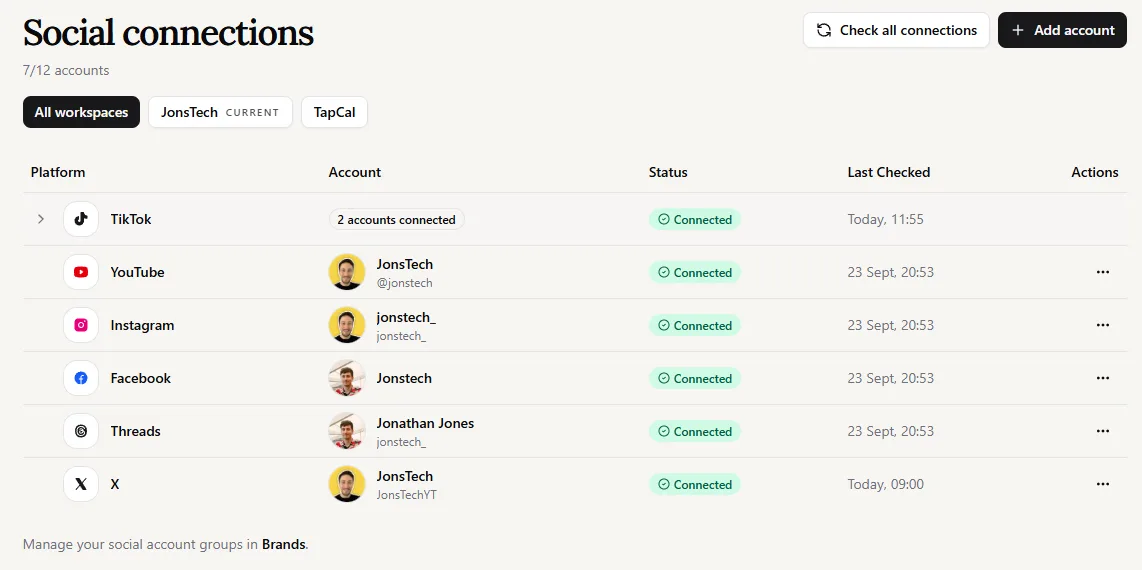
Open Connections and look for the status beside each account. WooshOut can flag a known authorisation problem and prompt you to reconnect. Follow that prompt before creating new publishing work: an account that needs reconnecting can block new jobs from being queued.
If you have just switched accounts, changed access or moved to another Brand, take a moment to confirm the status for the exact destination you plan to use. A healthy connection for one account does not prove that another account on the same platform is ready. If WooshOut asks you to reconnect, complete the provider’s authorisation flow and check the status again before returning to the composer.
3. Review compatibility in the composer
A connected account is only one part of the check. In Create post, select your destinations and inspect the readiness indicator shown for each one. WooshOut marks destinations as ready, warning or blocked when it identifies a known issue with the account, media, post type or settings. Read the warning and adjust the post or destination as needed. A warning is a reason to review; it is not the same as a guarantee that publishing will fail.
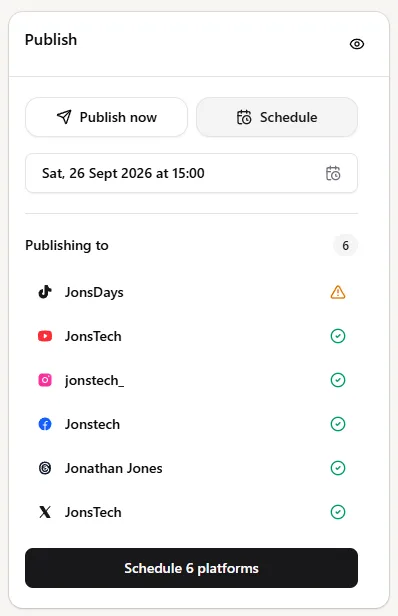
For instance, a video may be suitable for one selected account but need attention for another. Check the destination-specific settings and preview, rather than assuming the shared post will behave identically everywhere. WooshOut lets you keep the core post while adapting supported captions and settings for each network.
A quick check for Facebook and Instagram
Before scheduling a Facebook post, make sure the selected destination is an authorised Page. For Instagram, check that the connected destination is a compatible professional account and that the connection is still healthy. These are different account requirements, so selecting “Facebook” or “Instagram” alone is not enough. If access or account type has changed, resolve that with the provider, reconnect in WooshOut if prompted, and then recheck the composer.
What to do when a scheduled post still fails
Scheduling submits a separate publishing operation for each selected destination. One can succeed while another needs attention, so check the outcome for each account rather than treating the post as one all-or-nothing result. In WooshOut, look in the Queue or Calendar for the status and any available error details. If a safe retry is offered, you can retry the destination that failed without assuming the others need to be sent again.
If a post is still upcoming, check whether its account now needs reconnecting and whether the selected content fits that destination. If it has already failed, read the destination’s error details before changing the post or retrying. Some issues are account-related; others may be caused by platform rules, provider availability or the particular media and settings. A preflight check can highlight known concerns, but it cannot predict every provider response.
A short pre-scheduling checklist
Confirm the active Brand or workspace.
Select the intended account on each platform.
Open Connections and resolve any reconnect prompt.
Review each destination’s compatibility status, content and settings in the composer.
After scheduling, check Queue or Calendar for the outcome of each destination.
The aim is not to add a long approval ritual to every post. It is to catch the straightforward issues before they enter the queue, and to make any partial failure easier to understand. For the complete connect, compose, review and publish sequence, see WooshOut’s publishing workflow.